

Create a WiFi QR code that lets guests connect instantly. Learn how to generate, customize, and display WiFi codes for home, office, or business.
A WiFi QR code is a scannable image that stores your network credentials—name, password, and security type—letting guests connect instantly without typing. Point a phone camera at the code, tap to confirm, and you're connected.
No more spelling out passwords letter by letter. Here's how to create a WiFi QR code that works on every phone.
What Is a WiFi QR Code?
A WiFi QR code encodes your network credentials: name (SSID), password, and security type. When someone scans it, their phone prompts them to join the network automatically. It's the simplest way to share network access without revealing your password verbally.
Works on:
- iPhone (iOS 11+)
- Android (most versions)
- Tablets and other mobile devices
No Internet Required
WiFi QR codes work offline. The credentials are encoded directly in the pattern—no server or internet connection needed for the scan to work.
WiFi QR Code Usage (QR Code Maker Platform Data, Q1 2026)
93% of WiFi QR codes on our platform are created as static. This makes perfect sense: WiFi credentials are encoded directly in the pattern, work offline, and don't need scan tracking. When your content is permanent, static is the right choice.
How to Create a WiFi QR Code
Step 1: Gather Your Network Information
You'll need:
- Network name (SSID): Exactly as it appears in your WiFi list
- Password: Case-sensitive, exact match
- Security type: WPA/WPA2 (most common), WPA3, WEP, or None
Common Mistake
The most common reason WiFi QR codes fail: typos in the password or network name. Copy-paste when possible, or double-check every character.
Step 2: Choose a QR Code Generator
Use any generator that supports WiFi codes. Our WiFi QR Code Generator makes WiFi codes that are:
- Free forever (they're static codes)
- No account required
- No expiration
Step 3: Enter Your Credentials
Input your network name, password, and security type. The generator encodes this information into the QR pattern.
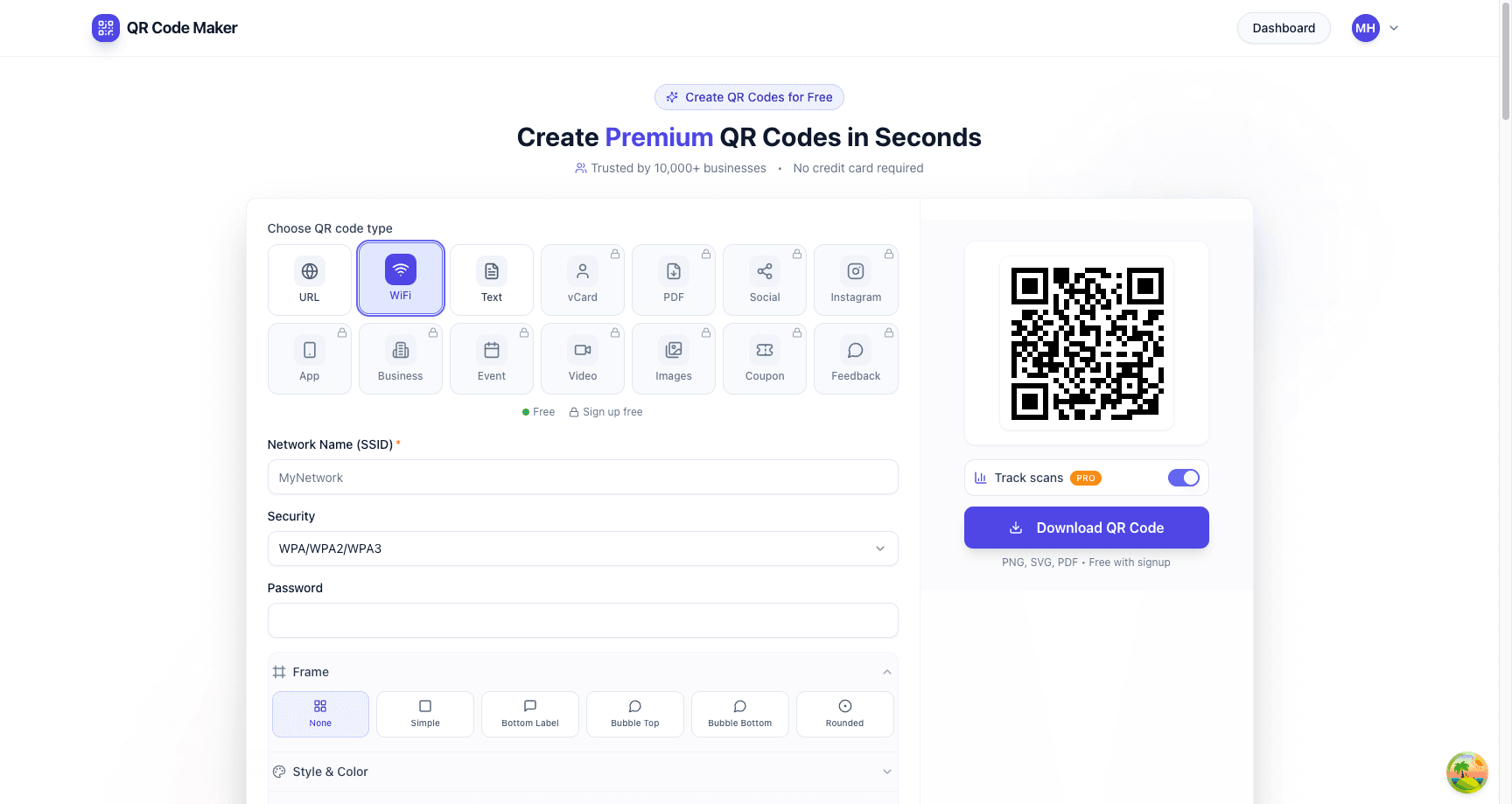
Step 4: Customize (Optional)
Add colors that match your space or branding. Just maintain high contrast—the code needs to scan reliably.
Step 5: Test Before Printing
Critical step: Scan the code with your own phone (not already connected to the network) to verify it works. Test on both iPhone and Android if possible.
Step 6: Download and Display
Download in PNG for digital display or SVG for print. Display somewhere visible to guests.
WiFi QR Code Format
WiFi QR codes use a specific format:
WIFI:T:WPA;S:NetworkName;P:Password;;
Where:
T:= Security type (WPA, WEP, or nopass)S:= Network name (SSID)P:= PasswordH:true= Hidden network (optional)
You don't need to know this format—generators handle it automatically. But it explains why the information must be exact: the format is rigid.
Where to Display Your WiFi QR Code
Home Use
Best locations:
- Near the router
- In the entryway or mudroom
- On the refrigerator
- In guest bedrooms
Display options:
- Framed printout
- Laminated card
- Sticker
Business Use
Best locations:
- At the entrance
- On reception desks
- At each table (restaurants/cafes)
- In waiting areas
- On room cards (hotels)
Display options:
- Table tents
- Wall plaques
- Counter stands
- Menu cards
Pro Tip
Include a simple instruction: "Scan for WiFi" or "Point your camera here to connect." Not everyone knows QR codes can do this.
Guest Network: The Smart Approach
Don't share your main network password. Create a separate guest network instead:
Why Use a Guest Network?
- Security: Guests can't access your devices, files, or printers
- Easy rotation: Change the guest password without affecting your devices
- Bandwidth control: Many routers let you limit guest network speed
- No re-sharing concern: If someone shares your guest QR code, it's less risky
How to Set Up a Guest Network
Most modern routers support guest networks:
- Log into your router admin panel (usually 192.168.0.1 or 192.168.1.1)
- Look for "Guest Network" or "Guest WiFi" settings
- Enable it and set a password
- Create your WiFi QR code with the guest network credentials
Rotating Credentials
Update your guest password periodically (quarterly works for most businesses):
- Change password in router settings
- Create new QR code with updated password
- Replace displayed codes
For homes, annual rotation is usually sufficient.
Troubleshooting WiFi QR Codes
"Connection failed" or Nothing Happens
Check these common causes:
| Issue | Solution |
|---|---|
| Wrong password | Verify password is exactly correct (case-sensitive) |
| Wrong security type | Confirm WPA2 vs WPA3 vs WEP |
| Hidden network | Add H:true to the code format |
| Network name has special characters | Some characters need escaping; test thoroughly |
| Phone already connected to another network | Disconnect from current WiFi first |
Works on iPhone but Not Android (or Vice Versa)
- Different phones handle WiFi codes slightly differently
- Test on multiple devices before mass printing
- Some older Android versions have spotty support
Code Scans but Shows Text Instead of Connecting
- The QR code may be generated as plain text instead of WiFi format
- Use a WiFi-specific generator, not a generic text QR code maker
- The format must start with
WIFI:for phones to recognize it
Printed Code Won't Scan
- Print larger (minimum 2cm × 2cm)
- Increase contrast
- Avoid glossy surfaces that cause glare
- Ensure quiet zone (white border) isn't cut off
Security Considerations
What's Encoded in the QR Code?
Your network password is embedded in the QR code pattern. Anyone who can see the code can extract the password using a QR code reader that shows raw data.
This means:
- Don't display WiFi QR codes in public areas if you don't want the password shared
- The code is essentially the same as writing your password on a sign
- Guest networks mitigate this concern
Should You Use a WiFi QR Code?
Yes, if:
- You already share the password freely (coffee shop, office lobby)
- You're using a guest network with limited access
- Convenience for visitors is a priority
Maybe not, if:
- You want to control exactly who gets access
- The network has access to sensitive systems
- You need to track who connects (use a captive portal instead)
Security Note
A WiFi QR code is not access control—it's convenience. If someone takes a photo of your QR code, they have your password. For true access control, use enterprise WiFi authentication (802.1X) or a captive portal system.
WiFi QR Codes for Business
Restaurants and Cafes
Benefits:
- Faster customer connection = faster social media sharing
- Reduced staff interruptions for password requests
- Modern, tech-forward impression
For restaurants, WiFi QR codes pair well with digital menu QR codes—put both on your table tents.
Placement:
- On menus or table tents
- At the counter or register
- On receipts (print a small code)
Hotels and Hospitality
Benefits:
- Streamlined check-in (no explaining passwords)
- Consistent experience across properties
- Easy credential rotation between guests
Placement:
- Room key cards
- Welcome packets
- Bedside table tent
Offices and Coworking
Benefits:
- New employee/visitor onboarding
- Meeting room convenience
- Reduced IT support tickets
Placement:
- Reception area
- Conference rooms
- Visitor badges
Retail Stores
Benefits:
- Customer engagement while shopping
- Enables in-store app features
- Keeps customers in-store longer
Placement:
- Near entrance
- At fitting rooms
- Point of sale
Creating Multiple WiFi QR Codes
For businesses with multiple networks or locations:
Different Networks, Different Codes
| Network | Purpose | QR Code Location |
|---|---|---|
| Guest-Public | Customer WiFi | Reception, tables |
| Guest-Meeting | Conference rooms | Meeting room displays |
| Staff | Employee network | Break room, offices |
Branded Consistency
Maintain consistent design across all WiFi codes:
- Same colors matching brand
- Same placement style
- Same instruction text
- Same frame or border treatment
Frequently Asked Questions
Do WiFi QR codes work without internet?
Yes. The credentials are encoded in the pattern itself. No server or internet connection is needed—the phone reads the data directly from the QR code.
How do I get a QR code for the WiFi I already have set up?
On a recent iPhone (iOS 16 or later): Settings → Wi-Fi → tap your network → "Show Network QR Code", or open the Passwords app and find the Wi-Fi entry. On Android: Settings → Network & internet → Wi-Fi → tap your network → Share, and it displays a QR code. Many routers also print a setup QR on a sticker on the back or base. If you'd rather build one with custom colours or a logo, type your network name, password, and security type into a WiFi QR generator instead.
Can I track who scans my WiFi QR code?
Not through the QR code itself—WiFi codes are static and don't phone home. If you need scan tracking, you'd need a dynamic QR code (but those require internet, defeating the purpose for WiFi). Your router may log connections, but not specifically QR code scans.
Do WiFi QR codes expire?
The QR code itself never expires. However, if you change your WiFi password, the old QR code will stop working.
What if my network name (SSID) has spaces, quotes, or special characters?
A good generator escapes these for you — characters like \, ;, ,, :, and " are backslash-escaped inside the WIFI: string, and spaces are kept as-is. Enter the SSID exactly as it appears in your Wi-Fi list, including capitalisation. If a hand-built code fails, the cause is almost always an unescaped special character or a case mismatch; regenerate it with a tool that handles escaping rather than editing the string yourself.
Can I use WiFi QR codes with hidden networks?
Yes, but the code needs a H:true flag. Make sure your generator supports hidden networks, or manually add this to the format.
Should I use WPA2 or WPA3?
Use whatever your router is configured for. WPA3 is more secure but not all devices support it. WPA2 has broader compatibility.
Is it safe to share my WiFi password via QR code?
Mostly yes, but understand the tradeoff: the password is encoded in the QR pattern and can be extracted by anyone with a QR reader that shows raw data. For home use, this is usually fine. For businesses, consider using a separate guest network with a QR code rather than sharing your main network credentials.
What phones support WiFi QR codes?
iPhones running iOS 11 or later (2017+) and Android phones with Android 10 or later (2019+) have native camera support for WiFi QR codes. Older phones may need a third-party QR scanner app.
Create Your WiFi QR Code
Ready to stop dictating your WiFi password? Use our free WiFi QR code generator or create one right here:
Free account includes unlimited static codes + 1 trackable dynamic code
Free forever, no account required, no expiration.
Ready to create your QR code?
Free forever for static codes. Pro features with 14-day trial, no credit card required.

Irina Aguiar
·Content LeadIrina Aguiar leads content strategy at QR Code Maker, where she has written extensively on QR code technology, marketing, and business operations. Her work ranges from technical explainers on how QR codes are generated and how error correction works to practical guides on QR marketing, automation, and scan analytics — plus hands-on tutorials covering Python, Google Sheets, and Zapier integrations. She also publishes honest competitor comparisons and industry-specific playbooks for retail, real estate, hospitality, healthcare, and events.
More from Irina Aguiar →Related Articles
Location QR Code: Create Scannable Maps for Your Business (2026)
Create QR codes that open your exact location in Google Maps, Apple Maps, or Waze. Perfect for store locations, event venues, real estate, and navigation.
Text QR Code: Display Plain Text Without Internet (2026)
Create QR codes that display plain text when scanned—no internet required. Perfect for coupons, WiFi passwords, instructions, and offline messages.
SMS QR Code: Create Scannable Codes That Send Text Messages (2026)
Create SMS QR codes that let people send you a text message with one scan. Perfect for marketing opt-ins, customer support, event RSVPs, and feedback collection.