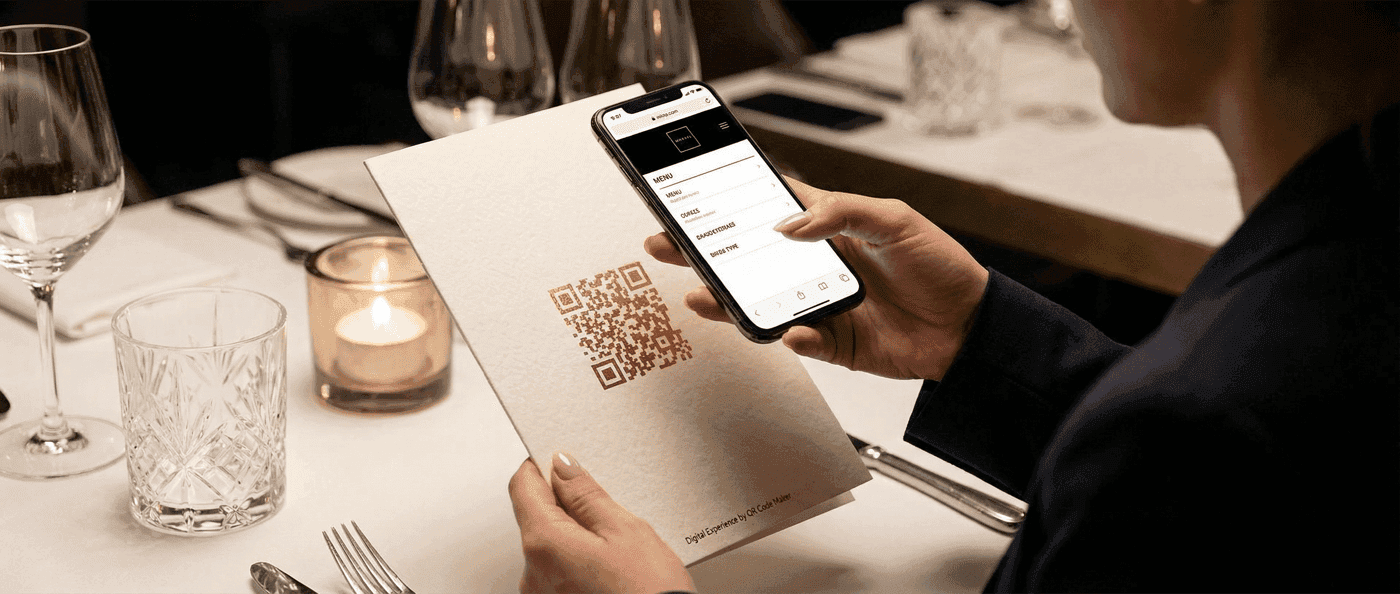

Create a QR code menu for your restaurant. Learn setup options, best practices for placement, and how to keep your digital menu updated.
A QR code menu is a scannable code placed on restaurant tables that links directly to a digital menu—customers point their phone camera at the code and the menu loads instantly, no app required. This replaces or supplements physical menus with an always-current digital version.
Build Your Restaurant Menu QR Code
Create a mobile-optimized digital menu with our drag-and-drop builder — no coding or website needed.
Try the Menu BuilderSince the pandemic, QR menus have become standard. Customers expect the option, and restaurants benefit from the flexibility to update prices, add specials, or remove sold-out items without reprinting. If you're new to QR codes, start with our complete getting started guide. Here's how to set up QR code menus that work well for both staff and guests.
Why Use QR Code Menus?
For Your Restaurant
- Instant updates: Change prices, add specials, remove sold-out items—no reprinting
- Cost savings: No more expensive menu reprints for seasonal changes
- Multilingual options: Link to menus in multiple languages
- Reduced touchpoints: Fewer physical menus to clean and maintain
- Analytics: Track which items get viewed (with the right setup)
For Your Customers
- Always current: No outdated prices or unavailable items
- Zoom and search: Easier to read than small menu text
- Shareable: Guests can share the menu before arriving
- Accessible: Screen readers work with digital menus
The Hybrid Approach
Most successful restaurants keep physical menus available while offering QR codes as an option. Some customers prefer digital; others prefer paper. Accommodate both.
Choosing Your Menu Format
Option 1: PDF Menu
Pros:
- Simple to create (export from existing design)
- Maintains exact formatting
- Works offline once loaded
Cons:
- Not mobile-optimized (requires pinch-zoom)
- Hard to update frequently
- Can't track individual item views
Best for: Fine dining, fixed menus that rarely change
Option 2: Website Page
Pros:
- Mobile-responsive design
- Easy to update through CMS
- Can include photos and descriptions
- SEO benefits for your restaurant
Cons:
- Requires web development or website builder
- Needs hosting
- Depends on site uptime
Best for: Most restaurants with existing websites
Option 3: Dedicated Menu Platform
Pros:
- Built specifically for restaurants
- Easy drag-and-drop updates
- Often includes ordering integration
- Mobile-optimized by default
Cons:
- Monthly subscription cost
- Platform dependency
- Limited customization
Best for: Restaurants wanting ordering integration or frequent menu changes
Our Recommendation
For most restaurants: Website page with a dynamic QR code.
Your website already exists. Create a dedicated menu page (yourdomain.com/menu), keep it updated, and point a dynamic QR code to it. You get the flexibility of web pages with the trackability of dynamic codes.
Option 4: QR Code Maker's Built-In Menu Builder
If you don't have a website or want a simpler solution, our platform includes a dedicated restaurant menu builder—no external tools or hosting required.
What you get:
- Drag-and-drop menu editor: Add sections (Appetizers, Mains, Desserts), items, prices, and descriptions
- Photo uploads: Add images for featured dishes
- Dietary tags: Mark items as vegetarian, vegan, gluten-free, dairy-free, or spicy
- Featured items carousel: Highlight chef's specials or high-margin items at the top
- Mobile-optimized viewer: Customers see a beautiful, fast-loading menu designed for phones
- Search and filter: Guests can search items or filter by dietary preference
- Instant updates: Change prices or mark items sold out in seconds
When customers scan your QR code, they see a branded menu page at yourdomain.qr-code-maker.app/m/your-restaurant with:
- Your logo and brand colors
- Organized menu sections
- Item details with photos and dietary info
- Built-in search and filtering
Best for: Restaurants without websites, food trucks, pop-ups, caterers, or anyone wanting the simplest possible setup.
Try the Menu Builder
Create your restaurant menu → — Build your digital menu in minutes, no coding required.
Creating Your Menu QR Code
Static vs Dynamic: Which to Use?
| Factor | Static | Dynamic |
|---|---|---|
| Cost | Free | Subscription |
| Edit URL after printing | No | Yes |
| Track scans | No | Yes |
| Menu URL changes | Need new code | Just update redirect |
Recommendation: Use a dynamic QR code.
Menus change. URLs get restructured. You might switch platforms. A dynamic code lets you update the destination without reprinting table tents. Learn more about what free QR code generators actually offer for your budget planning.
Setup Steps
- Create your digital menu (PDF, webpage, or platform)
- Get the URL where the menu lives
- Create a dynamic QR code pointing to that URL
- Test thoroughly on multiple phones
- Print and display at tables, counter, entrance
Test First
Before printing 50 table tents, scan your code on different phones in your actual restaurant. WiFi can affect loading times. Lighting can affect scanning. Test in real conditions.
Restaurant Menu Data (QR Code Maker Platform Data, Q1 2026)
Based on menus created on our platform, the average restaurant QR menu contains 10.5 sections and 85 items — indicating that restaurants are digitizing their complete menus (appetizers, mains, desserts, drinks, specials), not just a highlights page. This level of detail means your digital menu should be designed for easy navigation, not just a flat list.
Displaying Menu QR Codes
Table Placement
Options:
- Table tents (standing acrylic or cardboard)
- Stickers directly on tables
- Menu stands
- Built into table surfaces
Size: Minimum 3cm × 3cm for comfortable scanning from seated position
Instructions: Include "Scan for Menu" text—not everyone knows what to do with a QR code
Counter/Register
For quick-service restaurants:
- Display at ordering point
- Include on menu boards
- Add to receipts for reorders
Entrance
- Show QR code on door or window
- Let customers browse menu while waiting for a table
- Include on outdoor signage
Multiple Codes for Multiple Menus
Consider separate codes for:
| Menu Type | When to Display |
|---|---|
| Full menu | All tables, all day |
| Lunch specials | Lunch hours only |
| Drinks menu | Bar area |
| Dessert menu | After main course (server presents) |
| Kids menu | Family seating areas |
This prevents overwhelming customers with one massive menu.
Best Practices for Digital Menu Design
Mobile-First Design
Your menu will be viewed on phones. Design accordingly:
- Large, readable text (minimum 16px)
- High-contrast colors
- Minimal scrolling (organize into sections)
- Fast-loading images (compress photos)
- Touch-friendly navigation (large tap targets)
Essential Information
Every digital menu should include:
- Restaurant name and logo
- Menu items with prices
- Item descriptions (brief but helpful)
- Allergen information or link to allergen guide
- Contact information
- Hours of operation
Photos: Yes or No?
Yes, if:
- Photos are high-quality
- Items are photogenic
- You can update photos when presentation changes
No, if:
- Photos are low-quality
- Kitchen presentation varies significantly
- Updates would be burdensome
Mediocre food photos hurt more than help. Skip them if you can't do them well.
Pricing Display
- Show prices clearly (no hidden fees)
- Consider showing prices without currency symbols for cleaner look
- Group items logically by price point within categories
Keeping Your Menu Updated
Establish Update Process
Assign someone to own menu updates:
- Who makes the changes? (Manager, owner, marketing)
- When are updates made? (Daily specials: morning. Seasonal: monthly)
- How are changes communicated? (Staff meeting, printed daily sheet)
Version Control
Track what changed and when:
- Keep a changelog
- Archive old versions
- Date your menus visibly ("Menu updated January 2025")
Common Update Scenarios
| Scenario | Action |
|---|---|
| Item sold out | Remove or mark "temporarily unavailable" |
| Price change | Update immediately |
| New seasonal item | Add with description and photo |
| Removed item | Delete from menu |
| Daily special | Add rotating "Today's Special" section |
Pro Tip
Create a "Coming Soon" section for new items you're testing. Builds anticipation and lets you gauge interest before full launch.
Handling Menu-Related Complaints
"I can't scan the code"
Troubleshooting:
- Is the code damaged or faded? Replace it.
- Is there glare from lighting? Reposition or use matte finish.
- Is the code too small? Print larger (see QR code sizing guidelines).
- Is the customer's phone old? Have backup physical menus.
"The menu won't load"
Troubleshooting:
- Is your website down? Check immediately.
- Is restaurant WiFi slow? Optimize or offer guest network.
- Is the page too heavy? Compress images, simplify design.
- Did the URL change? Update your dynamic QR code.
"I prefer a physical menu"
Response: "Of course! Here you go."
Always have physical menus available. Digital should be an option, not a requirement.
Measuring Menu QR Code Success
Metrics to Track
With dynamic QR codes and proper analytics:
- Scan count: How many people use the QR menu?
- Peak times: When is the digital menu most used?
- Device breakdown: iOS vs Android usage
- Page views: Which menu sections get most attention?
- Time on page: Are people reading or bouncing?
What the Data Tells You
| Finding | Possible Meaning |
|---|---|
| Low scan rate | Code placement or visibility issue |
| High bounce rate | Slow loading or poor mobile design |
| Certain items viewed most | Consider featuring them prominently |
| Scans peak before meal times | People checking menu before arriving |
Accessibility Considerations
Digital menus should be accessible to all customers:
For Vision Impairments
- Ensure screen readers can parse your menu
- Use high contrast colors
- Make text size adjustable
- Avoid text-as-images
For Motor Impairments
- Large touch targets
- No time-limited interactions
- Simple navigation
For Cognitive Considerations
- Clear, simple language
- Logical organization
- Consistent layout
Physical Menu Backup
Keep Braille menus or large-print versions available on request.
Frequently Asked Questions
Should I get rid of physical menus entirely?
No. Offer both options. Some customers prefer physical menus, and you need backups for technical issues.
How often should I update my QR code?
The code itself doesn't need updating—that's the point of dynamic codes. Update the destination (your menu page) whenever prices or items change.
What if customers don't have smartphones?
Have physical menus ready. Staff can also read menu items aloud if needed.
Can I track what items people look at?
With a proper website menu and analytics, yes. With a PDF menu, no—you can only track that they opened it.
Should I include photos of every dish?
Only if you can maintain high-quality, accurate photos. Mediocre food photography is worse than none.
How do I handle daily specials?
Create a "Today's Specials" section on your menu page and update it daily. The QR code stays the same; just the content changes.
Do customers need a special app to scan the menu QR code?
No. Since 2017 (iPhone) and 2019 (Android), smartphone cameras have built-in QR scanning. Customers just open their camera, point at the code, and tap the notification. No app download required.
How much does a QR code menu cost?
Free to very affordable. A static QR code linking to a PDF or webpage is free. Dynamic QR codes with editing and analytics typically cost $10-30/month. Dedicated restaurant menu platforms with ordering features range from $30-100+/month.
Get Started
Setting up a QR code menu is straightforward. Try creating a URL QR code right here:
Free account includes unlimited static codes + 1 trackable dynamic code
Here's the full process:
- Create or update your digital menu (website, PDF, or platform)
- Create a dynamic QR code pointing to your menu
- Print table tents or displays
- Train staff on the new system
- Keep physical menus as backup
The investment is minimal. The flexibility is permanent.
Consider pairing your menu QR codes with a WiFi QR code on the same table tent—guests appreciate easy network access while browsing your menu.
Capture Reviews While You're at It
The end of a meal is the perfect moment to ask for feedback. Add a Google Review QR code to the same table tent as your menu—capture reviews while the dining experience is fresh. Our Review QR even routes negative feedback to you privately first, protecting your online reputation.
Ready to create your restaurant menu QR code? Start free—dynamic codes with analytics, no annual contracts.
Related guides:
- Google Review QR Code — Collect more reviews with smart feedback routing
- WiFi QR Code — Easy network access for guests
- Static vs Dynamic QR Codes — Understanding your options
- QR Code Tracking — Measure your QR code performance
Ready to create your QR code?
Free forever for static codes. Pro features with 14-day trial, no credit card required.

Irina Aguiar
·Content LeadIrina Aguiar leads content strategy at QR Code Maker, where she has written extensively on QR code technology, marketing, and business operations. Her work ranges from technical explainers on how QR codes are generated and how error correction works to practical guides on QR marketing, automation, and scan analytics — plus hands-on tutorials covering Python, Google Sheets, and Zapier integrations. She also publishes honest competitor comparisons and industry-specific playbooks for retail, real estate, hospitality, healthcare, and events.
More from Irina Aguiar →Related Articles
QR Code Ordering for Restaurants: When It Works and When It Doesn't
QR code ordering can speed up service and reduce costs—but it's not right for every restaurant. Here's how to evaluate and implement it effectively.
QR Codes in Healthcare: Practical Applications and Privacy Considerations
From patient check-in to medication information, QR codes are transforming healthcare workflows. Here's what works, what doesn't, and what to watch out for.
QR Codes on Product Packaging: Complete Guide (2026)
Learn how to use QR codes on product packaging for manuals, authenticity verification, reviews, and more. Includes design tips, regulatory considerations, and tracking strategies.