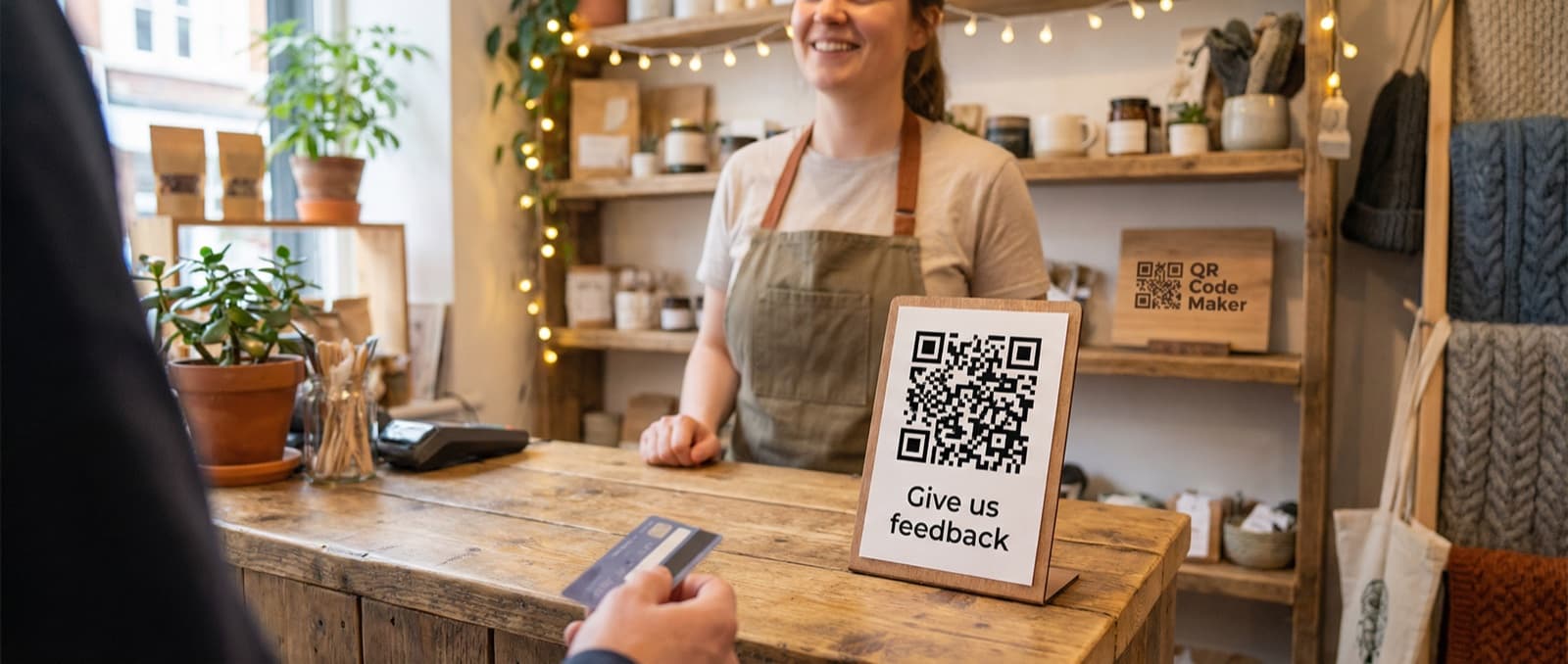

Create a Google Review QR code that makes it easy for customers to leave reviews. Step-by-step guide with placement tips and best practices.
A Google Review QR code is a scannable code that takes customers directly to your Google Business Profile review form—one scan, and they're ready to write a review without searching for your business or navigating through Google Maps.
Reviews drive business. But most satisfied customers never leave one—not because they don't want to, but because the process has too much friction. A Google Review QR code eliminates that friction entirely.
Find this in your Google Business Profile
How was your experience?
This is what customers will see
14-day free trial • No credit card required
Why Google Reviews Matter for Your Business
Google reviews directly impact whether customers choose you over competitors.
Beyond influencing customer decisions, reviews affect your visibility in Google search results. Businesses with more recent, positive reviews rank higher in local search and Google Maps—the places customers look when they're ready to buy.
The problem isn't that customers don't want to leave reviews. It's that by the time they get home, open Google, search for your business, find the review button, and start typing—the moment has passed. A QR code captures that goodwill while it's fresh.
What Is a Google Review QR Code?
A Google Review QR code encodes the direct URL to your Google Business Profile review form. When scanned:
- The customer's phone opens the URL
- Google's review form appears immediately
- The customer writes their review and submits
No app downloads. No searching. No friction.
The code itself can be static or dynamic. Static codes are free but can't be edited or tracked. Dynamic codes let you:
- Track scan analytics: See how many people scanned, when, and from what devices
- Update the destination: If your Google Business Profile URL changes, update the redirect without reprinting
- A/B test placements: Compare which locations generate more scans
For review collection, we recommend dynamic codes. You want to know which placements work—the table tent, the receipt, the packaging—so you can double down on what's effective.
How to Create a Google Review QR Code
Step 1: Get Your Google Review Link
- Go to Google Business Profile and sign in
- Select your business (make sure it's verified)
- Click "Ask for reviews" or find "Get more reviews" in your dashboard
- Click "Share review form"
- Copy the link
Your link will look something like:
https://g.page/r/CxxxxxxxxxxxxxxxxAEBQ/review
Multiple Locations?
Each location has its own review link. Create separate QR codes for each so reviews go to the correct profile.
Step 2: Create Your QR Code
Paste your Google review link into a QR code generator. With QR Code Maker:
- Select Review QR as your code type
- Paste your Google Business link
- Add your business name (appears on the landing page)
- Customize colors and add your logo
- Download in PNG (digital) or SVG (print)
Try It Now
Step 3: Test Before Printing
Always test your QR code before printing hundreds of table tents:
- Scan with iPhone and Android
- Verify it opens the correct review form
- Check that your business name displays correctly
- Test in different lighting conditions
Where to Display Your Google Review QR Code
Place review QR codes where customers naturally pause after a positive experience:
| Location | Why It Works | Best For |
|---|---|---|
| Table tents | Customers see it while finishing their meal | Restaurants, cafes, bars |
| Receipts | Handed directly after transaction | Retail, services |
| Checkout counter | Visible during payment | All businesses |
| Packaging | Arrives with the product | E-commerce, delivery |
| Thank-you cards | Personal touch after service | Services, contractors |
| Exit doors | Last thing customers see | Retail, offices |
| Email signatures | Every communication is an opportunity | All businesses |
| Business cards | Physical leave-behind | Services, B2B |
Don't Overdo It
One well-placed QR code beats five scattered ones. If customers see review requests everywhere, it feels desperate. Pick 2-3 high-impact placements.
Size Matters
Your QR code must be large enough to scan from a comfortable distance:
| Viewing Distance | Minimum Size |
|---|---|
| Handheld (receipt, card) | 2cm × 2cm (0.8") |
| Tabletop (tent, stand) | 3cm × 3cm (1.2") |
| Counter (checkout) | 4cm × 4cm (1.6") |
| Wall/poster | 10cm × 10cm (4") |
See our QR code size guide for detailed recommendations.
Handling Negative Feedback: The Smart Approach
Here's the reality: not every customer is happy. Some unhappy customers would rather tell you what went wrong than post a public review, if you give them an easy way to do it.
That doesn't mean keeping them away from Google. Google's review policy forbids discouraging negative reviews or asking only happy customers for them (often called review gating). The smart approach adds a private option without taking the public one away.
How Our Two-Path Review Flow Works
When customers scan a QR Code Maker Review QR:
- They see a simple question: "How was your experience?"
- Two options appear: "Loved it!" or "Not Great"
If they click "Loved it!":
- They're directed straight to your Google review form
- Happy customers leave public reviews
If they click "Not Great":
- They see a private feedback form, with a link to your Google review form right below it
- Feedback they send comes directly to you via email
- After they send it, the thank-you screen links to Google again
- They choose whether to tell you, post a public review, or both
This isn't about hiding negative reviews—every customer can still reach Google. It's about giving unhappy customers a direct line to you. Many upset customers want their problem solved more than they want to post a bad review. Give them that option too.
Included With Review QR
The private feedback option is part of every Review QR code. Review QR is included in the 14-day free trial that every new account starts with, and in paid plans from Starter. How you ask matters too: offer the code to every customer, not only the ones you expect to be happy.
Best Practices for Getting More Reviews
1. Ask at the Right Moment
Timing matters more than frequency. Ask every customer at a natural end point:
- When they pay or check out
- When their order arrives
- When an appointment or service call wraps up
- After you've solved a problem with their help
Don't ask when customers are rushed or haven't experienced your full service yet. And don't leave out the unhappy ones: Google's policy forbids asking only happy customers for reviews, and Review QR gives them a private option as well as the public one.
2. Include a Clear Call-to-Action
A QR code alone isn't enough. Add text that tells customers what to do:
Good CTAs:
- "How did we do? Scan to review us on Google"
- "Your feedback helps us improve"
- "Scan to share your experience"
Avoid:
- "Scan this code" (too vague)
- "Leave us a 5-star review!" (feels manipulative)
- "We need your review" (sounds desperate)
3. Make It Effortless
Every extra step loses customers:
- One scan, directly to the review form
- No app downloads required
- Works on any smartphone
- Opens in under 3 seconds
4. Train Your Team
If you have staff, they should know:
- Where the QR codes are located
- When to mention them ("There's a QR code on the receipt if you'd like to share feedback")
- Not to pressure customers
5. Respond to Reviews
Customers are more likely to leave reviews when they see you respond to others. Check your Google Business Profile weekly and respond to:
- All negative reviews: Acknowledge, apologize if appropriate, offer to make it right
- Detailed positive reviews: Thank them specifically for what they mentioned
- Generic positive reviews: A simple thank you works
Tracking Your Review QR Code Performance
With dynamic QR codes, you can track:
- Total scans: How many people scanned the code
- Scan timing: When scans happen (useful for identifying peak times)
- Device breakdown: iOS vs Android
- Location data: If you have codes in multiple locations
Learn more about QR code analytics and what the data tells you.
Measuring ROI
Compare your metrics before and after implementing review QR codes:
| Metric | How to Measure |
|---|---|
| Review volume | Count reviews per month on Google |
| Average rating | Track your star rating over time |
| Review recency | Are reviews more recent? |
| Review quality | Are reviews more detailed? |
Most businesses see measurable improvement within 30 days of strategic QR code placement.
Industries That Benefit Most
While any business can use Google Review QR codes, some see particularly strong results:
Restaurants & Hospitality
- Table tents reach every diner
- Pair with a digital menu QR for a complete table experience
- Post-meal is the perfect review moment
Retail & E-commerce
- Package inserts reach customers at unboxing (a high-satisfaction moment)
- Receipt codes capture in-store positive experiences
Service Businesses
- Contractors can leave codes on completed work
- Salons and spas can include on appointment cards
- Professional services can add to thank-you emails
Healthcare
- Waiting room placements for satisfied patients
- Post-appointment follow-up materials
Frequently Asked Questions
Do I need a paid service to create a Google Review QR code?
No. You can create a basic static QR code for free. However, free static codes can't be edited after creation and don't provide scan analytics. For review collection, we recommend dynamic codes (typically $5-15/month) so you can track which placements work and update the destination if needed.
Can I create a QR code for each business location?
Yes, and you should. Each location has its own Google Business Profile with its own review link. Create separate QR codes for each location so reviews go to the correct profile and you can track performance per location.
Can I track how many people scan my review QR code?
With dynamic QR codes, yes. You'll see total scans, timing, device types, and more. Static codes (most free options) don't offer tracking. For review collection campaigns, tracking is valuable—it tells you which placements drive results.
Can online businesses without physical stores use Google Review QR codes?
Absolutely. Place QR codes on product packaging, include them in shipping confirmation emails, add to thank-you cards in packages, or display on your website. Any touchpoint where customers interact with your business is an opportunity.
Is it against Google's terms to use QR codes for reviews?
No. Google encourages businesses to make it easy for customers to leave reviews. What's prohibited is incentivizing reviews (offering discounts for reviews), review gating (discouraging negative reviews or asking only happy customers for them), and fake reviews. A QR code that links to your review form is fine. Our Review QR asks how the visit went: a thumbs-up opens your Google review form, and a thumbs-down opens a private feedback form that also links to Google, so every customer who scans can still post a public review.
What if someone leaves a negative review anyway?
It happens. Respond professionally, acknowledge their experience, and offer to make it right. A thoughtful response to a negative review often impresses potential customers more than the negative review itself deters them. Our Review QR gives unhappy customers a private way to reach you first and keeps Google one tap away, so you hear about problems sooner without stopping anyone from posting publicly.
Get Started
Creating a Google Review QR code takes about 2 minutes:
- Copy your Google Business Profile review link
- Create a Review QR code with our generator
- Customize with your brand colors
- Download and print
- Place where customers will see it
The best time to start collecting more reviews was yesterday. The second best time is now.
Create your Google Review QR code →
Related guides:
- QR Code for Restaurant Menu — Pair menus and review codes at the table
- Static vs Dynamic QR Codes — Understand tracking and editing capabilities
- QR Code Tracking — Deep dive into analytics
- WiFi QR Code — Another QR code every business should have
Ready to create your QR code?
Free forever for static codes. Pro features with 14-day trial, no credit card required.

Irina Aguiar
·Content LeadIrina Aguiar leads content strategy at QR Code Maker, where she has written extensively on QR code technology, marketing, and business operations. Her work ranges from technical explainers on how QR codes are generated and how error correction works to practical guides on QR marketing, automation, and scan analytics — plus hands-on tutorials covering Python, Google Sheets, and Zapier integrations. She also publishes honest competitor comparisons and industry-specific playbooks for retail, real estate, hospitality, healthcare, and events.
More from Irina Aguiar →Related Articles
QR Codes on Product Packaging: Complete Guide (2026)
Learn how to use QR codes on product packaging for manuals, authenticity verification, reviews, and more. Includes design tips, regulatory considerations, and tracking strategies.
QR Codes in Healthcare: Practical Applications and Privacy Considerations
From patient check-in to medication information, QR codes are transforming healthcare workflows. Here's what works, what doesn't, and what to watch out for.
QR Code for Restaurant Menu: Complete Setup Guide (2026)
Create a QR code menu for your restaurant. Learn setup options, best practices for placement, and how to keep your digital menu updated.