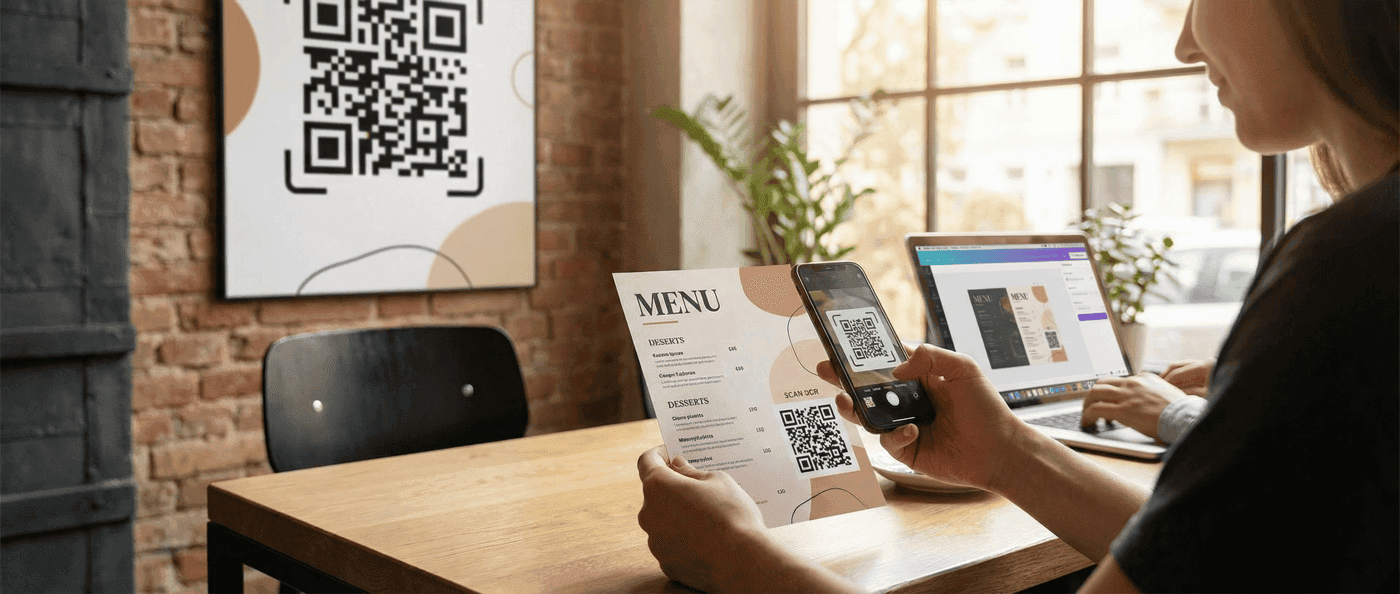

Canva's two QR code tools explained: free static codes, and dynamic codes that carry a Canva logo unless you're on Business. When to use a dedicated tool.
Canva now has two QR code tools, and the difference matters. Static QR Codes make a fixed URL code with no logo and no tracking, free on every plan. Dynamic QR codes let you change the destination after printing, but on Free and Pro they stamp a Canva logo in the middle of your code, and scan tracking, expiry dates and logo removal are locked to Canva Business, Enterprise and Nonprofit. Both tools take a web address and nothing else: no WiFi, vCard, email or PDF codes.
Here's how each one works, what Canva's own help page says each plan gets, and when a dedicated generator is the better tool.
Generate a QR Code for FreeCanva Now Has Two QR Code Tools
Canva used to have one QR app, and it made static codes. It now has two, both reachable from Apps → search "QR code" or from Elements → search "QR code", which shows a banner with Create static and Create dynamic.
I checked Canva's help page "Create and manage QR codes in Canva" on September 18, 2026. This is its own comparison, condensed:
| Feature | Static QR Codes | Dynamic QR codes |
|---|---|---|
| Change the link after creating | No | Yes, on every plan |
| Scan analytics (Insights) | No | Business, Enterprise, Nonprofit only |
| Canva logo on the code | Never | Yes on Free, Pro, Education; removable on Business and up |
| Upload your own logo | No | Business, Enterprise, Nonprofit only |
| Pattern and corner styles | No | Yes, on every plan |
| Set an expiry date + fallback URL | No | Business, Enterprise, Nonprofit only |
| Content types | URL only | URL only |
Two details from that page are easy to miss. A static code and a dynamic code can't be converted into each other. And a dynamic code on Free or Pro doesn't just show the Canva logo in the editor; the logo is part of the code you print.
Is Canva's QR Code Generator Actually Free with No Catch in 2026?
The static tool is free with no catch: no watermark, no expiry, no scan cap, and no Canva logo. The catch is what it can't do. The dynamic tool is also free to use on any plan, but the catch is visible: your printed code carries Canva's logo, and you can't see how many people scanned it unless you're on Business or above. If you're fine with a permanent URL code, Canva's static tool is genuinely free. If you want editable and clean and tracked, you're either on Canva Business or on a dedicated generator.
How to Generate a QR Code in Canva
About thirty seconds either way:
- Open a design
- Click Apps in the left sidebar and search "QR code" (or go to Elements, search "QR code", and pick Create static or Create dynamic from the banner)
- Static: paste the URL, optionally set foreground color, background color and margin, then Save
- Dynamic: pick a pattern, paste the URL, optionally name the code so you can find it later, then Save
- Resize and position the code on the canvas; it exports with the design
To change a dynamic code's destination later: select the code, Edit, update the URL, Save. No reprint. Changing its colors, pattern or logo does mean reprinting.
Canva QR Code Generator vs. a Dedicated Tool
Canva's tools are good at one thing: putting a URL code into a Canva design without leaving Canva. Here's how they compare to a dedicated generator like QR Code Maker on everything else.
| Feature | Canva (static) | Canva (dynamic) | QR Code Maker |
|---|---|---|---|
| QR code types | URL only | URL only | URL, WiFi, vCard, email, phone, SMS, text, PDF, location, and more |
| Customization | Colors, margin | Colors, patterns, corners | Colors and dot/eye shapes; frames and call-to-action banners on paid plans |
| Logo in the code | No | Canva's logo (Free/Pro); yours on Business+ | Yours (paid plans), with error correction tuned so it still scans |
| Edit destination after creation | No | Yes | Yes (dynamic codes) |
| Scan analytics | None | Business, Enterprise, Nonprofit | Scans, location, device and time on dynamic codes, including the free plan's one dynamic code |
| Bulk generation | Not offered | Not offered | Yes on Pro and up: upload a CSV, get hundreds of codes |
| Export | Baked into the design (PNG/PDF/SVG) | Baked into the design | Standalone PNG, SVG, PDF |
| Design integration | Built in | Built in | Download and place |
| Price | Free with a Canva account | Free with a Canva logo; Business plan to remove it and see scans | Free: unlimited static + 1 tracked dynamic code, no card. Paid from $9/mo for 50 dynamic codes |
The Main Advantage: Design Integration
If you're already laying out a flyer, business card or poster in Canva, the QR code lands in the right place, in your palette, and exports with everything else. For a one-off design with a permanent URL, that's hard to beat.
Canva QR Code Limitations
1. URL-only
Both Canva tools accept a web address and nothing else. You can't make:
- WiFi QR codes (network name and password)
- vCard QR codes (contact card that saves to the phone)
- Email codes (pre-filled mailto)
- Phone codes (tap to call)
- PDF QR codes
- Plain text codes
2. Tracking Needs Canva Business
Static codes have no tracking at all; the URL is in the pattern. Dynamic codes are tracked, but the Insights panel (total scans, unique scans, locations, devices) only unlocks on Business, Enterprise and Nonprofit. Free and Pro users get an upgrade prompt. If you want to know whether the flyer worked, see tracking QR code performance.
3. Static Codes Can't Be Updated After Printing
A static Canva code is permanent. If the page moves or dies, so does every printed copy, and you can't convert it to a dynamic code afterward. The dynamic tool fixes this, at the price of the Canva logo on non-Business plans.
4. The Canva Logo
This is the one that surprises people. Create a dynamic code on Free or Pro and Canva's logo sits in the center of it. Removing it, or replacing it with your own, needs Business, Enterprise or Nonprofit. The static tool never adds the logo, but it also can't be edited.
5. No Bulk Generation
Neither tool offers bulk creation. If you need a code per product, table or ticket, you're making them one at a time. QR Code Maker's bulk generator takes a CSV and returns the whole batch.
Do Canva QR Codes Expire?
Static codes never expire. The URL is in the pattern; the code works as long as the page does.
Dynamic codes don't expire unless you set an expiry, which is a Business/Enterprise/Nonprofit feature. Once a code passes its expiry it redirects to a fallback URL you chose, or to Canva's generic QR error page if you didn't set one. The trade-off with any dynamic code, Canva's included, is that it depends on the provider's redirect staying up.
Canva QR Code Generator Not Working?
The Code Won't Generate
- The URL needs
https://at the front - Clear the browser cache; Canva's editor caches aggressively
- Try another browser; some extensions interfere with Canva apps
- Dynamic QR codes aren't available in China
The Code Won't Scan
- Too small: keep it at least 2 × 2 cm (0.8 × 0.8 in). Canva's own guidance says the same.
- Low contrast: dark code on a light background, no transparency
- A long URL makes a dense pattern; shorten the link first
- Something's covering it: leave a quiet zone of four modules around the code
The Code Is Missing from the Download
- It's behind another layer; check the layer order
- Try a different export format; some flatten layers differently
When to Use Canva vs. a Dedicated QR Generator
Use Canva When
- You're already designing in Canva and need a URL code in that design
- The link is permanent (static tool), or you're on Canva Business (dynamic tool with tracking and no logo)
- You need one code, or a few
Use a Dedicated Generator When
- You need WiFi, vCard or any other non-URL type
- You want to track scans without paying for a Canva Business plan
- You want a dynamic QR code without a Canva logo on it
- You need your own logo in the code, shapes or frames
- You're making codes for business cards, restaurant menus or events
- You need bulk generation
The Honest Take
Canva's static tool is fine. If you want a clean, permanent URL code inside a Canva design, use it and don't overthink it.
Canva's dynamic tool is a step up on editing, and a step sideways on everything else: the logo is on your code until you pay for Business, and so is the analytics paywall. A dedicated generator gives you the editing, the tracking and a clean code without buying a Canva Business plan to get them, plus the non-URL types Canva doesn't do. For the full side-by-side, see QR Code Maker vs. Canva.
Try a Full-Featured QR Code Generator
Make one here, with tracking, every code type, and no logo you didn't choose:
Free account includes unlimited static codes + 1 trackable dynamic code
Frequently Asked Questions
Where is the QR code generator in Canva?
In the editor, click Apps in the left sidebar and search "QR code"; both Static QR Codes and Dynamic QR codes appear. Or go to Elements, search "QR code", and pick Create static or Create dynamic from the banner. Both tools are on every plan.
Is Canva QR code generator free?
Yes. Static codes are free on every plan with no logo and no limits. Dynamic codes are also free to create, but on Free, Pro and Education they carry a Canva logo, and scan Insights need Business, Enterprise or Nonprofit.
Do Canva QR codes expire?
Static codes never expire. Dynamic codes don't expire unless you set an expiry date, which is a Business/Enterprise/Nonprofit feature; after expiry they redirect to your fallback URL or Canva's error page.
Can you make an editable or dynamic QR code in Canva?
Yes. Choose Dynamic QR codes from Apps or Elements, and you can change the destination later without reprinting. On Free and Pro the code carries a Canva logo and you can't see scan data. Here's the general difference between static and dynamic QR codes.
Can I track Canva QR code scans?
Only with a dynamic code on Canva Business, Enterprise or Nonprofit, where the Insights panel shows total and unique scans, locations and device types. Static codes aren't tracked at all, and Free/Pro users see an upgrade prompt. QR Code Maker includes scan tracking on its free plan's dynamic code.
Can I add a logo to Canva QR codes?
Not to a static code. On a dynamic code, preset logos and your own uploaded logo need Business, Enterprise or Nonprofit; on Free and Pro the code shows Canva's logo instead. Placing an image over a static code by hand can break scanning if it covers too much; dedicated generators size the logo against the error-correction level.
Why is my Canva QR code not scanning?
Usually one of four things: the code is under 2 × 2 cm, the contrast is weak or the background is transparent, something is covering part of the pattern or the quiet zone, or the URL is broken or very long. Enlarge it, use a dark code on a light background, and shorten the link.
Can I create a WiFi QR code in Canva?
No. Both Canva tools accept URLs only. A WiFi code encodes the network name, password and security type in the pattern itself, so you need a generator that supports that type.
Can I create a vCard QR code in Canva?
No. Canva is URL-only. A vCard code carries the contact details in the pattern so the phone can save them; use a dedicated generator for that.
How do I change the color of a QR code in Canva?
Select the code and use Edit (dynamic) or the color options (static) to set the code and background colors. Keep a dark code on a light background; Canva warns against transparency for the same reason.
Summary
Canva's static tool is the right choice for a permanent URL code inside a Canva design. Its dynamic tool gets you editing, but a clean, tracked dynamic code costs a Business plan.
For non-URL types, tracking without a Canva Business plan, your own logo, or bulk, use a dedicated generator. QR Code Maker gives you unlimited static codes and one tracked dynamic code free, no card required.
Ready to create your QR code?
Free forever for static codes. Pro features with 14-day trial, no credit card required.

Irina Aguiar
·Content LeadIrina Aguiar leads content strategy at QR Code Maker, where she has written extensively on QR code technology, marketing, and business operations. Her work ranges from technical explainers on how QR codes are generated and how error correction works to practical guides on QR marketing, automation, and scan analytics — plus hands-on tutorials covering Python, Google Sheets, and Zapier integrations. She also publishes honest competitor comparisons and industry-specific playbooks for retail, real estate, hospitality, healthcare, and events.
More from Irina Aguiar →Related Articles
QR Codes vs Barcodes: Which Should You Use? (2026 Guide)
Compare QR codes and barcodes side-by-side. Learn the key differences in data capacity, scanning, and use cases to pick the right code for your needs.
QR Code Error Correction: How Damaged Codes Still Scan (2026)
Learn how QR code error correction works and when to use each level. Understand why damaged QR codes still scan and how to choose the right error correction for your use case.
QR Code Size Guide: Minimum Dimensions for Every Use (2026)
Learn the minimum QR code size for business cards, posters, billboards, and more. Includes scanning distance calculations and size recommendations by use case.