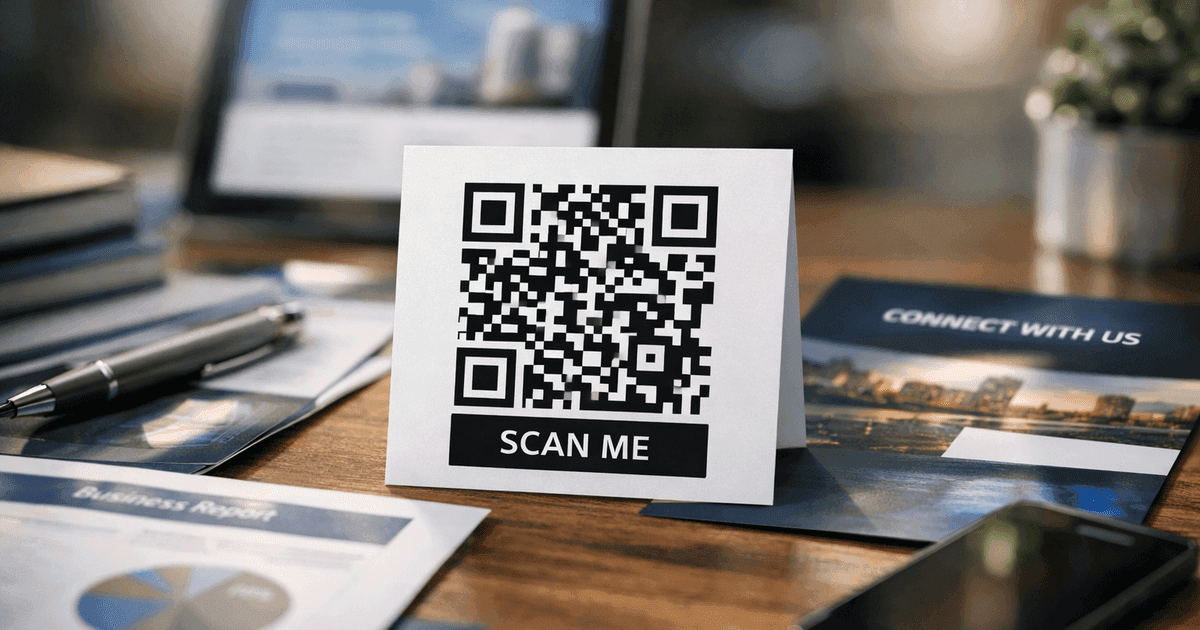

Learn how to generate a QR code for Google Form and boost survey responses instantly. Step-by-step guide with design tips and tracking analytics.
To create a QR code for a Google Form, you just need the form's shareable link. Simply copy that link and paste it into a QR code generator. In seconds, that long URL becomes a clean, scannable image anyone can use with their smartphone to submit responses.
Why QR Codes Are a Game Changer for Google Forms
Pairing a QR code with a Google Form is a smart strategy to collect information seamlessly. Think about the last time you saw a URL on a poster. Did you take the time to type it into your phone? Probably not. It's tedious, and a single typo can break the link. A QR code eliminates that friction entirely.
This convenience leads directly to more responses. Whether you're a small business owner gathering feedback, a marketer running a campaign, or an event organizer registering attendees, engagement is key. QR codes bridge the gap between your physical materials and your digital form, meeting your audience right where they are.
Practical Scenarios for Your Business
Once you know what to look for, you'll see opportunities to use QR codes everywhere. It’s a simple solution for many common business challenges.
Here are some real-world examples:
- Restaurants: A QR code on a table tent can link to a customer feedback form, capturing insights while the dining experience is fresh.
- Events: Attendees scan a code on a banner to register for a workshop or sign up for a newsletter, eliminating long lines and manual data entry from paper sign-up sheets.
- Business Cards: A QR code can send a new contact directly to a lead capture form, making follow-up at networking events effortless. It's a modern alternative to just listing a website.
- WiFi Sharing: Place a QR code at your business that, when scanned, automatically connects guests to your WiFi network and then redirects them to a welcome form or special offer.
The Power of Contactless Data Collection
The recent surge in QR code usage is undeniable, driven by the fact that everyone carries a scanner in their pocket—their smartphone.
QR code scans have skyrocketed, reflecting a massive shift toward quick, contactless interactions. From 2021 to 2025, usage grew by a remarkable 323%, with 41.77 million scans logged last year alone. You can dive deeper into these trends and learn more about QR code statistics.
This isn't just a fleeting trend; it shows that people are comfortable with and even expect to see QR codes. By incorporating them into your materials, you're using a tool your audience already knows how to use.
By removing the tedious step of manually typing a URL, you make it effortless for people to participate. That small change can be the difference between getting a handful of responses and gathering a wealth of valuable data for your business.
How to Create Your Google Form QR Code
Turning your Google Form into a QR code is a quick, straightforward process. It starts with getting the correct shareable link from your form, which you'll then paste into a QR code generator. Think of it as building a bridge between your physical marketing materials and your digital form—the key to collecting data without the usual hassle.
The goal is to make the journey from seeing a poster to hitting "submit" as seamless and intuitive as possible for your audience.
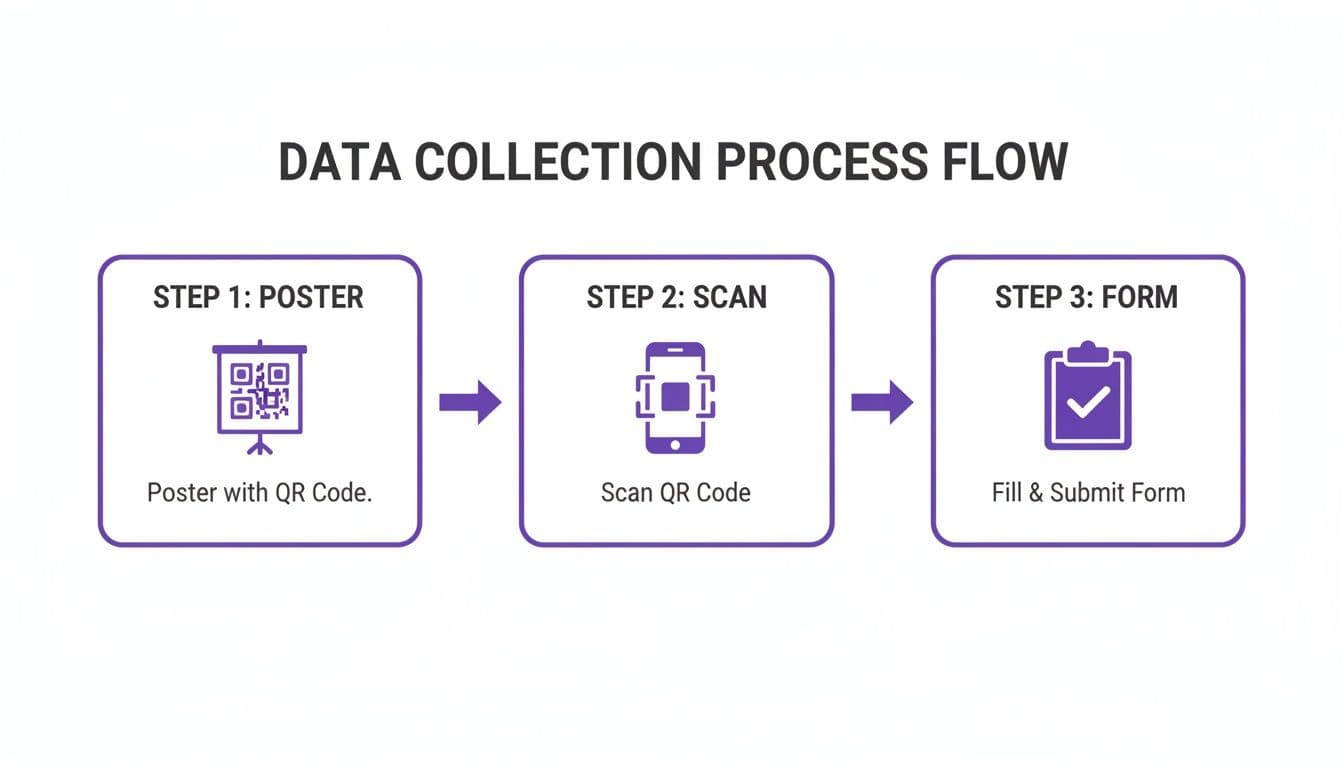
This workflow removes common barriers. Instead of asking people to type a long, complex URL, you let them get straight to the form with a simple scan.
Securing Your Google Form Link
First, you need the unique URL for your Google Form. A common mistake is copying the link from your browser's address bar while you're in editing mode—that link won't work for respondents. You need the specific, shareable link that Google generates for users to fill out the form.
Here’s the correct way to find it:
- Open your form in Google Forms.
- Click the prominent "Send" button in the top-right corner.
- In the pop-up window, select the link icon (it looks like a paperclip).
- Copy the provided URL. For a cleaner link, check the "Shorten URL" box, though either the long or short version will work perfectly.
This link is your destination. Getting this step right is crucial to ensure your QR code sends people to the live, functioning form.
Generating Your QR Code
With your link copied, it's time to generate the QR code. This is where a dedicated tool like QR Code Maker becomes essential. You'll simply paste your Google Form link into the generator, and it will handle the rest.
At this stage, you have an important choice: static vs. dynamic.
- A static QR code permanently embeds the destination URL into the pattern. It cannot be changed later.
- A dynamic QR code uses a short redirect link, allowing you to edit the destination URL anytime.
For nearly any professional use case—such as event registrations, customer feedback, or marketing campaigns—a dynamic code is the superior choice. It provides the flexibility to update the form link in the future without having to reprint all your marketing materials.
Best Practice: Always choose a dynamic QR code if you anticipate needing to update the form or want to track scan data. It future-proofs your materials and provides valuable insights into user engagement.
A good QR code generator offers a clean, straightforward interface, making the process simple.
Just paste your Google Form URL into the designated field to begin. If you need a simple, no-fuss code for any web address, including your form, you can create a free URL QR Code.
Once generated, the next step is to customize the design to align with your brand, which we'll cover next.
Designing a QR Code That People Actually Want to Scan
A basic black-and-white QR code is functional, but it doesn't inspire action. To create a QR code for your Google Form that encourages people to pull out their phones, you need to think like a designer. A few simple, strategic choices can significantly boost scan rates and enhance your brand's professional appearance.
Visual appeal is about more than aesthetics; it's about building trust. A branded QR code feels like an intentional part of your marketing, not a random, generic pattern. This detail signals to users that the link is legitimate and safe, providing the encouragement they need to scan.
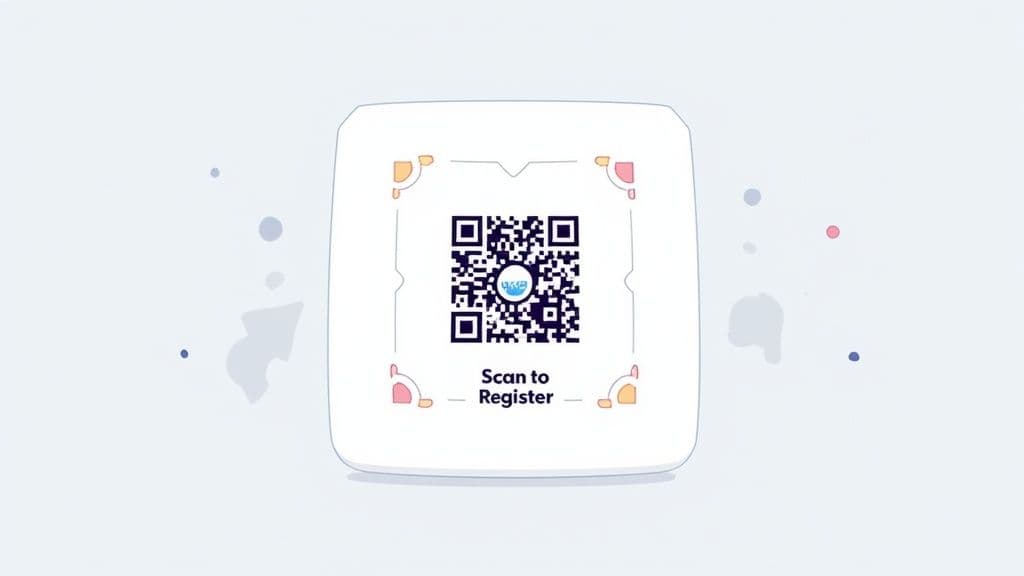
Incorporating Your Brand Identity
Treat your QR code as a mini-advertisement for your brand. With a trusted solution like QR Code Maker, you can easily customize its appearance to match your brand's visual identity.
Here are the key elements to customize:
- Add Your Logo: This is the most effective way to build immediate recognition and trust. Placing your logo in the center of the code reinforces your brand identity. Professional generators automatically adjust the error correction to ensure the code remains scannable.
- Use Brand Colors: Replace the default black with your primary brand color. The most important rule is to maintain high contrast between the code and the background. A dark blue code on a white background works well; a light yellow code on white will likely fail to scan.
- Customize the Shape: Soften the pixelated look by changing the shape of the individual dots or the larger corner "eyes." This subtle touch helps your QR code stand out from generic ones.
The goal is to make the QR code look like it belongs. When a user sees your logo and colors, they associate the code with your business, removing any hesitation before they scan.
Adding a Clear Call to Action
Never make your audience guess what your QR code does. A clear call to action (CTA) provides context and a compelling reason to scan, turning a passive square into an active invitation.
Most professional QR code generators allow you to add a frame around the code that includes text—this is the perfect spot for your CTA.
For example, a restaurant collecting feedback could use a CTA like "Scan for Survey," while an event organizer might use "Register Here." It’s simple, direct, and eliminates ambiguity, telling users exactly what to expect and making them far more likely to engage.
This is especially important in a world where QR codes are everywhere. They are a central part of the shift toward contactless interactions. In fact, the number of global QR payment users is projected to exceed 2.2 billion by 2025. This demonstrates how comfortable people are with the technology. To learn more about this growth, you can discover more insights about their usage on OpenQR.io. Your audience is ready to scan—you just need to give them a clear and compelling reason.
Where to Place Your QR Code for Maximum Impact
You've designed a visually appealing, branded QR code for your Google Form. Now comes the critical step: placing it where people will actually see and scan it. The most effective placement strategy involves considering your audience's journey and making the scan a natural, effortless action.
A well-designed code is useless if it's hidden or poorly printed. Practical details are what make the difference between a successful campaign and a missed opportunity.
Pro Tip: When printing, always download your QR code as an SVG file. This is a vector format, which means you can scale it to any size—from a business card to a large banner—without any loss of quality, ensuring it remains sharp and scannable.
Real-World Placement Ideas
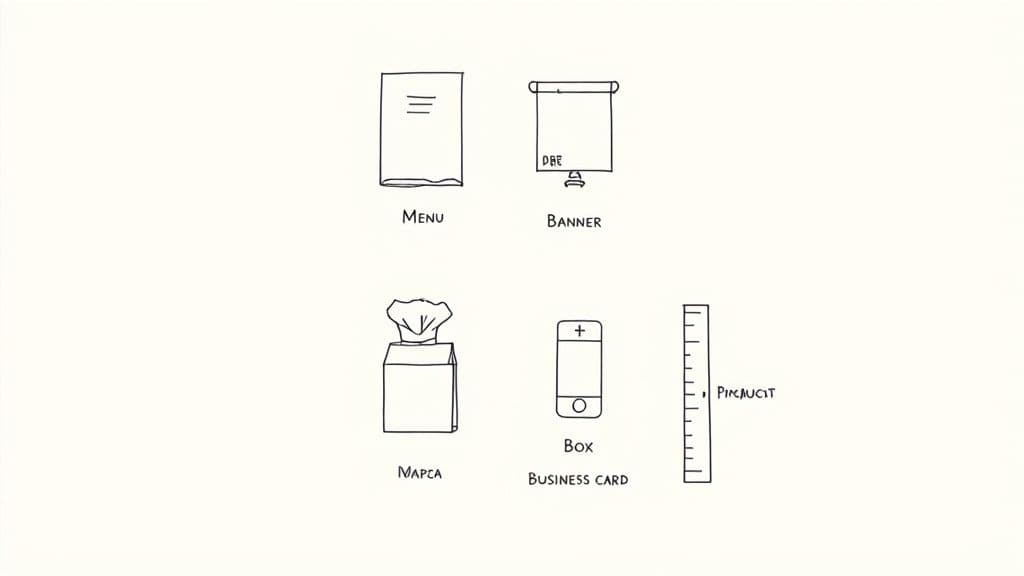
For the best results, place your QR code directly in your audience's path. The context should make scanning feel intuitive and valuable, not like a chore.
Here are a few proven placement strategies for businesses:
- Restaurant Menus: Place a code on the menu to collect feedback on specific dishes or on the receipt holder to gather general reviews. The timing is perfect, catching customers while the experience is fresh.
- Event Banners: Position a large, clear QR code for session registration or a feedback survey at eye level near the entrance or exit. Attendees can scan it as they walk by without breaking stride.
- Product Packaging: Add a code that links to a warranty registration form or a "how-to" video. This adds value for the customer when they are most engaged with your product.
- Business Cards: A QR code leading to a contact form or digital portfolio is a modern touch that makes it easy for new connections to save your information.
Best Practice: Never print your QR code smaller than 1x1 inch (2.5x2.5 cm). Anything smaller can be difficult for many smartphone cameras to focus on, leading to user frustration and lost opportunities.
Thinking Like Your Audience
The most successful QR code placements feel like a natural part of the user's environment. For instance, using a QR code on product packaging to link to a review form can dramatically increase response rates. This strategy aligns with global trends; 36.4% of Europeans scan QR codes weekly. In North America, usage has grown from just 8% in 2019, with the US now accounting for 43.9% of scans. You can read the full research on these QR code insights to understand how integrated they've become.
By placing your code where it solves a problem or offers immediate value—like quick registration or instant feedback—you remove friction. Before committing to a large print run, always test your printed code from the distance your audience will be. If you can't scan it easily, neither can they.
Tracking Scan Data to Measure Your Success
Collecting form responses is your primary goal, but if you stop there, you're missing out on valuable intelligence. The real power of QR codes comes from understanding how, when, and where people are scanning them. This is how you move from simply gathering data to gaining actionable insights.
When you use a dynamic QR code for your Google Form, every scan generates a useful data point. This information reveals the story behind your engagement, showing you what's working and what isn't. A simple scannable image is transformed into a powerful analytics tool.
Key Metrics to Monitor
Imagine you're an event organizer who has placed QR codes on posters around the venue and in a pre-event email. Analytics can tell you precisely which channel is driving more registrations. This isn't guesswork; it's clear, actionable data.
With a platform like QR Code Maker, you can easily monitor several key metrics:
- Total Scans: The most basic metric, showing the overall engagement your code is receiving.
- Unique Scans: This tells you how many individual people have scanned the code, which is essential for understanding your total reach.
- Location Data: View scans broken down by city and country, providing incredible insight into your geographical audience.
- Device Type: Learn whether your audience is scanning primarily with iPhones or Android devices.
This level of detail is invaluable for marketers. For instance, a business running a multi-city campaign can see which locations are responding best and adjust their strategy accordingly. For a deeper dive, check out our guide on how to track QR code scans.
Turning Insights into Action
Data is only useful if it informs your decisions. The insights from your QR code analytics should directly influence your marketing strategy and help you refine future campaigns. It’s about making smarter choices backed by real-world user behavior.
Consider a restaurant that places a QR code for a feedback form on both its tabletop displays and takeout bags. After a week, the analytics show that 80% of scans come from the takeout bags.
This insight is a goldmine. It suggests customers are more inclined to give feedback after they've returned home. The restaurant could then focus on this channel, perhaps by adding an incentive like, "Scan for 10% Off Your Next Order," exclusively on its to-go packaging.
This creates a powerful feedback loop: Deploy, measure, analyze, and optimize. By tracking your QR code’s performance, you replace guesswork with knowledge of what truly connects with your audience. This iterative process ensures each campaign is more effective than the last, maximizing your efforts and driving better results.
Common Questions About Google Form QR Codes
As you begin implementing QR codes, a few practical questions often arise. Knowing the answers in advance can help you use them effectively and avoid common pitfalls. Here are the most frequent queries from small business owners, marketers, and event organizers.
Can I Change the Google Form Link After I Print the QR Code?
Yes, you absolutely can—but only if you use a dynamic QR code. This is the single most important reason to choose dynamic over static for any professional project.
A dynamic QR code allows you to edit the destination URL at any time through your dashboard. If you need to link to an updated Google Form, correct a typo in the original URL, or redirect users to a different webpage entirely, you can do so without reprinting your materials.
With a static code, the link is permanent. If the URL changes, you must generate and print a brand-new QR code.
What Is the Best Size to Print My QR Code?
The ideal size depends on the scanning distance. For materials viewed up close, such as a business card, flyer, or menu, a minimum size of 1 x 1 inch (2.5 x 2.5 cm) is the recommended standard.
For signage intended to be seen from a distance, like a poster or event banner, the code must be significantly larger.
A helpful guideline is the 10:1 ratio: the QR code's width should be approximately 1/10th of the intended scanning distance. For example, if you expect people to scan it from 10 feet away, your code should be about one foot wide.
Why Isn't My QR Code Scanning Correctly?
If a QR code fails to scan, it's typically due to one of a few common issues. Before reprinting, run through this quick troubleshooting checklist:
- Poor Contrast: Ensure there is strong contrast between the QR code and its background. A dark code on a light background is the most reliable combination. Avoid light colors on light backgrounds.
- Overly Complex Design: While adding a logo is great for branding, if it is too large or intricate, it can interfere with the data pattern. Keep the logo's size reasonable.
- Printing Issues: Make sure the code is not printed too small or on a highly glossy or reflective surface, which can cause glare that interferes with smartphone cameras.
Best Practice: Always test your final printed QR code with multiple devices (both iPhone and Android) before a large-scale print run. This five-minute check can save you from a costly mistake.
Does a QR Code for a Google Form Ever Expire?
No, the QR code itself does not have an expiration date. As long as the linked Google Form is active and set to accept responses, the QR code will continue to function indefinitely.
However, if you are using a dynamic QR code, its advanced features—such as link editing and scan analytics—are tied to your subscription with the QR code provider. While the code will likely continue to redirect, you will need an active account to manage it and access the data.
Ready to create dynamic, trackable QR codes for your Google Forms in just a few clicks? With QR Code Maker, you can customize your design, track scan analytics, and update your link anytime. Start creating professional QR codes today on qr-code-maker.app.
Frequently Asked Questions
How do I create a QR code for a Google Form?
Open your Google Form, click Send, select the link icon, and copy the URL. Paste it into a QR code generator like QR Code Maker, customize the design, and download. Use a dynamic code if you want to track scans or update the form link later.
Can I change the Google Form link after printing the QR code?
Only with a dynamic QR code. Dynamic codes let you edit the destination URL anytime through your dashboard without reprinting materials. Static codes have permanent, unchangeable links.
What size should I print my Google Form QR code?
Minimum 1x1 inch (2.5x2.5 cm) for close-range materials like business cards. Use the 10:1 ratio for distance—if scanning from 10 feet away, make the code about 1 foot wide.
Why isn't my QR code scanning correctly?
Common causes are poor contrast (use dark code on light background), logos that are too large, printing too small, or glossy surfaces causing glare. Always test on multiple devices before large print runs.
Does a QR code for Google Form expire?
No, the QR code itself doesn't expire. It works as long as your Google Form is active and accepting responses. Dynamic code features (editing, analytics) require an active subscription.
How do I track who scans my Google Form QR code?
Use a dynamic QR code from a platform like QR Code Maker. You can track total scans, unique visitors, location data, device types, and scan times—all from your dashboard.
Ready to create your QR code?
Free forever for static codes. Pro features with 14-day trial, no credit card required.

Irina Aguiar
·Content LeadIrina Aguiar leads content strategy at QR Code Maker, where she has written extensively on QR code technology, marketing, and business operations. Her work ranges from technical explainers on how QR codes are generated and how error correction works to practical guides on QR marketing, automation, and scan analytics — plus hands-on tutorials covering Python, Google Sheets, and Zapier integrations. She also publishes honest competitor comparisons and industry-specific playbooks for retail, real estate, hospitality, healthcare, and events.
More from Irina Aguiar →Related Articles
LinkedIn QR Code: Share Your Profile Instantly (2026 Guide)
Create a LinkedIn QR code to share your profile, company page, or post with one scan. Step-by-step guide with design tips, placement ideas, and tracking.
YouTube QR Code: Link Videos to the Physical World (2026 Guide)
Create a YouTube QR code that links to a video, channel, or playlist. Step-by-step guide with use cases for packaging, events, education, and marketing.
Survey QR Code: Your Guide to Gathering Feedback Instantly
Learn how to create a dynamic survey QR code to collect valuable customer feedback instantly. Our guide covers everything from creation to analysis.