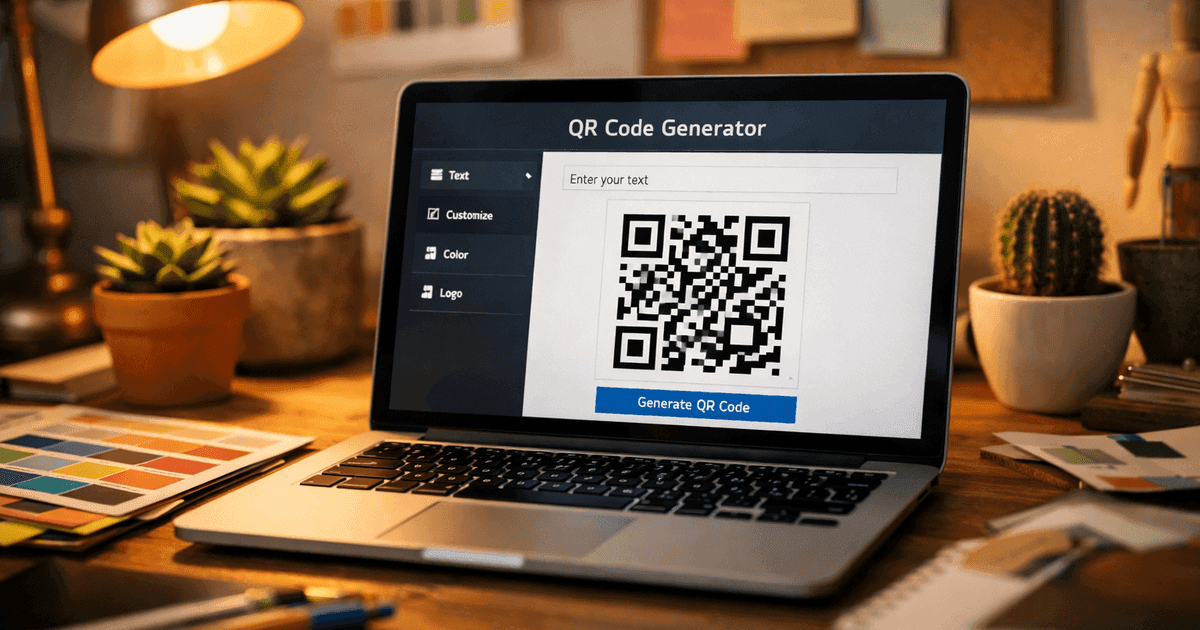
Learn how to create a secure WiFi password QR code. This guide covers branding, tracking, and best practices for guest WiFi access in any business setting.
A wifi password qr code is a scannable image that instantly connects a smartphone to your Wi-Fi network. Forget the hassle of searching for the network name and fumbling with a long password—one quick scan does it all. For small business owners, marketers, and event organizers, it’s a simple tool that removes a universal point of frustration for customers and guests, making it an essential utility for creating a professional, welcoming environment.
Why a WiFi QR Code Is a Must-Have for Modern Businesses
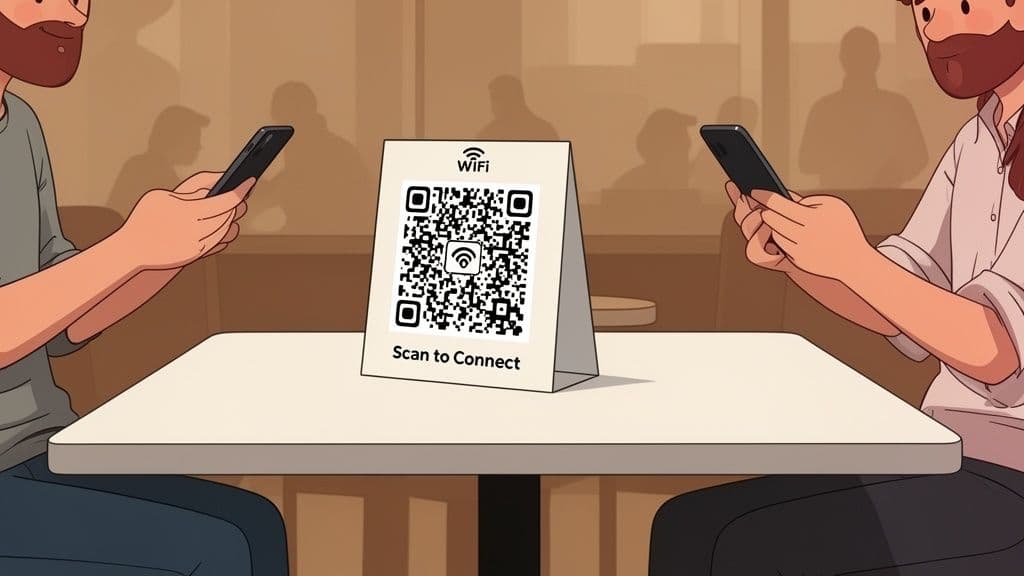
In any modern business—from a bustling café to a professional event—offering guest Wi-Fi isn't a perk; it's an expectation. But sharing login details the old way is clumsy. It involves customers interrupting staff for the password, staff stopping their work to find it, and the inevitable mistyping that leads to frustration.
A wifi password qr code completely sidesteps this mess. What was once a multi-step manual process becomes a one-scan solution. This immediate improvement to the customer experience sets a professional, tech-savvy tone the moment a guest arrives.
Boost Efficiency and Professionalism
Picture the workflow in a busy restaurant or at an event check-in desk. Every moment your team spends reciting a complex password like "SummerFun2024!" is a moment they aren't taking an order or assisting an attendee. Automating Wi-Fi access frees up your staff to focus on higher-value tasks that directly impact your bottom line and improve the guest experience.
This small change has a huge impact on perception. A clean, branded QR code on a table tent or welcome sign looks far more professional than a scribbled password on a whiteboard. It tells your customers you value their time and have considered every detail of their experience. For example, a restaurant can place a code on each table, allowing diners to connect without ever leaving their seats.
Turn a Utility into a Marketing Asset
While its main job is practical, a well-designed QR code can also be a subtle branding touchpoint. Using a trusted solution like QR Code Maker, you can easily customize your code to fit your business's aesthetic.
Here are a few actionable tips:
- Add Your Logo: Placing your logo in the center of the QR code reinforces brand recognition with every scan.
- Use Brand Colors: Ditch the standard black and white for a code that blends seamlessly with your marketing materials, like menus or event banners.
- Include a Call-to-Action: A simple frame with text like "Scan for Free WiFi" guides users and adds a polished, professional look.
By transforming a simple utility into a branded experience, you create another opportunity to connect with your audience. It's a small detail that demonstrates a commitment to quality and professionalism, enhancing the overall customer journey.
Ultimately, adopting a wifi password qr code is a strategic move that improves operational efficiency, elevates the customer experience, and strengthens your brand identity—all with a simple, scannable solution.
Generating Your First WiFi Password QR Code
Creating a QR code for your WiFi is incredibly simple and takes just a few minutes. You don’t need any technical expertise. The process involves entering your network details into a generator, which then converts that information into a scannable code. This is the first step before you move on to branding and customization.
Using a trusted tool makes the process painless. You’ll find a specific option for WiFi that asks for exactly what's needed, streamlining everything.
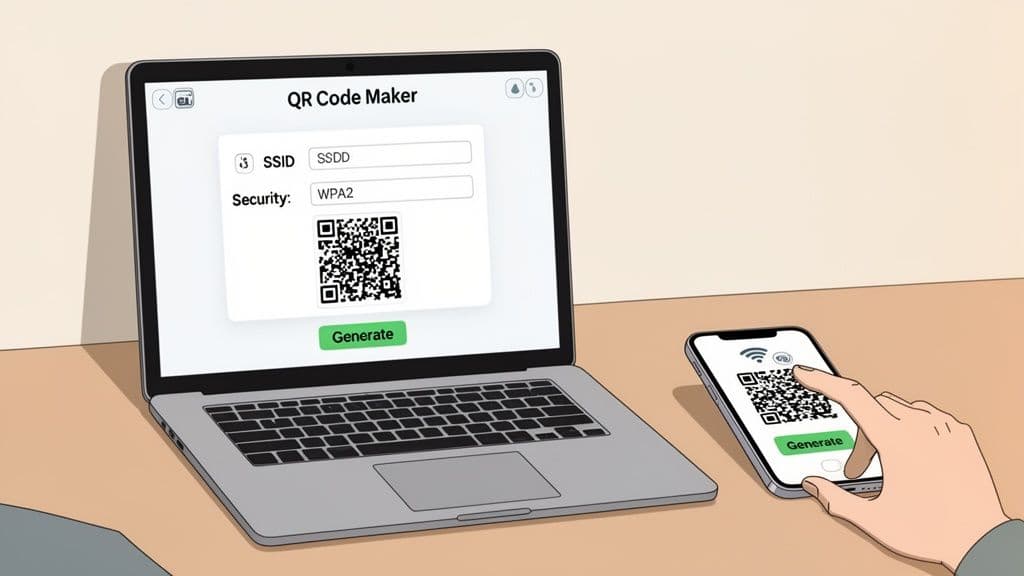
You only need three key details: the network name (SSID), the password, and the security type. Getting these right is the only technical part, but it’s crucial for ensuring a seamless connection for your guests.
Gathering Your Network Details
Before you create the code, you need three pieces of information about your wireless network. Accuracy is critical—a single typo will render the QR code useless.
Here’s what to grab:
- Network Name (SSID): This is the name of your WiFi network that people see when they search for available connections. Enter it exactly as it appears, paying attention to spaces and capitalization.
- Password: This is your network key. It's case-sensitive, so double-check all capitalization, numbers, and special characters.
- Encryption Type: This is the security protocol your network uses. For nearly all modern routers, the correct choice is WPA/WPA2. It’s the standard for secure WiFi.
Practical Tip: You can usually find the SSID and password on a sticker on the back or bottom of your router. If you've changed them, you may need to log into your router's admin settings to confirm the details.
Selecting the Right Security Protocol
Choosing the right encryption type isn't just a technical detail; it’s a critical security measure. You might see older options like WEP, but they are outdated and leave your network vulnerable to security threats.
Always select WPA/WPA2 or the newer WPA3 (if your hardware supports it). This encrypts the connection, protecting both your business and your guests from potential risks. It’s the industry standard and should be your go-to choice for any business, event, or marketing use case.
Creating the Code in a Generator
Once you have your network details, the rest is easy. It can be helpful to have a basic understanding of QR code generation principles to see how simple text is converted into a powerful, scannable tool.
With a generator like QR Code Maker, the process is straightforward. Just navigate to the 'WiFi' QR code type and input your information.
Here's a clear, step-by-step guide:
- Enter the SSID: Carefully type your network name into the "Network Name" field.
- Input the Password: Enter your exact password into the corresponding field.
- Choose the Security Type: Select WPA/WPA2 from the dropdown menu.
- Generate the Code: Click the "Create QR Code" button.
The platform will instantly generate a standard, functional QR code. You can download this basic version right away or, as we'll discuss next, customize it to align with your brand. For more detailed instructions, you can follow our guide on using the dedicated WiFi QR Code tool.
This initial code is your starting point. It’s fully functional and ready to get people online. Now, let's turn this simple utility into a professional, branded touchpoint for your business.
Designing a Branded QR Code People Trust
A generic black-and-white QR code gets the job done. But in business, every detail is an opportunity to reinforce your brand, and your WiFi QR code is no exception. A thoughtfully designed, branded code does more than just share a password; it builds trust and adds a professional polish that customers notice.
When a customer sees a QR code that incorporates your company’s logo and colors, it feels more legitimate and secure. This visual consistency signals that the code belongs to you, removing any hesitation they might have about scanning a random pattern. Using a platform like QR Code Maker, you can easily transform this utility into a seamless part of your brand experience.
Beyond Black and White
Customizing your QR code is a balance between aesthetics and functionality. The goal is to create something visually appealing without compromising its scannability. A few strategic design choices make all the difference.
Here are the key elements you can customize:
- Brand Colors: Instead of black, use your primary brand color. Just ensure there is high contrast between the code and the background—a dark color on a light background is always the safest choice.
- Logo Integration: Adding your logo to the center is one of the most effective ways to build trust. It’s an instant visual cue that tells users what they’re scanning.
- Custom Frames: A simple frame can completely change the feel of your code. Add a clear call-to-action like "Scan for Free WiFi" or "Connect Here" to guide users and eliminate guesswork.
The best branded QR codes are the ones that look like they belong. They fit naturally into your environment—whether on a business card, a restaurant table tent, or an event welcome poster—because they share the same visual language as your other marketing materials.
Best Practices for a Scannable Design
While creativity is encouraged, scannability is the top priority. A beautiful QR code that doesn't work is far worse than a plain one that does. To ensure your code remains functional, follow these essential design rules.
First, maintain high contrast. If your brand color is light yellow or pale blue, using it for the code itself is a recipe for scanning failures, especially in poor lighting. Stick to darker shades for the code's pattern and a light color for the background. For a deeper dive, explore detailed strategies on how to design a great QR code that stands out.
Second, respect the quiet zone. This is the empty white space bordering the QR code, and it’s critical for smartphone cameras to distinguish the code from its surroundings. Don't let text, images, or other design elements crowd the edges of the code.
Finally, don't overcrowd the logo. Your logo should be clear, but it shouldn't obscure so much of the code that it becomes unreadable. Most professional generators handle this automatically by building in error correction, but it's always a best practice to test the final design with multiple devices before printing.
And remember, while the QR code provides convenience, the security of the underlying network is paramount. Take time to learn how to secure your WiFi network to protect both your business and your users. A trusted code should always lead to a trusted connection.
Static vs. Dynamic: Making the Right Choice for Your WiFi QR Code
When you create a wifi password qr code, you’ll face a critical choice: static or dynamic? They may look identical, but they function very differently. For small business owners, marketers, and event organizers, making the right choice from the start can save significant time, money, and hassle down the road.
A static QR code is the most basic type. It directly embeds your WiFi network name (SSID) and password into the scannable pattern. Once created, that information is permanent and cannot be changed. If you ever update your password, you have to create a brand-new QR code.
For a personal home network, this is fine. But for a business, this rigidity is a major drawback.
The Headache of Using Static Codes in a Business
Imagine you run a restaurant and have static WiFi QR codes printed on dozens of table tents and menus. For security reasons, you wisely decide to change your WiFi password quarterly. With a static code, this means you must redesign, reprint, and replace every single one of those QR codes. Every. Single. Time.
This isn't just costly and wasteful; it creates a poor customer experience. Any guest who scans an outdated code will get a connection error, leading to confusion and frustration. For any professional setting that requires flexibility and security, the static approach simply isn't a practical solution.
The Power of Going Dynamic
This is where dynamic QR codes are a game-changer for businesses. Instead of embedding the WiFi details directly, a dynamic code contains a short, unique URL that points to the network information stored online.
The magic is that you can log into a dashboard—like the one provided by QR Code Maker—and update your WiFi password or network name whenever you need to. The printed QR code on your signs and marketing materials remains the same, but the information it points to changes instantly behind the scenes.
For a business, this is a massive advantage. You can follow security best practices by regularly updating your password without ever having to touch your printed materials. It’s a solution built for the real world of business.
Before we explore the benefits of analytics, here's a quick comparison to help you decide.
Static vs Dynamic WiFi QR Codes: A Comparison for Businesses
| Feature | Static WiFi QR Code | Dynamic WiFi QR Code |
|---|---|---|
| Editable Content | No. WiFi details are permanent. | Yes. Update password/SSID anytime. |
| Cost | Free to create. | Usually requires a subscription. |
| Scan Analytics | No tracking available. | Yes. Track scans, devices, and times. |
| Best For | Home use, personal guest networks. | Businesses, events, public venues. |
| Longevity | Requires reprinting if WiFi changes. | Print once, use forever. |
| Offline Use | Yes. Works without an internet connection. | No. Requires internet for the initial redirect. |
While static codes are suitable for simple, unchanging networks, the flexibility and power of dynamic codes make them the superior investment for any professional use case.
Unlock a World of Analytics
Beyond being editable, dynamic codes offer another powerful advantage: scan analytics. Since every scan is routed through the short redirect URL, the platform can collect valuable, non-invasive data about how people are using your code.
With a dynamic wifi password qr code, you can track metrics like:
- Total Scans: See exactly how many people are connecting via the QR code.
- Time of Scan: Identify your busiest hours for guest traffic.
- Device Type: Understand whether your audience prefers iPhone or Android.
This provides real-world business insights. An event organizer can measure attendee engagement by seeing how many people connected via the QR code on welcome banners. A restaurant owner might see that WiFi usage spikes during weekday lunch hours, helping them make smarter staffing and marketing decisions. To learn more, check out our complete guide on static vs dynamic QR codes.
This flowchart helps visualize the design process, from branding to final deployment.
The flow from branding to checking readability highlights a key point: a great QR code must balance aesthetics with function. For any business owner, marketer, or event manager, the choice is clear. A dynamic QR code delivers the security, flexibility, and data insights needed for a professional and scalable solution.
Where to Place Your QR Code for Maximum Impact
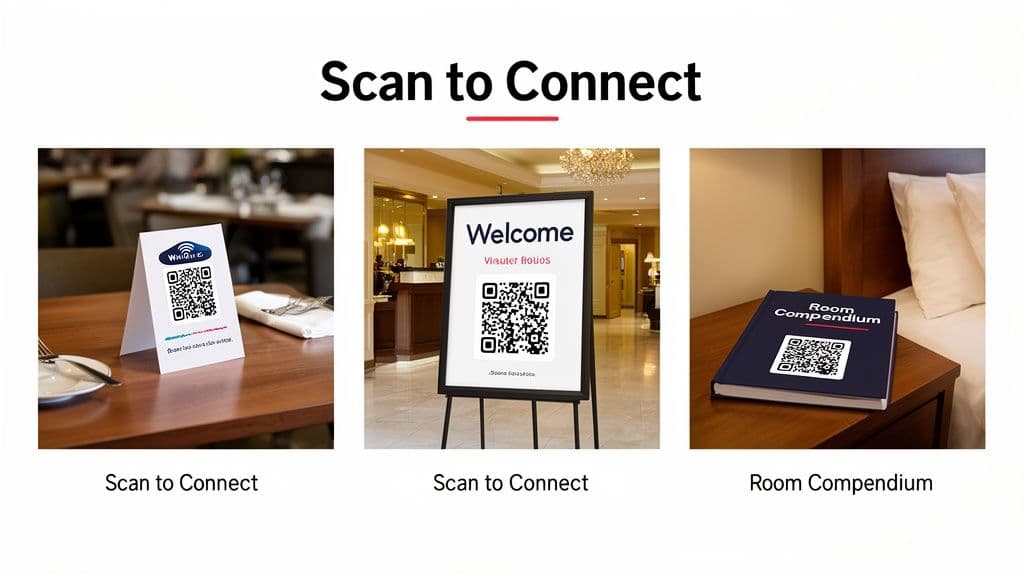
You’ve designed a professional, on-brand QR code. Now it’s time for the most important step: putting it where people will actually see and use it. A perfect wifi password qr code is useless if it’s hidden behind a counter or stuck in a forgotten corner.
Effective placement is about anticipating your guests' needs. Think about the moments when they are most likely to need WiFi. The goal is to make connecting feel seamless and intuitive.
Strategic Placement for Different Businesses
The best location for your code depends entirely on your business environment and customer journey. A one-size-fits-all approach doesn't work.
Here are some real-world examples and actionable advice for different use cases:
- Restaurants and Cafés: Place small, durable signs or table tents on every table. The checkout counter is another prime spot, as customers often pause there while paying.
- Hotels and Airbnbs: The guest room is the perfect location. Place the code on a small, laminated card on the nightstand, inside the room compendium, or on the back of the door. The lobby welcome desk is another essential spot.
- Events and Conferences: Print the QR code directly on event badges, program guides, and large signs near registration and seating areas. This allows attendees to connect the moment they arrive.
- Business Cards and Marketing Materials: For marketers, adding a WiFi QR code to a business card is a clever touch for client meetings at your office. It shows you’re prepared and considerate.
Best Practice: Place your QR code at points of entry (like a welcome desk) and points of rest (like a table or seating area). Make it one of the first things a guest sees upon arrival and one of the easiest to find when they settle in.
Technical Best Practices for Printing
Once you've chosen your locations, printing the code correctly is the final piece of the puzzle. A blurry or poorly printed code will lead to scanning errors, defeating the purpose and causing frustration.
To ensure your code is scannable every time, follow these simple technical guidelines:
- Mind the Minimum Size: Your QR code must be at least 1 x 1 inch (2.5 x 2.5 cm). Anything smaller may be difficult for some phone cameras to read, especially in low light. When in doubt, go slightly larger.
- Use a High-Resolution File: Always download your QR code in a vector format like SVG or PDF. These formats can be scaled to any size without losing quality, ensuring a crisp, clear print. Avoid using a low-resolution PNG for large prints.
- Choose the Right Material: Print on a non-glossy, matte surface to prevent glare from overhead lighting, a common cause of scanning failures. For high-traffic areas, consider laminating the code or printing it on a durable material like acrylic.
- Test, Test, and Test Again: Before printing in bulk, print a single test copy. Scan it with several different phones (both iPhone and Android) from various angles and distances. This five-minute check can save you from a costly and embarrassing mistake.
By pairing thoughtful placement with solid printing practices, you ensure your wifi password qr code is a reliable asset for your business, not a source of frustration.
Your Top WiFi QR Code Questions, Answered
For business owners, marketers, and event organizers considering a WiFi QR code, a few key questions usually come up regarding security, functionality, and long-term maintenance. Here are clear, practical answers to the most common concerns.
Are WiFi QR Codes a Security Risk for My Business?
No, the QR code itself is not a security risk. It’s simply a convenient way to share your existing password; it does not create a new vulnerability in your network. Think of it as an automated password entry tool, not a backdoor.
However, the security of your network itself is what truly matters. The best practice for any business offering public WiFi is to set up a dedicated guest network.
A guest network creates a digital barrier, keeping visitor traffic completely separate from your critical business systems. Anyone connected can browse the internet, but they cannot access your:
- Point-of-sale (POS) systems
- Internal servers or shared company files
- Private employee computers
This separation is the single most important security measure you can take. Your QR code then becomes a safe and convenient gateway to that isolated guest network, keeping your core business fully protected.
What Happens If I Need to Change My WiFi Password?
This is where your choice between a static and a dynamic QR code becomes critical. If you created a static QR code, the old password is permanently encoded in the pattern. The moment you change your network password, every printed QR code becomes useless. Your only option is to generate a new code, reprint all your materials, and replace the old ones.
In contrast, with a dynamic QR code, you have complete control. Simply log into your QR Code Maker dashboard, update the password in the settings, and save. Instantly, all your existing QR codes—the ones already printed and displayed—will start working with the new password.
No reprinting. No wasted materials. No frustrated guests. This flexibility is precisely why nearly every business should opt for dynamic codes.
Can I See How Many People Actually Use My WiFi QR Code?
Yes, you can, but this is a feature exclusive to dynamic QR codes. Since static codes store information directly and work offline, there is no way to gather data from them.
Dynamic QR codes, however, unlock powerful analytics. Each scan is routed through a unique URL before connecting the user, allowing the system to log valuable, anonymous data. You can see insights such as:
- Total Scans: The exact number of times your code has been scanned.
- Time of Connection: Identify peak hours for foot traffic and WiFi demand.
- Device Types: See whether your audience primarily uses iPhone or Android.
For a marketer, this data is gold. An event organizer can track scans on welcome signs to measure initial attendee engagement. A café owner can see a spike in scans during specific hours, helping to inform staffing and promotional decisions.
Will These QR Codes Work on Everyone's Phone?
Yes, universal compatibility is one of the biggest advantages of QR codes. The vast majority of modern smartphones, both iOS and Android, have a QR scanner built directly into the native camera app.
Your guests do not need to download a special app. The process is clean, simple, and consistent for almost everyone:
- Open the phone’s camera app.
- Point it at the QR code.
- A notification banner appears on the screen.
- Tap the banner to join the network.
That’s it. This seamless, one-tap experience removes all the friction of finding the right network and mistyping a complicated password. It just works.
Ready to create a professional, secure, and trackable WiFi experience for your guests? QR Code Maker provides all the tools you need to generate, customize, and manage dynamic QR codes in just minutes. Start creating your WiFi QR code today!
Ready to create your QR code?
Free forever for static codes. Pro features with 14-day trial, no credit card required.
Irina
·Content LeadIrina leads content strategy at QR Code Maker, helping businesses understand how to leverage QR codes for marketing, operations, and customer engagement. Her expertise spans digital marketing, user experience, and practical implementation guides.
Learn more about us →Related Articles
Create a QR Code for Your Restaurant Menu That Customers Will Love
Discover how to create a QR code for restaurant menu that elevates the dining experience. Learn to design, implement, and track your digital menu.
How to Use a QR Code in Email to Boost Engagement
Discover a proven approach to qr code in email that boosts opens, CTR, and ROI with actionable tips.
How to Use a QR Code Generator: The Ultimate Guide for Businesses
Discover how qr code generator qrcode generator generate qr qr code builder can simplify creating codes, tracking campaigns, and boosting engagement.