Customizing Your QR Code Design
Customize your QR code with brand colors, a center logo, pattern shapes, corner styles, and call-to-action frames. All design options are free on every plan.
Your QR codes don't have to be black and white squares. You can customize colors, add your logo, change the pattern shapes, add frames with call-to-action text—all while keeping the code scannable.
What You Can Change
- Colors – foreground, background, gradients
- Logo – your brand mark in the center
- Patterns – the shape of the data modules (dots, squares, rounded)
- Corner styles – the three big squares in the corners
- Frames – borders with text like "Scan for Menu"
- Size – control dimensions for different uses
Using the Customizer
Create a new QR code or edit an existing one. After entering your content, click Customize Design. You'll see a live preview that updates as you make changes. When you're happy with it, download.
All customization options are available on every plan, including free.
Colors
Foreground (the dark part, traditionally black): Use your brand's primary color. Dark colors work best—they need to absorb light for scanners to read them.
Background (the light part, traditionally white): Can be transparent if you're downloading PNG or SVG. Light colors work best. Must contrast with the foreground.
Gradients: You can apply linear or radial gradients for a more interesting look. Just make sure both ends of the gradient maintain good contrast with the background.
Contrast Matters
QR codes need contrast to scan. Always test custom colors on multiple phones before committing to a print run. See our colors and contrast guide for details.
Patterns
The data modules (the small squares that make up the pattern) can be styled:

- Square (classic) – traditional look, most reliable scanning
- Rounded – softer appearance, modern feel, scans well
- Dots/circles – friendly and approachable, may need slightly larger print size
- Custom shapes – diamonds, stars, hearts—test these thoroughly
Corner Markers
The three big squares in the corners can also be customized:
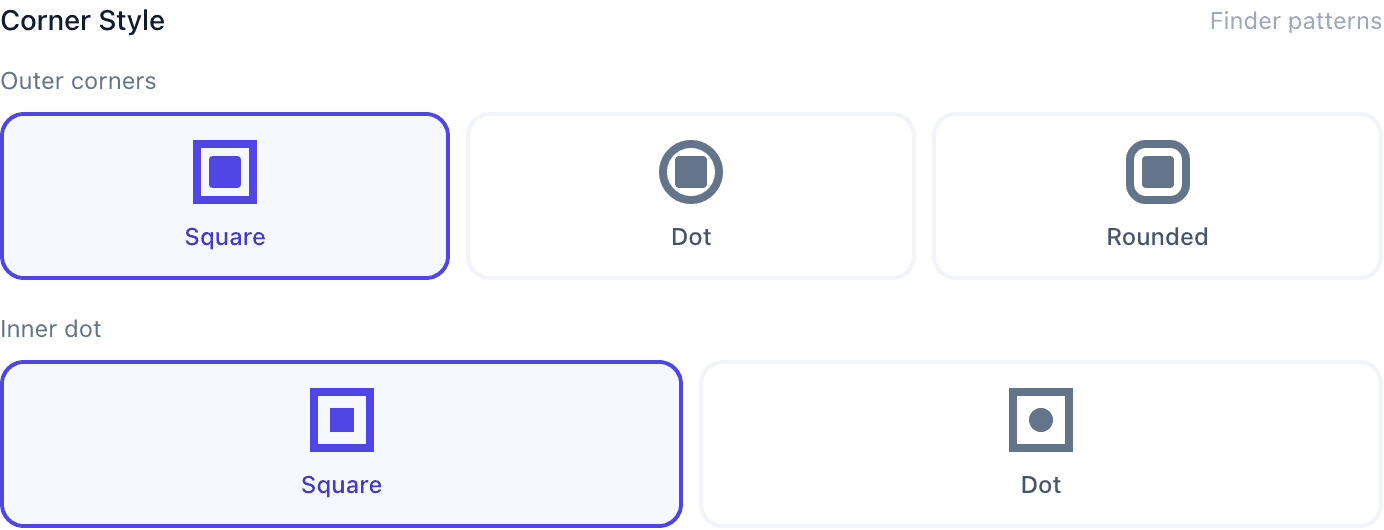
- Square – traditional, best compatibility
- Rounded – softer, modern
- Custom shapes – circles, badges, brand elements
The Cardinal Rule
The most beautiful QR code is useless if it doesn't scan. Every customization should be tested:
- Test on multiple phones (iPhone and Android at minimum)
- Test at the size you'll actually print
- Test in the lighting conditions where it'll be used
- If you're not sure, keep it simple
Best Practices
Match your brand. Use your colors, include your logo, keep it consistent with your other materials. See our logo guide for tips.
Consider context. Will this be scanned from a poster across a room? Keep it large and simple. Going on a business card at arm's length? You can get fancier.
Less is often more. Don't use every customization option at once. Pick one or two things that make it yours.
Templates
You can save your designs as templates and apply them to future codes. Useful for keeping consistent branding across multiple QR codes, especially when creating codes in bulk.
Common Questions
Will custom designs affect scannability? They can. The customizer warns you if contrast is too low, but real-world testing is essential.
Is customization free? Yes. All design options are available on all plans, including free.
Can I change the design later? For dynamic codes, yes. Static codes are fixed—you'd need to create a new one.
Can I save my design as a template? Yes. Save a design and reuse it across multiple codes.