Adding Logos and Images
How to add a logo to your QR code: upload a PNG, JPG, or SVG image and place it at the center. Adjust size for scannability and always test before printing.
Adding your logo to a QR code makes it instantly recognizable as yours. It works because QR codes have built-in error correction—they can still scan even when part of the pattern is obscured.
QR codes can tolerate up to 30% obstruction and still scan. We use this "error correction" space to place your logo in the center.
Adding Your Logo
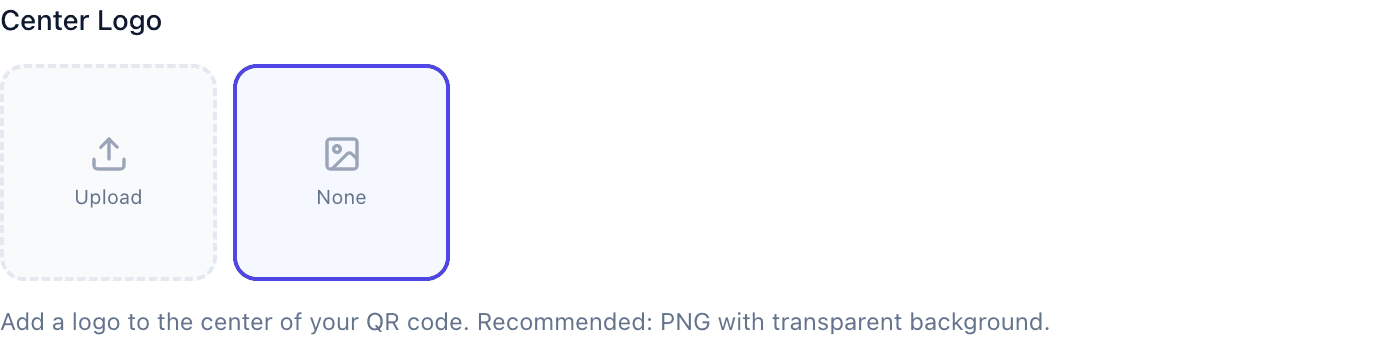
In the Customize Design section, click Add Logo, upload your image (PNG, JPG, or SVG), adjust the size, and preview. Always test scannability before downloading.
Supported Formats
| Format | Best For |
|---|---|
| PNG | Logos with transparency |
| JPG | Photographic logos |
| SVG | Sharp at any size (best for print) |
Keep files under 500KB—larger ones just slow things down. Maximum is 5MB.
How Big Should the Logo Be?
Too small: You can barely see it. Missed opportunity.
Just right: Clearly visible but doesn't dominate. Around 15-25% of the QR code width. Scans reliably.
Too large: May break scannability. The QR code becomes secondary to the logo.
Rule of Thumb
If you squint and can tell it's your brand, it's probably the right size. If the logo is the first thing you notice and the QR code is an afterthought, it's too big.
Logo Background Options
With background: Logo on a circular or square background. Clean separation from the QR pattern. Works with any logo.
Transparent: Logo blends into the QR code. More integrated look. Requires PNG with transparency.
Custom shape: Match your brand (shield, badge, etc.). More design control.
What Works Best
Use your icon, not your full logo. Text becomes illegible at small sizes. The icon or mark alone is recognizable and scans better.
High contrast matters. The logo should stand out clearly against the QR background. Consider a white circle behind dark logos.
Vector when possible. SVG files stay sharp at any size. Best for print where you might need to scale up.
Test after every change. Different phones, different lighting, different distances.
Common Problems
Logo looks pixelated: Upload a higher resolution image, or use SVG.
QR code won't scan: Logo is probably too large. Reduce the size.
White box around logo: You uploaded a JPG or PNG without transparency. Use a transparent PNG or add a matching background color.
Logo colors clash with QR: Try a monochrome version of your logo, or adjust the QR code colors.
When to Skip the Logo
Sometimes no logo is the better choice:
- Very small QR codes (logo becomes invisible anyway)
- Complex patterns where you need all the error correction
- Maximum reliability is critical
- Minimalist design preference
You can still make the QR code "yours" through brand colors, custom patterns, or distinctive frames. See our frames guide.
Common Questions
Does adding a logo make the code harder to scan? Not if you keep it within safe limits. Always test to verify.
Can I add multiple logos? We recommend just one. Multiple images eat into the error correction and can break scannability.
What resolution should my logo be? Minimum 200x200 pixels. Higher is better for print.
Should I use my full logo or just the icon? Icon only. Text becomes unreadable at these sizes.
How do I remove a logo? Edit the code and delete the logo in the customizer.