
Is your QR code not working? Diagnose and fix common issues with scanning, design, printing, and links. Get your codes working perfectly every time.
When a QR code fails, it’s not just a technical glitch—it’s a broken link in your customer's journey. For a small business owner, that could be a lost sale at a pop-up event. For a marketer, it's a missed lead from a print ad. For an event organizer, it's a frustrated attendee who can't access the schedule.
The good news? The problem is rarely with the QR code technology itself. It’s almost always a simple, practical oversight in how the code was created, designed, or deployed. Think of it like a key: if the key is cut incorrectly (bad design), used in the wrong lock (scanner issue), or bent (poor printing), it just won’t work.
Your Quick Guide to Diagnosing a Broken QR Code
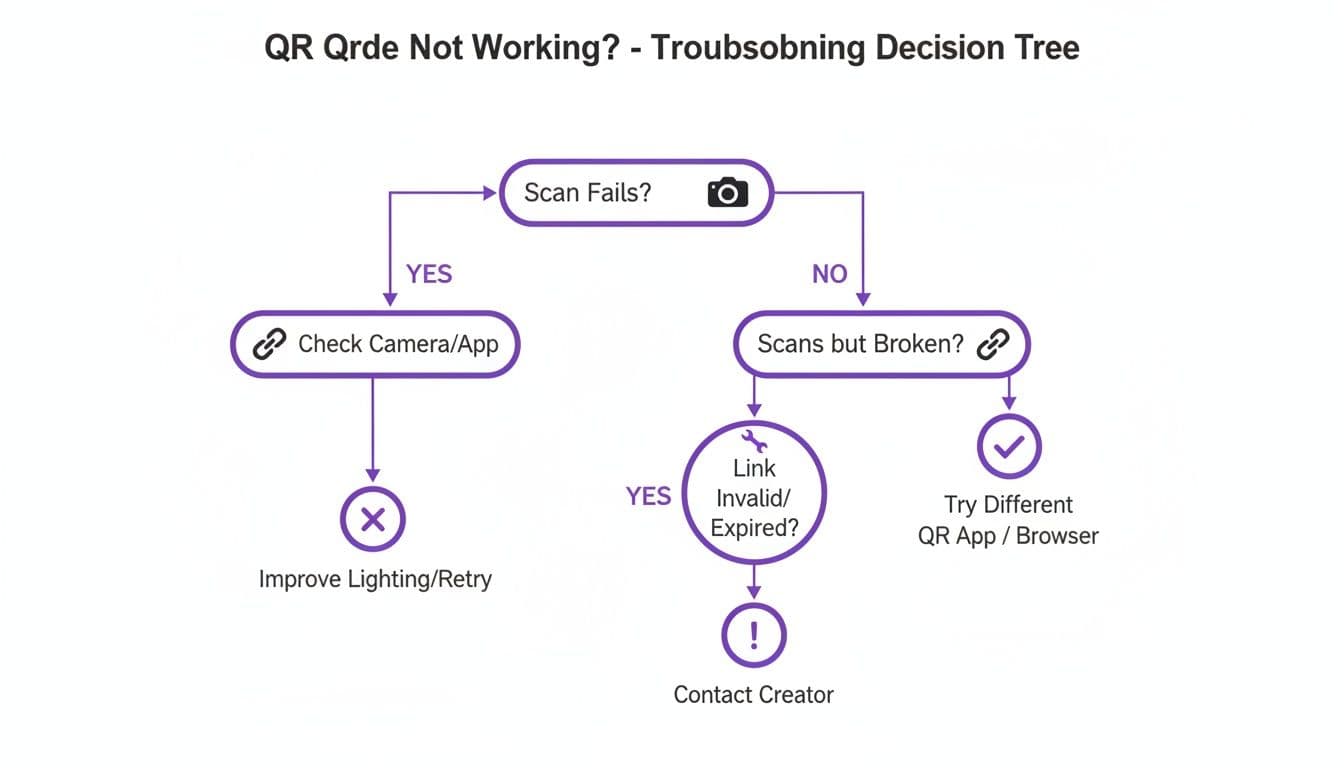
So, where do you start? The first question to ask is simple: is the code not scanning at all, or is it scanning but leading to an error page? The answer immediately cuts your troubleshooting time in half.
- Doesn't scan at all: The problem is physical. It's an issue with the code's design, its print quality, or the device trying to read it.
- Scans but leads to an error: The problem is digital. The link is broken, the redirect is failing, or the content at the destination is missing.
This flowchart maps out the diagnostic path, helping you quickly pinpoint the root cause.
These seemingly small details have a huge impact. One analysis of event badge programs found that poor QR code execution—like wrong sizing or bad placement—slashed successful lead captures by an estimated 20% to 40%. That’s a massive number of potential customers lost just because a code couldn’t be scanned reliably. You can find more insights on how QR codes work and the common pitfalls that can trip you up.
Quick Diagnosis Checklist for Non-Working QR Codes
To help you get straight to the solution, here is a checklist summarizing the most common points of failure. Run through these categories, and you'll likely find your culprit in minutes.
| Problem Area | Common Causes | Quick Fix |
|---|---|---|
| Scanner / Device | Outdated phone camera, poor lighting, third-party app issues, smudged lens | Wipe lens, increase lighting, try a different phone or app |
| QR Code Design | Low contrast, inverted colors, overly complex (too much data), logo covers too much | Redesign with dark-on-light colors, shorten URL (or use dynamic code), shrink logo |
| Print & Placement | Too small, low resolution (blurry), printed on a curved or reflective surface | Reprint larger, use a vector format (SVG/PDF), move to a flat, non-glare surface |
| Link / Destination | Broken URL (404 error), incorrect redirect, expired dynamic code, typo in the link | Test the destination URL directly, edit the dynamic code link, check your subscription |
This table covers the vast majority of QR code failures. By systematically checking each area, you can move from problem to solution without guesswork.
Practical Tip: A "qr code not working" issue is usually a symptom of a preventable problem. By using a professional tool like QR Code Maker for high-resolution, dynamic codes and testing them before you go live, you can eliminate most of these frustrating and costly errors.
Solving Scanner and Device-Side Problems
When a customer tells you your QR code is broken, the first impulse is to check the code itself. But more often than not, the problem isn't the code—it’s the device trying to scan it. Simple, user-side issues are the most common culprits, turning a potential sale or visit into a moment of pure frustration.
Knowing what your customers might be running into is half the battle. If you can anticipate these common device-side hurdles, you can guide them to a quick fix. You'll turn a negative interaction into a helpful, positive one that reflects well on your brand.
Start with the Simple Stuff
Before you start digging into technical diagnostics, always begin with the easiest and most frequent problems. These account for a surprising number of scanning failures, and they’re the ones people tend to overlook in the moment.
You can politely suggest these to a customer who’s having trouble:
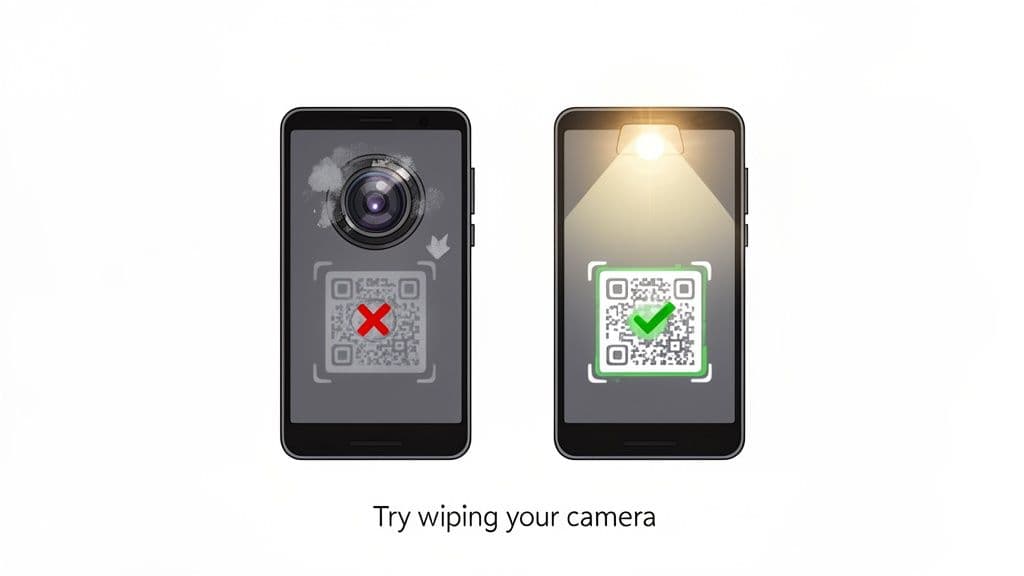
- Wipe the Camera Lens: A smudged or dusty lens is the #1 reason for scan failures. Seriously. A quick wipe with a soft cloth is often all it takes.
- Find Better Lighting: Scanners need good contrast. Dim lighting, heavy shadows, or the intense glare from direct sun can make it impossible for the camera to distinguish the code’s pattern.
- Adjust the Distance: Too close is just as bad as too far. Holding the phone right up against the code prevents the camera from focusing. A good starting point is about a foot away, then slowly moving closer or farther until the code snaps into focus.
These small tweaks solve the "it's not working!" problem most of the time, without ever needing to touch the QR code itself.
Real-World Example: Picture a customer in a dimly lit restaurant, trying to scan a menu QR code on the table. The romantic candlelight is casting flickering shadows, and their phone camera just can't lock on. A simple suggestion to use their phone's flashlight to illuminate the code will almost always solve it instantly.
Dealing with Different Devices and Software
Not all phones are created equal, and this is a huge source of scanning issues. A code that scans instantly on a new iPhone might fail completely on an older Android device. The difference usually comes down to camera quality and the phone's software.
Older phones often have lower-resolution cameras that struggle to read dense or small QR codes. And while most modern phones have QR scanning built right into the native camera app, older models might require a separate, third-party app to get the job done.
Here’s a quick breakdown of what might be happening on their end:
- Outdated Operating System: An old version of iOS or Android might have a less capable native scanner.
- Low-Resolution Camera: The camera simply may not be able to capture enough detail from a complex or tiny code.
- Dodgy Third-Party Apps: Some free scanner apps are unreliable, slow, or so full of ads that they interfere with the scanning process.
If a customer is still stuck after trying the simple fixes, you can suggest they try updating their phone’s software. Another great tip is to have them download a reputable scanner app like Google Lens. This empowers them to solve the problem and get where they need to go.
Fixing Common QR Code Design Flaws
A QR code's design is a delicate balance. You want it to look great and match your branding, but a slick-looking code is useless if a customer’s phone can't read it. When a QR code not working issue pops up, the problem often traces back to a few common, but critical, design flaws made during the creation process.
Let's unpack the most frequent offenders so you can avoid them entirely. These are the details that separate a code that works every time from one that causes endless frustration for your customers.
The Contrast and Color Conundrum
The single biggest design mistake is poor color contrast. QR code scanners are built to see dark modules on a light background. When the foreground and background colors are too similar—like light gray on white or dark blue on navy—the camera simply can't distinguish the pattern. It's like trying to read black text on a black page.
A classic mistake is inverted colors, where people use a light-colored code on a dark background. While some of the newest smartphone cameras can handle this, many still can't. It's a gamble that just isn't worth taking for the sake of aesthetics.
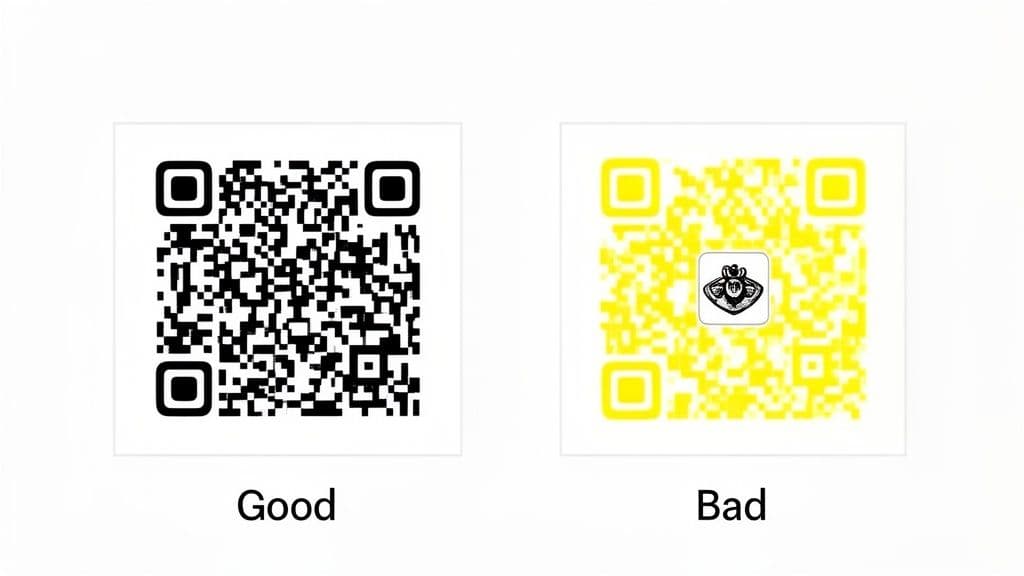
- Best Practice: Always stick with a dark-colored QR code on a light-colored background. Black on white is the gold standard for a reason.
- Good Example: A dark blue QR code on a beige restaurant menu.
- Bad Example: A yellow QR code on a white flyer—a guaranteed scanning failure.
Pro Tip: For maximum scannability, aim for at least a 40% contrast ratio between your foreground and background colors. When in doubt, simpler is always better. You can learn more about how to choose the right colors and contrast for your QR codes to ensure they work perfectly every time.
To make this crystal clear, here’s a quick rundown of the most common design choices that either help or hurt scannability.
QR Code Design Dos and Don'ts for Scannability
| Design Element | Do This (Best Practice) | Don't Do This (Common Mistake) |
|---|---|---|
| Color Contrast | Use a dark QR code on a light background. Black on white is foolproof. | Use low-contrast colors (e.g., gray on white) or inverted colors (e.g., white on black). |
| Logo Integration | Keep the logo small and centered. Rely on high error correction (Level H). | Make the logo too large, obscuring more than 30% of the code's data modules. |
| File Format | Download in a vector format (SVG, PDF) for print to ensure sharp lines at any size. | Use a low-resolution JPG or PNG that becomes pixelated when resized. |
| Quiet Zone | Maintain a clear, empty margin around the code (about 4 modules wide). | Place text, images, or other design elements right up against the code's edges. |
| Complexity | Use dynamic codes for long URLs to keep the pattern simple and easy to scan. | Use static codes for long URLs, which creates a dense, complex pattern that's hard to read. |
Following the "Do" column is your best defense against the dreaded "this code won't scan" complaint.
Logo Overload and Resolution Wreckage
Adding your logo is a fantastic way to brand your QR code, but it has to be done carefully. If the logo is too big, it physically covers up the critical data modules that scanners need to read. It's like ripping a page out of a book and still expecting someone to understand the story. A good QR code generator will help you balance this, but it’s a key factor to watch.
Just as important is the file format you use for printing. A low-resolution PNG or JPG file might look fine on your screen, but it will become a blurry, pixelated mess when scaled up for a large banner or shrunk for a business card. This distortion makes the code unreadable.
- The Solution: Always download your QR code in a vector format like SVG or PDF. Platforms like QR Code Maker provide these high-resolution options specifically for this reason. Vector files can be resized to any dimension without losing quality, ensuring your code remains crisp and scannable, whether it's on a billboard or a product tag.
Understanding Error Correction
Finally, let's talk about error correction. This is a built-in feature that allows a QR code to be scanned even if part of it is damaged, dirty, or covered by a logo. It’s essentially the code’s self-repair mechanism. There are four levels, from Low (L) to High (H).
A higher error correction level (like H) makes the code's pattern denser but also far more resilient. This is exactly what you want if you're placing a logo in the center or printing the code somewhere it might get scratched or smudged. Choosing the right level isn't a minor detail—it's a strategic decision that can save a creatively designed code from failing in the real world.
How Print and Placement Impact Scannability
A perfect digital QR code can fail the second it hits the real world. That jump from screen to paper introduces a ton of new variables, and suddenly, the physical context matters just as much as the digital design. If you've triple-checked your code's design and it's still not working, the problem almost certainly lies in how it was printed or where you put it.
I once saw a restaurant manager proudly display tiny QR codes on table tents. They looked clean and minimal, but customers had to awkwardly lean way over the table, fighting to get their phone's camera to focus. It was a classic case of a great idea getting torpedoed by poor physical execution.
Getting the Size and Material Right
The most common culprit in print failures is simply size. A QR code printed too small is a non-starter for most phone cameras, especially from a normal viewing distance.
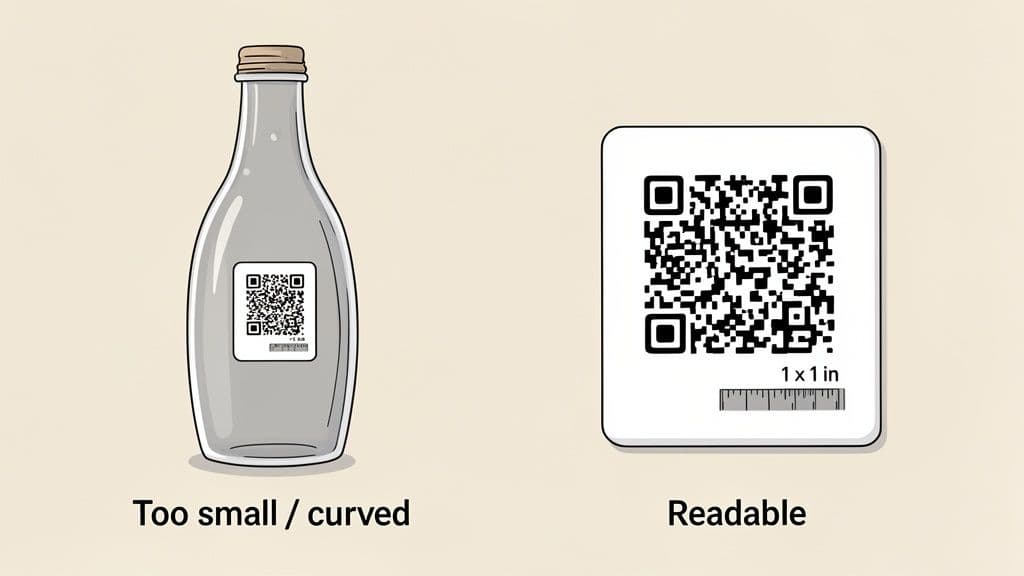
As a solid rule of thumb, make sure your QR code is never smaller than 1x1 inch (or 2.5x2.5 cm). This works well for anything scanned up close, like a business card or product tag.
But for things viewed from farther away—say, a poster or a trade show banner—the code needs to scale up. A handy formula is to make the code's width about one-tenth of the scanning distance. So, for a sign you want people to scan from 10 feet away, your QR code needs to be at least one foot wide.
The material you print on is just as critical.
- Glossy Surfaces: Watch out for highly reflective materials. A code on a window cling or a laminated menu can create a glare that completely blinds the scanner.
- Textured Materials: Printing on rough surfaces like certain types of paper or fabric can distort the little squares (modules) in the code, making it unreadable.
- Curved Objects: A code wrapped around a bottle or a mug looks warped to a camera, which almost always leads to a scan failure.
Real-World Example: An event organizer printed QR codes directly onto fabric lanyards. The fabric's texture warped the pattern, and as people moved, the code would bend and fold. The check-in crew spent ages trying to get a clean read. A much better solution would have been a rigid plastic badge.
Strategic Placement for Seamless Scanning
Where you stick the QR code is just as important as how big it is. A code tucked away in a dimly lit corner or slapped too high on a wall is just asking for user frustration. You have to think about the user's environment and make it convenient for them.
One non-negotiable part of placement is the quiet zone. This is the blank margin of empty space that absolutely must surround your QR code on all four sides. Without this buffer, scanners get confused by nearby text or graphics and can't figure out where the code begins and ends.
A good practice is to make sure the quiet zone is at least four times the width of a single module (one of the tiny squares in your code).
For a deeper dive, QR Code Maker has a fantastic article on what to do when your printed codes are not working, covering everything from print resolution to material choices.
Honestly, the single best thing you can do is test your printed code in its final location, under real-world lighting conditions. It's the only surefire way to catch these physical failures before they become a real problem.
Diagnosing Broken Links and Destination Errors
There's nothing more frustrating than a QR code that scans perfectly but leads to a dead end. When a user gets a 404 error, a security warning, or just a blank page, the problem isn't the code itself—it's the digital destination. That single broken link instantly kills your engagement opportunity.
This is a critical failure point. A tiny typo in the URL, a webpage you’ve since deleted, or an expired link can render thousands of printed flyers, posters, or business cards completely useless. This is exactly where dynamic QR codes become your most important tool.
The Power of Dynamic QR Codes
Unlike static codes that permanently lock in the destination URL, dynamic QR codes point to a short redirect link that you control. This simple difference is a total game-changer for businesses.
Imagine you've printed 5,000 menus for your restaurant, only to spot a typo in the URL for your online ordering system. With a static code, you'd have no choice but to reprint everything. But with a dynamic QR code from a platform like QR Code Maker, you just log into your dashboard, correct the URL, and hit save. The printed code on every single menu is instantly fixed.
This flexibility lets you:
- Correct mistakes instantly without reprinting a single item.
- Update promotional links for seasonal campaigns on the fly.
- Redirect users to new content while keeping the same physical code in circulation.
Best Practice: Using dynamic QR codes is the single most effective way to prevent destination errors. It transforms your QR code from a fixed, permanent link into a flexible gateway that you can update anytime, anywhere.
Navigating Security and Network Blocks
Another issue that pops up more and more is when a scanned link is perfectly valid but still gets blocked. A growing share of “QR code not working” complaints come from overzealous security systems flagging suspicious destinations. Security studies show QR codes were involved in about 22% of phishing attacks in 2023, prompting firewalls and security apps to be more aggressive. You can get more details from this analysis on the rise of quishing statistics.
Corporate networks are particularly notorious for blocking generic URL shorteners, which are frequently used in both legitimate marketing and malicious campaigns. If your QR code uses a random, untrusted short link, it might get flagged and blocked before your customer ever sees the page. This is especially relevant for business cards with QR codes shared in corporate environments or for event WiFi access codes.
Using a professional service like QR Code Maker helps you sidestep this problem. The platform uses a trusted, established domain for its short links, which is far less likely to be blacklisted by corporate security filters. This ensures your link is seen as secure, giving your audience confidence and making sure your message actually gets through. For a deeper look at this topic, check out this guide on troubleshooting a wrong destination.
A Proactive Approach: How to Stop QR Code Failures Before They Start
The best way to fix a broken QR code is to make sure it never breaks in the first place. Instead of scrambling to react when a customer complains, a simple, proactive workflow can ensure your campaigns run smoothly right from the start.
Getting this right isn't complicated. By building a few key habits into your process, you’ll save yourself time, money, and protect your brand’s reputation.
It all boils down to three core stages: creating a solid foundation, testing like a real customer, and keeping an eye on performance.
Step 1: Create with Reliability in Mind
Your process should always begin with choosing the right tools. Using a professional platform like QR Code Maker to generate dynamic QR codes is probably the single most important decision you can make.
Dynamic codes use a short redirect link, which keeps the visual pattern simple and clean. This makes them much easier for phones to scan, even if your destination URL is incredibly long or complex.
Even better, they give you the power to edit the destination link at any time. This flexibility is a game-changing safety net. If you ever find a broken link after printing 10,000 flyers for an event, you can fix it in seconds from your dashboard—no reprinting needed.
Step 2: Test Like Your Customers Will
Never, ever send a QR code to print without testing it first. This step is completely non-negotiable and catches nearly all the physical and design-related hiccups before they become expensive, real-world problems.
Your testing process should mimic how people will actually interact with the code:
- Use Multiple Devices: Scan it with a newer iPhone and an older Android phone. You'd be surprised how differently cameras and software can behave.
- Vary the Conditions: Try scanning it in different lighting—bright sunlight, a dimly lit room, and standard office light. Glare and shadows are common culprits for scan failures.
- Check Distances: Make sure it scans from up close and from the intended viewing distance. Is it on a business card or a billboard? The required size will change dramatically.
Practical Tip: A classic mistake is only testing a digital proof on your computer screen. Always print a physical sample on the final material, whether that's glossy paper, a vinyl banner, or a textured business card. The real environment is the only test that matters.
Step 3: Use Performance Tracking as an Early Warning System
Once your QR code is out in the wild, the final piece of the puzzle is tracking its performance. Your analytics dashboard is more than just a source for marketing data; it's your early warning system.
If you notice a sudden, sharp drop in scans for a code that was previously performing well, that’s a massive red flag. This almost always points to a new problem, like a broken destination link or an issue with the webpage it leads to.
Analytics also tell a deeper story. Sometimes when customers say a "qr code not working," it's not a technical failure but a user experience issue. If your code leads to a slow-loading, non-mobile-friendly page, people will just give up, creating the perception that the code itself failed. Monitoring your data helps you distinguish true technical glitches from these critical contextual problems. You can learn more about telling the difference between technical and behavioral QR code failures at krofile.com.
Common Questions About Fixing QR Codes
Even with the best intentions, things can go sideways. Here are some quick answers to the most common headaches business owners and marketers run into when a QR code misbehaves.
Why Does My QR Code Work on Some Phones But Not Others?
This is a classic and frustrating problem. The culprit is almost always the phone itself.
The reality is that phone hardware and software vary wildly. An older smartphone with a lower-resolution camera might struggle to focus on a dense or tiny QR code, while the latest iPhone scans it instantly. Some built-in camera apps are also just plain better at QR detection than others.
To give your code the best chance of working for everyone, keep the design simple and high-contrast. The single best thing you can do? Use a dynamic QR code—it keeps the visual pattern clean and simple, making it far easier for all types of phones to read.
Can I Fix a QR Code That I Have Already Printed?
This is the million-dollar question for business owners, and the answer comes down to one thing: was your code static or dynamic?
- If it's a static QR code, you're out of luck. The destination URL is burned directly into the code's pattern. A typo means reprinting everything. It’s a painful and expensive lesson to learn.
- If it's a dynamic QR code, then yes, absolutely! This is precisely what they're for. Just log into your QR Code Maker dashboard, edit the destination link, and the change is live in seconds. Your printed code remains the same, but now it points to the right place. Crisis averted.
How Do I Know If My QR Code Is Too Complex?
Look at it. Does it look like a dense, jumbled mess of tiny black and white squares? If so, it's probably too complex.
A QR code's visual complexity is a direct result of how much data you cram into it. A long URL for an event registration or a complicated WiFi network password creates a busy pattern that many phone cameras struggle to read, which is a top reason a qr code not working issue pops up.
The easiest fix is to switch to a dynamic QR code. Instead of encoding the long, ugly URL, it encodes a short redirect link. This keeps the code’s pattern open and simple, ensuring a fast, reliable scan on nearly any device.
Ready to create reliable, professional QR codes that you can track and manage with ease? QR Code Maker provides all the tools you need, from high-resolution vector downloads to dynamic editing that saves you from costly reprinting. Get started for free and see how simple it can be at https://qr-code-maker.app.
Ready to create your QR code?
Free forever for static codes. Pro features with 14-day trial, no credit card required.
Irina
·Content LeadIrina leads content strategy at QR Code Maker, helping businesses understand how to leverage QR codes for marketing, operations, and customer engagement. Her expertise spans digital marketing, user experience, and practical implementation guides.
Learn more about us →Related Articles
A Practical Guide to Custom QR Code Shapes That Boost Engagement
Discover how to use custom QR code shapes to elevate your brand and increase scans. This guide offers actionable design tips and real-world examples.
8 Powerful QR Code Call to Action Examples to Drive Engagement
Explore our guide to powerful qr code call to action examples. Learn how to drive sales, get reviews, and grow your audience with actionable tips for 2026.
10 Essential QR Code Best Practices for Your Business in 2026
Unlock the full potential of your campaigns with our guide to QR code best practices. Learn design, tracking, and placement for maximum engagement.