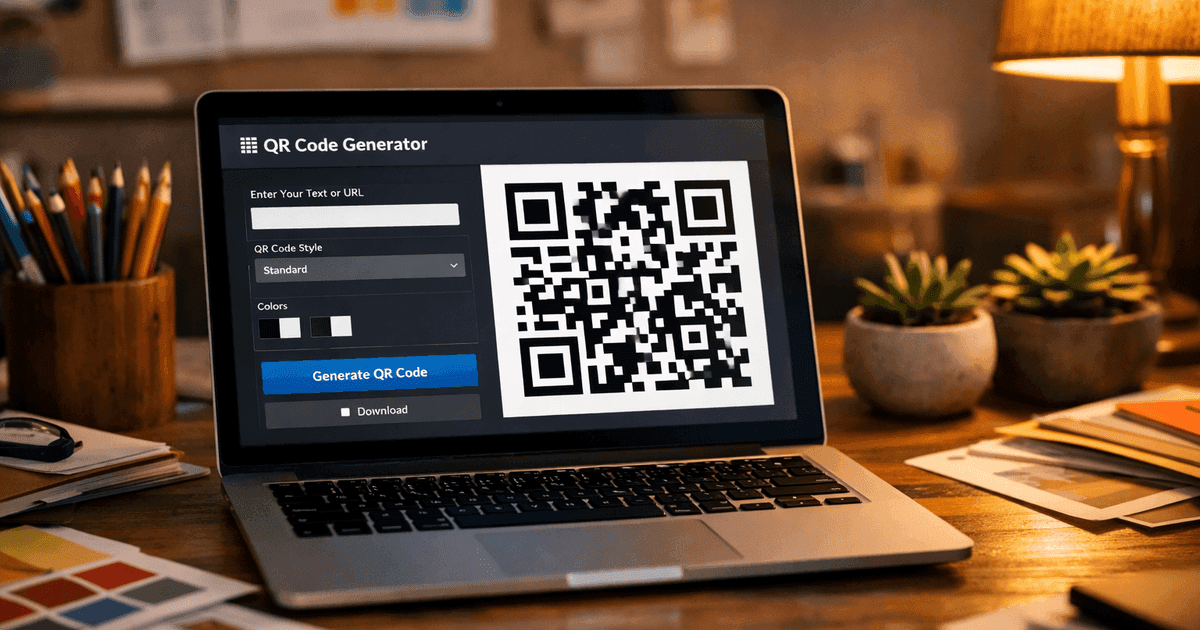
Learn how to make a custom QR code that boosts engagement and reflects your brand. This guide covers design, tracking, and best practices for businesses.
Making a custom QR code is surprisingly straightforward: you just need a reliable QR code generator to create the code, then you can apply your brand's colors, logo, and a clear call-to-action frame. The real secret? Always choose a dynamic QR code. With dynamic codes, you can update the destination link, track performance, and fix mistakes—without ever reprinting a single thing.
Free account includes unlimited static codes + 1 trackable dynamic code
Why Custom QR Codes Are a Marketing Essential
In a world full of digital noise, custom QR codes are your secret weapon. They create a tangible bridge between your physical marketing—think flyers, business cards, product packaging—and your online world. They're far more than just black-and-white squares. They guide customers from a real-world moment straight to a digital experience: your website, a restaurant menu, or a social media profile.
This is exactly how a custom QR code connects a physical item to its digital counterpart:
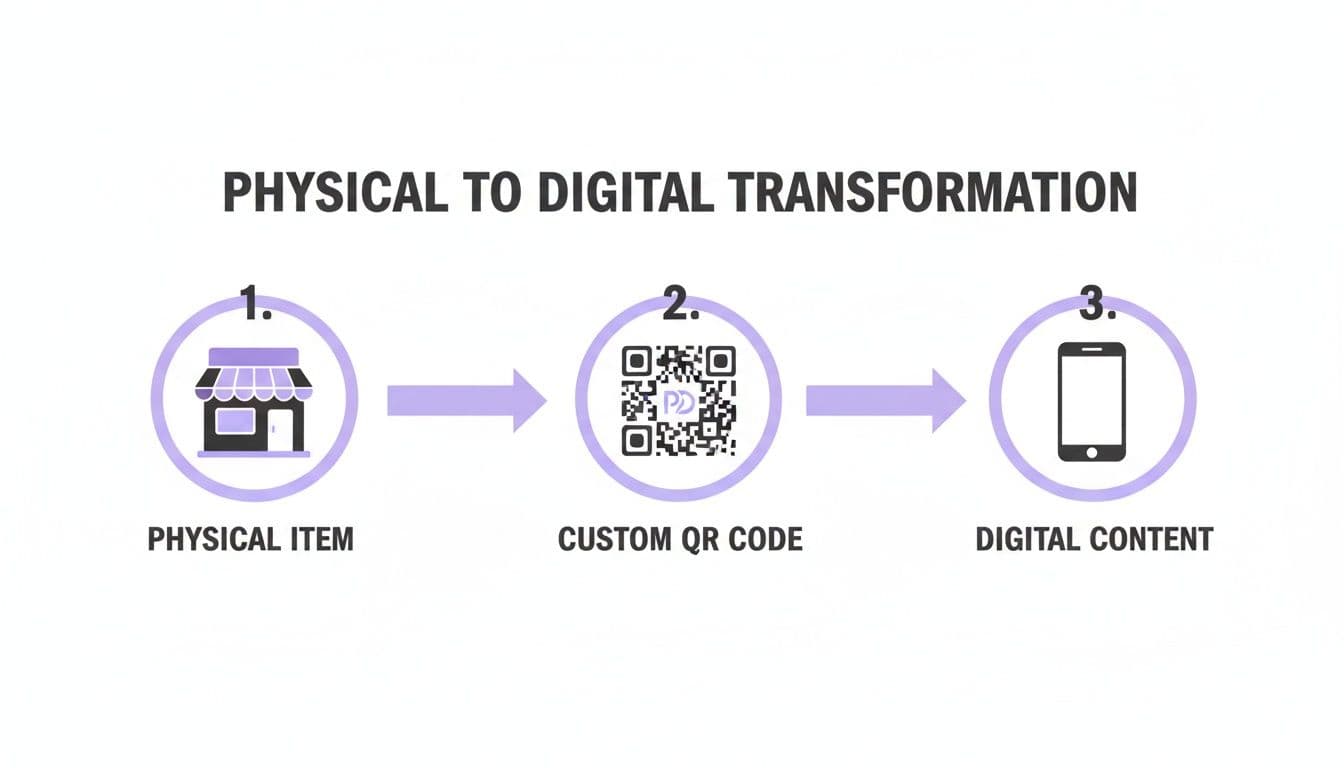
As you can see, the journey is seamless: someone scans a branded code on a physical product and instantly gets a relevant digital experience on their phone.
The Power of Dynamic QR Codes
For any business, the dynamic QR code is a total game-changer. A static code locks the destination link into the pattern forever. But a dynamic code uses a short redirect URL, unlocking flexibility and insights:
A static QR code is like a tattoo—permanent once it’s there. A dynamic QR code is like a digital sign—you can change the message anytime without touching the sign itself.
With a dynamic code, you can:
- Update the destination link anytime—no need to trash old flyers if your promotion changes.
- Track valuable analytics—see how many people scan, where they are, and when they scan.
- Fix mistakes after the fact—update a wrong link in seconds, even if you’ve printed thousands of brochures.
To help you decide, here’s a quick rundown of why dynamic codes are the superior choice:
Dynamic vs Static QR Codes: What Businesses Need to Know
| Feature | Dynamic QR Codes (Recommended) | Static QR Codes (Limited Use) |
|---|---|---|
| Edit Destination URL | Yes, can be changed anytime without reprinting. | No, permanently encoded; requires a new code to update. |
| Scan Tracking & Analytics | Yes, measures scans, location, time, and device. | No, offers zero performance insights. |
| Longevity & Flexibility | Future-proof for evolving campaigns and updates. | Inflexible; obsolete if the destination changes. |
| Campaign Management | Ideal for marketing, A/B testing, and promotions. | Best for permanent, unchanging data. |
| Common Use Cases | Marketing materials, product packaging, event ticketing. | WiFi access, vCards, static links. |
Ultimately, for any serious marketing campaign, creating dynamic QR codes with a professional tool like QR Code Maker is essential. You get the agility and data insights you need to measure and adapt your strategy on the fly.
Choosing the Right QR Code for Your Business Goal
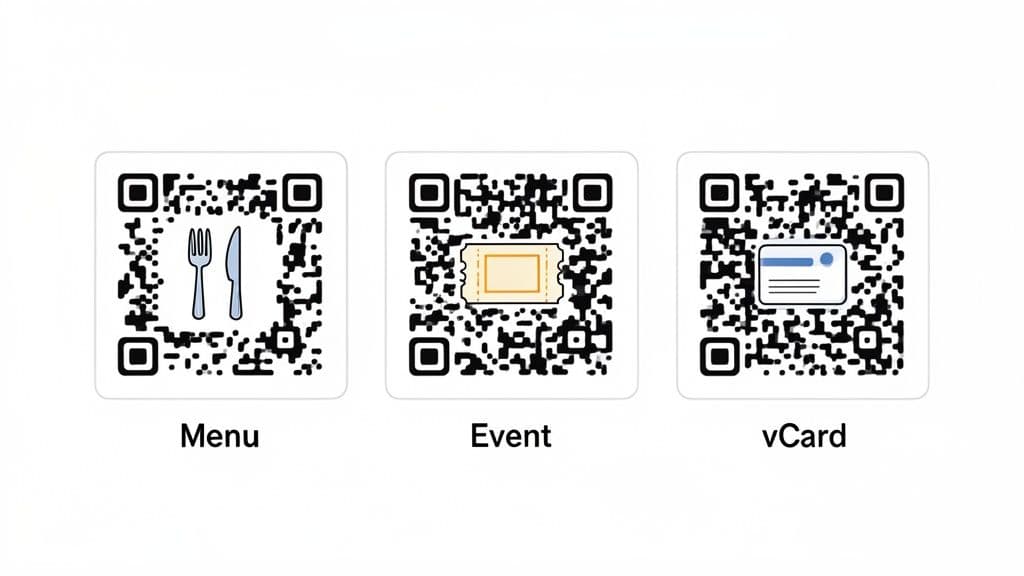
Before you think about colors or logos, ask yourself: What do you want this QR code to do? A QR code is just a tool; its power comes from the action it drives. Think of it like choosing the right key for a lock—picking the correct QR code type makes the experience seamless and intuitive.
Here are some specific use cases with real-world examples:
- Restaurant Menus: A busy restaurant owner uses a Menu QR Code to ditch paper menus. Diners scan the code at the table and view the digital menu instantly—cutting wait times and saving on printing costs.
- Event Tickets: An event organizer links a Event QR Code to online tickets or registration. Guests scan to check in quickly and collect event info. For more on making this work, see using QR codes for event tickets effectively.
- Business Cards: A consultant adds a vCard QR Code to her business card. A quick scan saves her contact info directly to the recipient’s phone—no typing needed.
- WiFi Sharing: A coffee shop sticks a WiFi QR Code on each table. Customers scan to connect instantly—no more asking for the password.
- Social Media Growth: A boutique displays a Social Media QR Code at checkout, linking to a landing page with all their social profiles. Shoppers can follow them with one scan.
- App Installs: A tech startup’s flyers include an App Store QR Code that auto-detects iPhone vs. Android and routes users to the correct store.
Pro Tip: Always match the QR code’s function to a clear business objective. When you align the code with a specific goal—like faster ordering or easier contact saving—it becomes a powerful tool, not just a pattern.
Step-by-Step Guide to Crafting Your Custom QR Code
Creating your first custom code is easy when you follow these steps with QR Code Maker:
- Define Your Goal: Decide what you want people to do—view a menu, join WiFi, save your contact, or buy tickets.
- Choose Your Code Type: Select dynamic (recommended) or static based on your needs for edits and tracking.
- Enter the Content: Input your URL, text, or WiFi credentials in the platform.
- Customize the Design:
- Pick brand colors with high contrast.
- Upload your logo and ensure a “quiet zone” around it.
- Add a custom frame with a CTA like “Scan for Menu” or “Join Our WiFi.”
- Test Thoroughly:
- Print a sample and scan from different angles.
- Test on iOS and Android phones.
- Try native camera apps and a third-party reader.
- Download in the Right Format:
- Use PNG for digital (web, email, social).
- Use SVG for print (business cards, flyers, banners).
- Launch and Track:
- Place your code in high-visibility spots.
- Monitor key metrics in your dashboard.
- Adjust campaigns based on scan data.
Best Practice: Always include a clear call-to-action near your QR code—tell people exactly what they’ll get when they scan.
Designing a QR Code That Showcases Your Brand
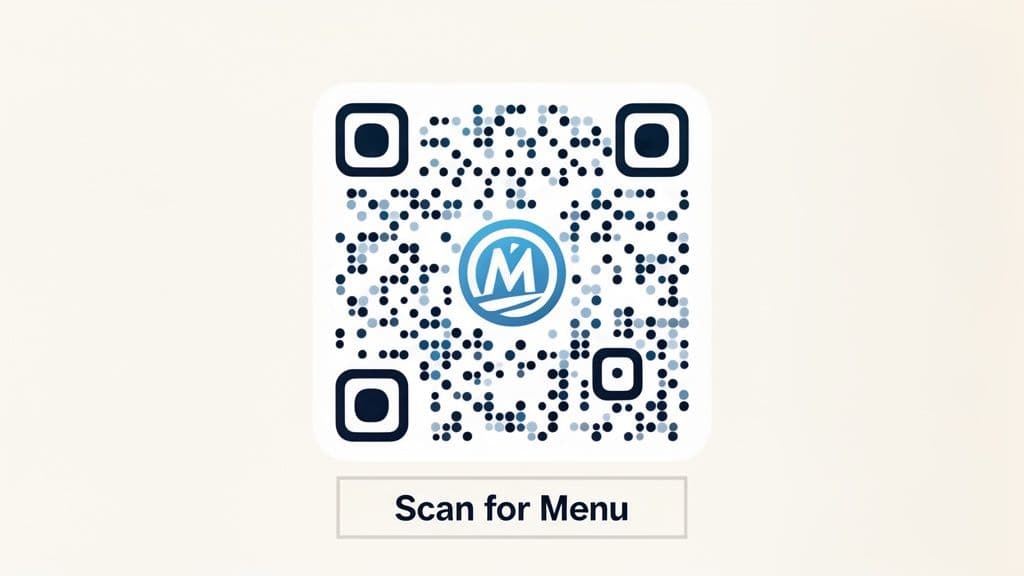
A generic black-and-white QR code works, but it’s a missed branding opportunity. Customizing your code creates a visual touchpoint that reinforces your identity and encourages more scans.
Infusing Your Brand’s Visuals
- Use Brand Colors: Replace black with a dark brand hue. Ensure high contrast against the background.
- Add Your Logo: Drop your logo in the center. The platform handles error correction so the code remains scannable. For a deep dive, see custom QR code with a logo.
- Maintain a Quiet Zone: Leave whitespace around the logo to prevent scan errors.
Pro Tip: Keep the logo size under 30% of the code’s area. This balances branding with scan reliability.
Going Beyond Colors and Logos
- Custom Frames: Surround your code with a CTA frame—“Scan for Menu,” “Get 20% Off,” or “Join Our WiFi.”
- Unique Pattern Shapes: Swap squares for dots, stars, or other shapes to match your brand’s style.
- Eye and Corner Styles: Customize the three large corner “eyes” with different shapes (circles, rounded squares) for extra flair.
These design details strengthen your brand with every scan—making your code recognizable even before customers look closely.
How to Track and Analyze QR Code Performance
Creating your code is just the start. The real power comes from understanding who scans it, where, and when. Dynamic QR codes turn each scan into valuable insights.
Key Metrics Every Marketer Should Watch
With QR Code Maker, you get a dashboard full of data. Focus on these core metrics:
- Total Scans: Your overall engagement indicator.
- Unique Scans: How many different people scanned your code.
- Location Data: City and country breakdowns to discover hot spots.
- Time of Day: Peak scan hours for better timing of promotions.
- Device Type: iOS vs. Android split to optimize landing pages.
By analyzing these metrics, you can refine your campaigns—shift ad spend to high-engagement locations or run flash sales during peak scan times.
For more detail, check out how to track QR code scans. If you use Google Analytics, learn how to integrate tracking codes in Mastering the Tracking Code for Google Analytics GA4.
Consider this: the global QR code payment market was valued at $14.7 billion and is forecast to hit $38.2 billion by 2030. By tracking performance, you tap into a powerful, growing trend.
Testing and Launching Your Custom QR Code
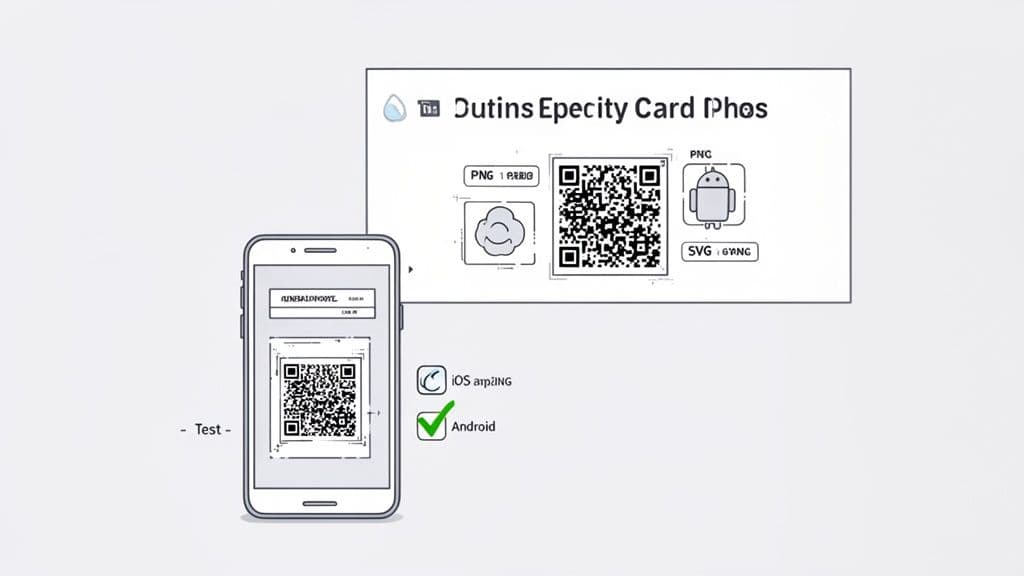
Before you print or publish, put your code through a final pre-flight check. A QR code that doesn’t scan is worse than no code at all.
The Non-Negotiable Testing Protocol
- Test on Multiple Devices: Scan with iOS and Android models.
- Use Different Apps: Try native camera apps and third-party readers.
- Check the Destination: Ensure the landing page is mobile-friendly and loads error-free.
- Print a Sample: Scan from various angles and distances.
Think of it like testing your website across browsers. A smooth, instant scan experience is non-negotiable.
Choosing the Right File Format for Deployment
Download the correct file for your use:
- PNG: Ideal for digital (web, email, social).
- SVG: Perfect for print (business cards, flyers, banners)—scales without losing quality.
When printing, maintain high contrast and a clear “quiet zone” around the code. A dark code on a light background is always safest.
Common Mistakes We See All the Time (And How to Avoid Them)
Making a QR code is easy; making one that works seamlessly is the challenge. Here are the pitfalls to dodge:
The Static Code Trap
Avoid static codes for campaigns. Their URLs are permanent. If your link changes, printed materials become useless. Always use a dynamic QR code from a platform like QR Code Maker to retain flexibility and avoid wasted print runs.
Forgetting Who’s Scanning
Remember: 100% of QR code scans happen on mobile phones. If you link to a desktop-only page, visitors will bounce. Also, never leave your code without context. Add a clear call-to-action:
- “Scan for Menu”
- “Get 20% Off”
- “Join Our WiFi”
Overlooking Technical Details
The biggest technical error is low contrast. A subtle color mismatch or busy background kills scannability. Always test in varied lighting. As the QR code payment market surges—estimated at USD 12.54 billion toward USD 61.73 billion by 2033 (research by Grand View Research)—reliability is more critical than ever.
Your Top Questions, Answered
Even with the best tools, you’ll have questions. Here are the most common:
Can I Change Where My QR Code Goes After I’ve Printed It?
Yes—but only with a dynamic QR code. Platforms like QR Code Maker let you swap out the destination URL anytime, without reprinting. Static codes, once generated, can’t be changed.
How Much Customization Is Too Much?
Always prioritize scannability. Avoid:
- Low Contrast: Light colors on light backgrounds.
- Crowded Logos: Leave at least 10% clear space around logos.
- Inverted Colors: Light codes on dark backgrounds can fail on older cameras.
Test your code on different phones and in various lighting. A beautiful but unscannable code is useless.
What’s the Best Size for a Printed QR Code?
For most prints—business cards or flyers—ensure your code is at least 1 x 1 inch (2.5 x 2.5 cm). If you’re using it on a poster or banner, scale it to the distance people will scan from. Test at full size before final printing.
Ready to bring these best practices to life? QR Code Maker has everything you need to design, manage, and track dynamic QR codes that deliver real results. Start your free trial today and see how easy it is to connect your physical and digital marketing.
Ready to create your QR code?
Free forever for static codes. Pro features with 14-day trial, no credit card required.
Irina
·Content LeadIrina leads content strategy at QR Code Maker, helping businesses understand how to leverage QR codes for marketing, operations, and customer engagement. Her expertise spans digital marketing, user experience, and practical implementation guides.
Learn more about us →Related Articles
How to Create a Custom QR Code With a Logo People Will Actually Scan
Learn how to create a custom QR code with logo that boosts engagement. Our guide offers actionable tips for marketers and small businesses to stand out.
10 Essential QR Code Best Practices for Your Business in 2026
Unlock the full potential of your campaigns with our guide to QR code best practices. Learn design, tracking, and placement for maximum engagement.
How to Design a QR Code People Actually Want to Scan
Learn how to design a QR code that drives results. Our guide covers branding, scannability, sizing, and tracking to help you create codes that work.