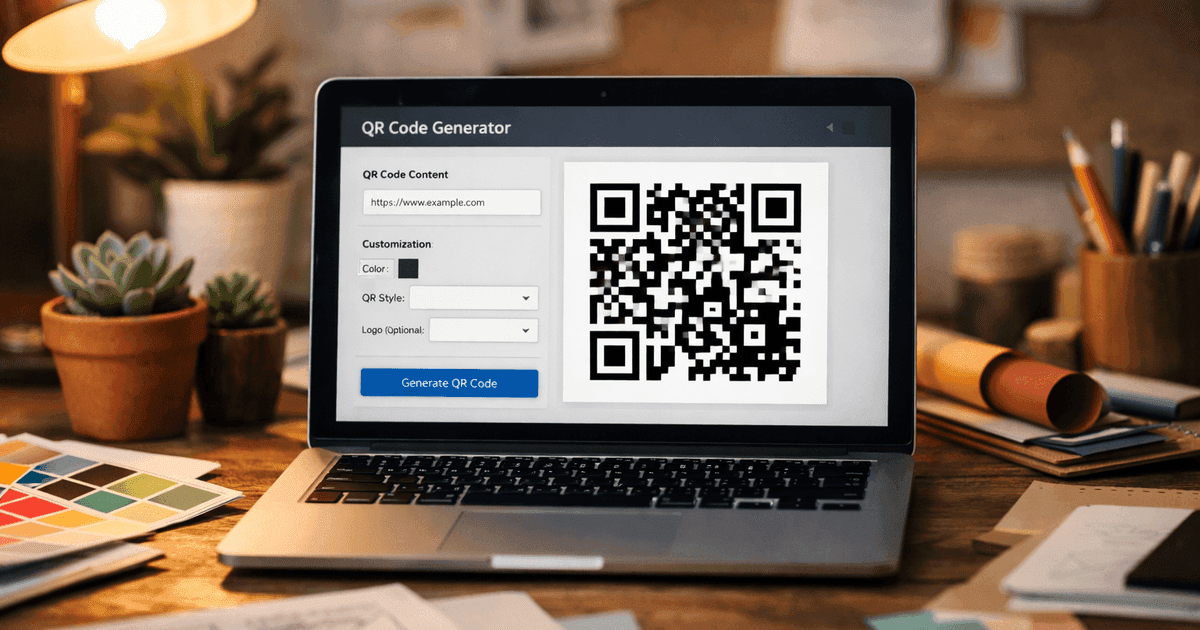

Learn to design transparent qr codes that blend with your brand, stay scannable, and drive engagement with practical tips and real-world examples.
A transparent QR code is a scannable code designed with a transparent background, allowing you to place it seamlessly over images, colored surfaces, or any custom design without a clunky white box. This simple design choice makes your marketing materials look far more professional and visually integrated. The use of QR codes in marketing has surged, with a recent study from Bitly showing a 96% growth in QR code downloads year over year, making professional presentation more critical than ever.
Why Should You Use Transparent QR Codes?
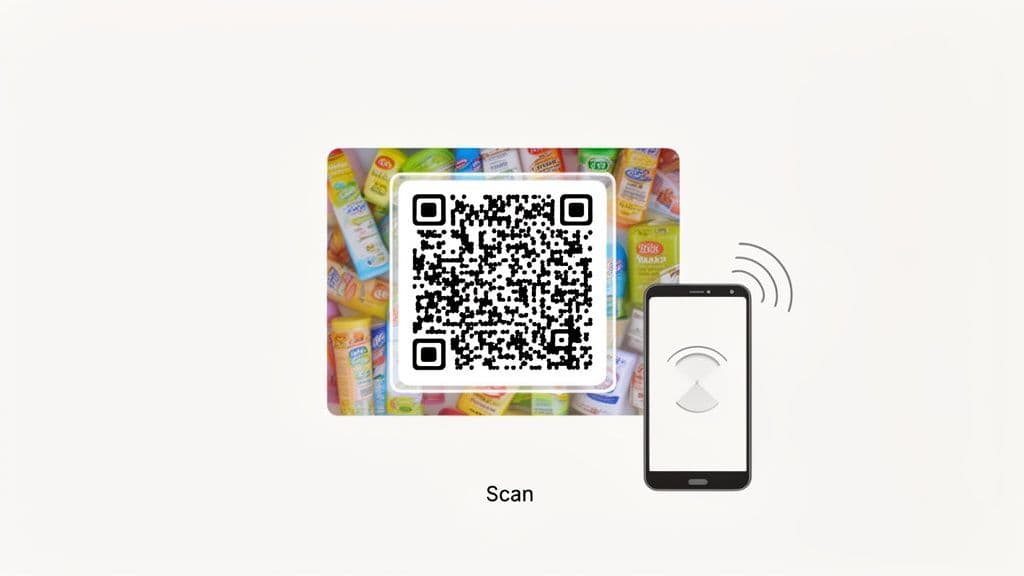
Standard black-and-white QR codes are functional, but they often clash with carefully crafted brand aesthetics and can look like an afterthought. By removing the opaque background, you can layer the QR code directly onto product packaging, restaurant menus, or event posters. This creates a more sophisticated and integrated experience, signaling a level of professionalism and attention to detail that customers notice.
Beyond just looking good, a code that feels like a natural part of the design is less jarring than a generic square, encouraging more people to scan it.
Here are the key benefits:
- Enhanced Brand Cohesion: The code blends into your design, reinforcing your visual identity instead of disrupting it.
- Increased Scan Rates: A visually appealing and thoughtfully placed QR code is more likely to capture curiosity.
- Professional Appearance: Eliminating the generic boxy look elevates the perceived quality of your marketing assets.
Using a tool like QR Code Maker, you can easily create transparent QR codes that are not only stylish but also fully trackable and dynamic. To understand the underlying technology, you can read our guide on how QR codes work.
How Do You Make a Transparent QR Code?
Creating a professional QR code with a transparent background is straightforward with the right tool. Using QR Code Maker, you can generate a high-quality, scannable code that blends into your designs in just three steps: choosing its function, customizing its appearance, and exporting it correctly.
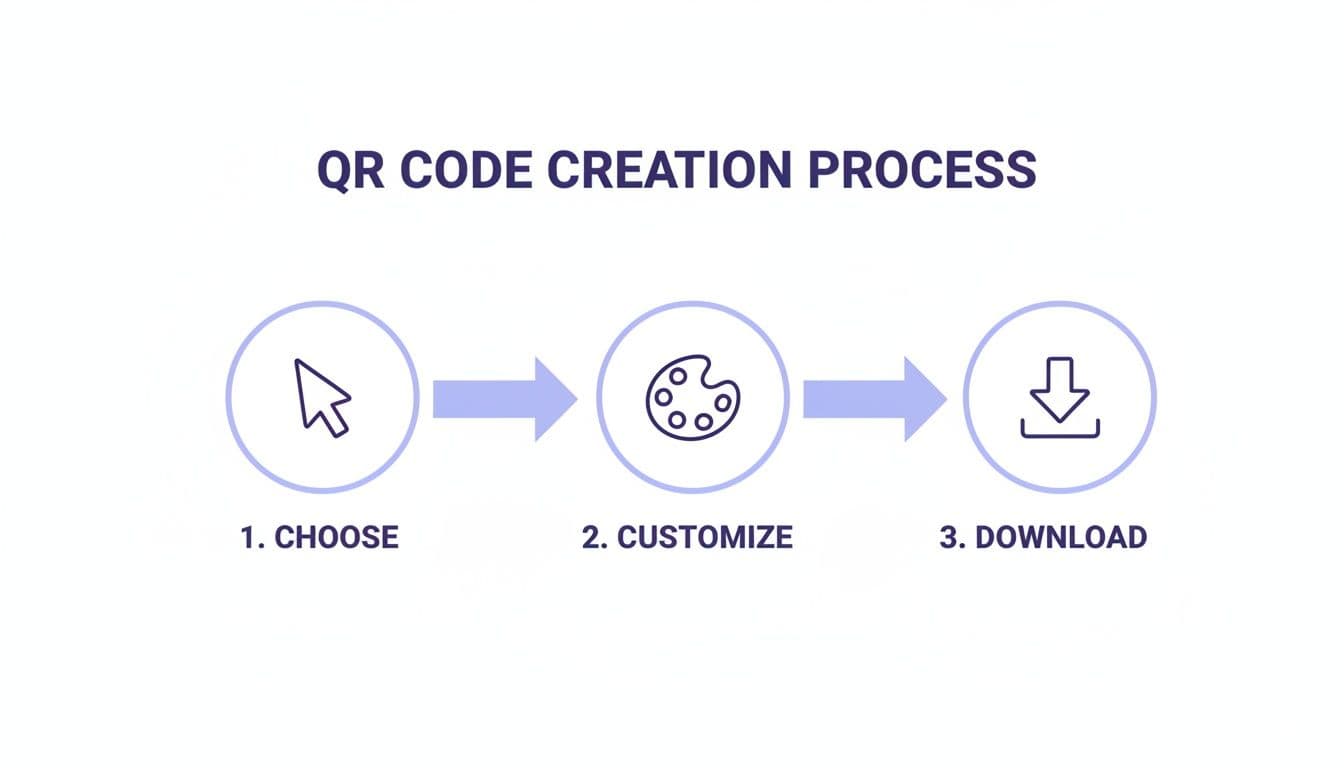
Step 1: Choose the QR Code's Function
First, decide what you want the code to do when someone scans it. This is the most important step, as it determines the information encoded in the pattern. Common use cases for businesses include:
- Website URL: Sends users to your homepage, a landing page, or a product page.
- vCard: A digital business card that lets people save your contact info directly to their phone. A vCard QR code is perfect for networking.
- WiFi Network: Ideal for cafes, offices, or event venues, allowing guests to connect with a single scan.
- PDF: Instantly share a document like a restaurant menu, product manual, or event program.
- Social Media: Boost your following by linking directly to your Instagram, LinkedIn, or Facebook profile.
A restaurant owner might choose a PDF for a touchless menu, while a marketer at a trade show would use a vCard to exchange contact details.
Step 2: Customize the Design to Match Your Brand
Next, make the QR code look like it belongs to your brand. This elevates it from a generic square into a true marketing asset. With QR Code Maker, you can modify nearly every visual element:
- Color: Change the foreground color to match your brand's palette.
- Logo: Add your company logo to the center of the code.
- Shape: Adjust the shape of the pattern and the corner "eye" markers to fit your visual style.
For more advanced tips on customization, see our guide on how to make a custom QR code.
Step 3: Export with a Transparent Background
This is the crucial final step. When you're ready to download, look for a checkbox or toggle that says "transparent background." Selecting this option removes any solid background color, leaving just the scannable pattern.
Pro Tip: Forgetting to enable the "transparent background" setting is a common mistake. It results in a QR code inside a white square, defeating the purpose. Always double-check this setting before downloading.
Choosing the right file format is equally important. The format you need depends on whether the QR code will be used in digital or print media.
| File Format | Best For | Transparency Support | Scalability | Key Advantage |
|---|---|---|---|---|
| PNG | Digital use (websites, emails, social media) | Yes | Raster (pixel-based) | High-quality for web and maintains transparency perfectly. |
| SVG | Print materials (flyers, posters, packaging) | Yes | Vector (scalable) | Can be resized to any dimension without losing quality. |
| Professional printing and documents | Yes | Vector (scalable) | A universal format for print-ready designs. |
For most digital marketing, PNG is the best choice. For anything printed, especially large-format items like posters or banners, you must use SVG. As a vector file, it can be scaled to any size and will remain perfectly sharp.
What Are the Best Practices for Transparent QR Codes?
A beautiful transparent QR code is useless if a phone can't read it. Scannability is the top priority, and it comes down to a few fundamental design rules that balance creativity with technical requirements.
Ensure High Contrast
The pattern of your QR code must be significantly darker than the background you place it on. Black on white is the gold standard for a reason, but other combinations work as long as you maintain that dark-on-light rule. A common mistake is creating an "inverted" code (light pattern on a dark background), which most scanning apps cannot read.
Maintain the Quiet Zone
Every QR code needs a "quiet zone"—the empty margin around the code. This space helps a phone's camera distinguish the code from surrounding text and images. If you place your transparent QR code too close to other design elements, you risk scanning errors. A good rule is to keep a quiet zone of at least four times the width of a single module (one of the tiny squares). Most generators add this by default; be careful not to crop it off.
Use Proper Error Correction
QR codes have a built-in safety feature called error correction, which allows them to scan even if parts are damaged or covered—like when you add a logo. There are four levels:
- Low (L): Recovers from up to 7% data damage.
- Medium (M): Recovers from up to 15% data damage.
- Quartile (Q): Recovers from up to 25% data damage.
- High (H): Recovers from up to 30% data damage.
For most business use cases, the Medium (M) level is the sweet spot. It offers excellent reliability without making the pattern too dense, which can be hard for older phones to scan.
Higher error correction allows for more creative designs but also increases the code's complexity. You can learn more about finding the right balance in our guide on how to design a QR code.
Where Can You Use Transparent QR Codes?
Let's look at how businesses are using transparent QR codes in the real world to create more professional, integrated, and effective customer experiences.
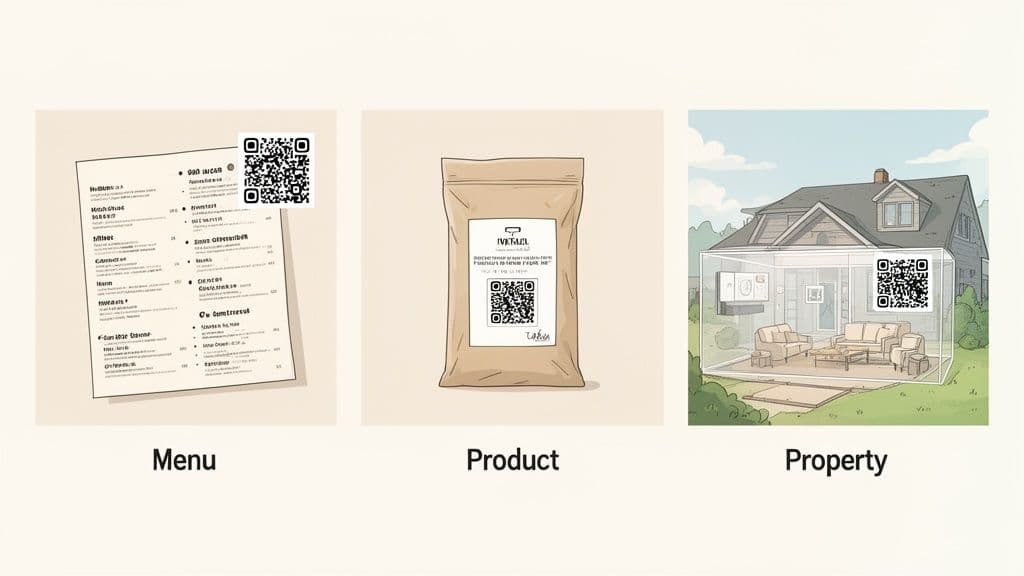
The impact of well-placed QR codes is clear. Recent QR code statistics show that consumer engagement has skyrocketed, with scans for marketing and advertising rising dramatically.
Restaurants and Hospitality
Imagine a high-end restaurant menu with a beautiful photo of its signature dish. Tucked discreetly in the corner is a transparent QR code, perfectly overlaid. When a diner scans it, they’re taken to an online ordering page. This maintains the premium aesthetic of the menu while creating a frictionless path to ordering.
Retail and Product Packaging
Transparent QR codes are a game-changer for product packaging. A skincare brand can place a small, on-brand QR code directly on its bottle's design. A quick scan could lead customers to a video tutorial, a list of ingredients, or an easy way to reorder. Because the code is transparent, it adds value without creating visual clutter.
Events and Networking
Event organizers use transparent QR codes on posters, badges, and digital screens. Placed over a branded background, a code can link attendees to the schedule, speaker bios, or a networking app. On a personal level, a transparent vCard QR code on a business card looks far more intentional and polished than a standard one. With a tool like QR Code Maker, creating these professional codes is simple.
How Can You Avoid Common Mistakes?
Even with the best intentions, a few missteps can lead to scanning failures. Here are the most common pitfalls and how to fix them.
Low Contrast or Busy Backgrounds
The biggest issue is low contrast. Your QR code's pattern must be significantly darker than the surface you place it on. Similarly, avoid placing your code on a busy, cluttered, or complex background. If a scanning app can't isolate the code from the background, it will fail.
The Fix: Always place your dark-colored QR code pattern on a light, simple, and uncluttered background. Before printing, test the code against the final background image to confirm scannability.
Saving in the Wrong File Format
You designed a beautiful code, checked the "transparent background" box in QR Code Maker, and then saved it as a JPG. The problem? The JPEG file format doesn't support transparency. It will automatically add a white background, undoing your work.
The Fix: Always save your transparent QR codes in a format that supports transparency. Use PNG for digital applications (websites, social media) and SVG for print materials (posters, packaging).
Forgetting to Test Before Launch
The final and most critical mistake is not testing your QR code before you go live. Printing 1,000 flyers only to discover your code doesn't scan is a costly and preventable error.
The Fix: Before finalizing any design, test your transparent QR code thoroughly. Place it on the actual background you plan to use and try scanning it with multiple devices (both iPhone and Android) and different QR code scanning apps. This simple quality check ensures your campaign runs smoothly.
Create Your Transparent QR Code Today
You've now seen how transparent QR codes can seamlessly integrate into your designs, sharpen your brand's professional image, and boost customer engagement. By following best practices for contrast, size, file formats, and testing, you can create codes that are both beautiful and reliable.
The use of QR codes continues to grow at a blistering pace, with some reports showing a 19.5% annual growth rate in marketing adoption. You can review the latest QR code statistics on Bitly to see the full picture. For anyone in retail, e-commerce, or hospitality, this is a clear opportunity to bridge the gap between your physical materials and your digital world. Whether it’s on a product label, a sleek restaurant menu, or a minimalist business card, a transparent code adds a touch of class that makes you stand out.
Ready to bring your brand to life? With QR Code Maker, you can create, customize, and track dynamic transparent QR codes in just a few minutes. Start your free trial and see the difference today at https://qr-code-maker.app.
Frequently Asked Questions
What are transparent QR codes?
Transparent QR codes are scannable codes designed without a solid background, allowing them to blend into various designs seamlessly.
How do I create a transparent QR code?
You can create a transparent QR code using tools like QR Code Maker by choosing its function, customizing its appearance, and ensuring to export it with a transparent background.
What file formats support transparency for QR codes?
PNG and SVG formats support transparency for QR codes, with PNG being ideal for digital use and SVG for print materials.
Why is contrast important for QR codes?
High contrast is essential because it ensures that the QR code's pattern is easily distinguishable from the background, which is crucial for successful scanning.
What should I do if my QR code doesn't scan?
If your QR code doesn't scan, check for low contrast against the background, ensure it's saved in a compatible file format, and test it thoroughly on multiple devices before launch.
Ready to create your QR code?
Free forever for static codes. Pro features with 14-day trial, no credit card required.

Irina Aguiar
·Content LeadIrina Aguiar leads content strategy at QR Code Maker, where she has written extensively on QR code technology, marketing, and business operations. Her work ranges from technical explainers on how QR codes are generated and how error correction works to practical guides on QR marketing, automation, and scan analytics — plus hands-on tutorials covering Python, Google Sheets, and Zapier integrations. She also publishes honest competitor comparisons and industry-specific playbooks for retail, real estate, hospitality, healthcare, and events.
More from Irina Aguiar →Related Articles
How to Create a Custom QR Code With a Logo People Will Actually Scan
Learn how to create a custom QR code with logo that boosts engagement. Our guide offers actionable tips for marketers and small businesses to stand out.
The 12 Best QR Code Monkey Alternative Tools in 2026
Searching for a QR Code Monkey alternative? Discover the 12 best QR code generators for creating dynamic, branded, and trackable codes for your business.
How to Create a QR Code: A Practical Guide for Businesses
Learn how to create a QR code that drives results. This practical guide covers branded designs, dynamic tracking, and real-world uses for your business.