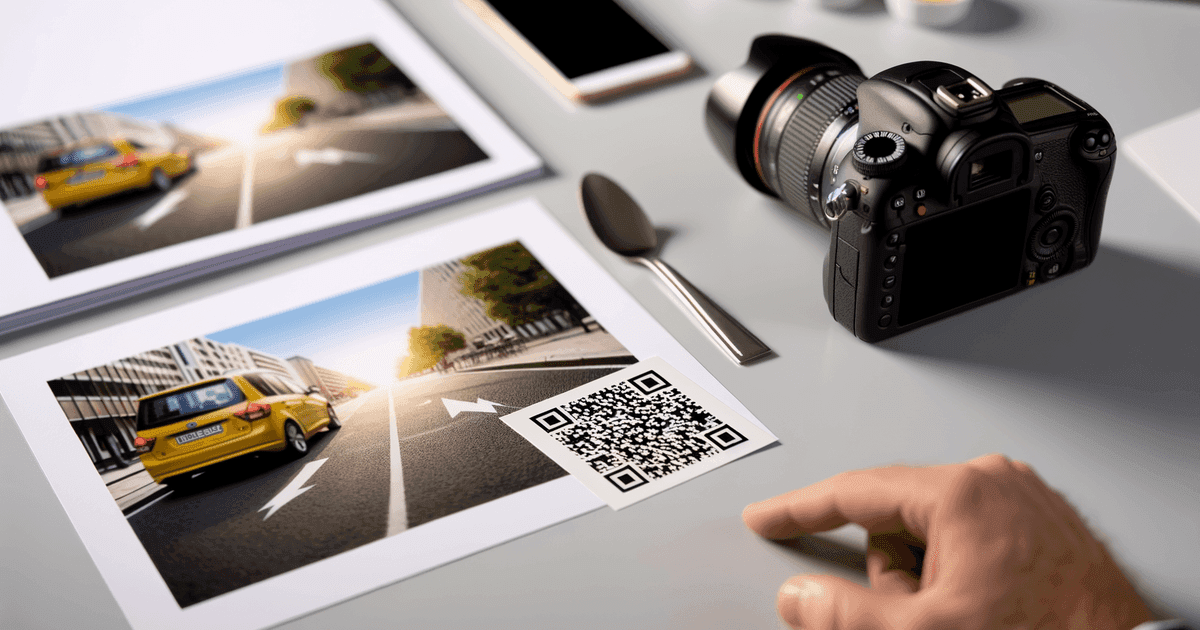

Custom QR codes look great—until they don't scan. Learn which design choices improve engagement and which ones break functionality.
Search interest in custom QR code designs has exploded—"round QR code" searches are up over 1,000% year-over-year. People want codes that match their brand, not generic black-and-white squares.
But here's the tension: QR codes are functional technology first, design elements second. Every customization choice trades off against scannability. This guide covers what actually works—and where designs fail.
Why QR Codes Can Be Customized
Standard QR codes include error correction—redundant data that allows them to work even when partially damaged. This same feature enables design customization.
At the highest error correction level (H), a QR code can lose up to 30% of its data and still scan successfully. This margin gives designers room for:
- Logo overlays covering the center
- Color variations from standard black/white
- Module shape changes (dots, rounded squares)
- Frame additions and decorative borders
- Partial masking for creative effects
The key word is "partial." Go too far, and you've created art that doesn't scan.
YoY growth in 'custom qr code generator' searches
maximum damage tolerance at error correction Level H
monthly searches for 'custom qr code generator'
Circle and Round QR Codes
Round QR codes are the most-requested custom format. Standard QR codes are square, but rounded versions can fit circular logos, stickers, and design layouts better.
How Round QR Codes Work
A round QR code is still a standard QR code underneath—you can't actually encode data in a circular format. The "roundness" comes from:
- Corner masking - The square corners are hidden, usually with a circular frame
- Reduced quiet zone - The white border around the code is trimmed
- Module reshaping - Square modules become dots or rounded squares
This works because the corners of a QR code contain less critical data than the center and finder patterns. With adequate error correction, scanners can reconstruct the missing corners.
Limitations of Round QR Codes
Not every QR code can become circular:
- Data density - High-density codes (long URLs) have less redundancy to spare
- Error correction - You need Level Q or H to safely mask corners
- Size - Small round codes may cut into essential modules
Practical advice: If you want a round code, keep your URL short and use high error correction. Test at your intended print size before committing.
Corner Masking Reduces Error Tolerance
Every module you hide reduces remaining error correction capacity. If you mask corners AND add a logo, you're doubling the "damage" to your code. Pick one or the other for reliable scanning.
Color Customization
Color is the easiest customization to get wrong. QR scanners rely on contrast between modules and background—mess with that, and scanning fails.
What Works
High-contrast color schemes:
- Dark blue modules on white background
- Black modules on light yellow background
- Dark green modules on cream background
Gradient backgrounds (when done carefully):
- Light-to-lighter gradients that maintain contrast throughout
- Vertical gradients where the code placement avoids dark areas
Inverted colors (white modules on dark background):
- Works on most modern scanners
- Test thoroughly—some older devices struggle
What Fails
Low-contrast combinations:
- Yellow modules on white background
- Light gray on off-white
- Any pastel-on-pastel combination
Color gradients in modules:
- Multi-color modules confuse edge detection
- Gradient fills across the code reduce contrast in some areas
Certain color blindness-problem combinations:
- Red and green together
- Blue and purple together
The Contrast Rule
Maintain at least 40% brightness difference between modules and background. A quick test: convert your design to grayscale. If you can't clearly distinguish the modules, neither can many scanners.
Logo Integration
Logos in QR codes build brand recognition. But they also cover data modules, reducing error tolerance.
Safe Logo Placement
Center placement is standard because:
- The center contains data modules, not structural patterns
- Finder patterns (the three corner squares) remain intact
- The quiet zone (border) stays clear
Size guidelines:
- 10-15% of total code area is safe at Level H error correction
- Under 10% is safe at Level M
- Logos larger than 20% risk scan failure
Logo Design Considerations
High contrast logos work better:
- Dark logos on the white center area
- Simple shapes (no fine details that blend with modules)
- Solid colors rather than gradients
Problematic logo styles:
- Very detailed logos that get lost at small sizes
- Logos with colors similar to your module color
- Transparent logos without a solid background
The Background Pad Trick
Add a white (or solid color) background pad behind your logo, slightly larger than the logo itself. This creates clean edges between the logo and surrounding modules, improving scan reliability.
Module Shapes
Standard QR modules are square. Many generators offer alternative shapes:
Effective Alternatives
Rounded squares - Slight corner rounding maintains scannability while softening the look. This is the safest customization.
Dots/circles - Work well when modules are well-spaced. Dense codes with circular modules may have gaps that confuse scanners.
Soft edges - Gradual edges rather than hard boundaries. Works for artistic effect but reduces contrast.
Problematic Shapes
Connected modules - Designs where adjacent modules flow together. Scanners need distinct module boundaries.
Variable-size modules - Some "artistic" generators use different sized dots. This breaks scanner edge detection.
Complex shapes - Stars, hearts, custom icons as modules. These rarely scan reliably.
Frame and Border Design
Frames around QR codes can enhance visual appeal and add call-to-action text.
Frame Best Practices
Maintain the quiet zone:
- QR codes need a clear border (4 modules wide minimum)
- Frames should surround this zone, not intrude into it
Keep frames simple:
- Solid colors work best
- Avoid patterns that might be mistaken for modules
Add clear CTAs:
- "Scan me" or "Scan for menu" increases scan rates
- Place text in the frame, not overlapping the code
Frame Mistakes
Touching the code:
- Frames that connect to modules break scanner boundary detection
Busy backgrounds:
- Patterned frames or textured backgrounds reduce contrast
Misleading frames:
- Square frame corners that look like finder patterns confuse scanners
Design by Use Case
Different applications call for different design approaches:
Business Cards
Recommended: Simple customization—brand colors, small logo, clean frame Priority: Reliability (cards get bent, worn, photographed in poor lighting) Size: At least 2cm × 2cm, ideally 2.5cm+
Product Packaging
Recommended: Color matching with packaging design, rounded modules for softer look Priority: Integration with overall design aesthetic Consider: Packaging materials (glossy surfaces cause glare)
Marketing Materials
Recommended: Bold customization, branded frames, prominent CTAs Priority: Attention-grabbing while maintaining function Consider: Print quality and viewing distance
Digital Displays
Recommended: Higher contrast than print, avoid fine details Priority: Screen brightness and refresh rate compatibility Consider: Viewing angles and device camera quality
Restaurant Menus
Recommended: Simple, high-contrast design Priority: Fast scanning in varied lighting conditions Consider: Table tent placement, distance from diner to code
Testing Your Custom Design
Never print custom QR codes without thorough testing.
Essential Tests
Multiple devices:
- Test on iOS and Android
- Test different camera apps (native, third-party)
- Test older devices if your audience includes them
Multiple conditions:
- Bright light (outdoor sunlight)
- Low light (restaurant ambiance)
- Angled scanning (not straight-on)
Print sizes:
- Test at your smallest intended print size
- Include a margin for print quality variation
Red Flags During Testing
- Code scans on iPhone but not Android (or vice versa)
- Code works in bright light but fails in low light
- Scan takes more than 1-2 seconds
- Multiple scan attempts needed
Any of these suggest your design has pushed too far. Scale back customization.
The Honest Trade-Off
Here's what most "custom QR code generator" marketing won't tell you:
Maximum customization and maximum reliability don't coexist. Every design choice—colors, logos, shapes, frames—uses up error correction capacity and reduces contrast.
The most reliable QR codes are boring black-and-white squares with lots of white space around them. They scan instantly in any condition.
The most beautiful custom codes look amazing but may fail in poor lighting, on certain devices, or when printed small.
The sweet spot for most uses:
- Brand colors (high contrast)
- Small centered logo (under 15%)
- Rounded module corners
- Simple frame with CTA
- Level H error correction
- Shorter URL (less data density)
This gives you brand recognition without reliability concerns.
Frequently Asked Questions
Can I make a truly circular QR code?
You can make a QR code appear circular by masking the corners and using a round frame, but the underlying data is still encoded in a square grid. The code works because error correction reconstructs the hidden corners.
Why does my custom QR code scan on my phone but not others?
Different cameras and QR scanning algorithms have different tolerances. iPhone cameras are generally more forgiving than many Android devices. If your code only scans on certain phones, it's too heavily customized—scale back the design.
What's the maximum size logo I can add?
At Level H error correction, logos up to 30% of the code area can theoretically work—but 10-15% is the reliable range. Larger logos require shorter URLs and ideal scanning conditions.
Do colored QR codes scan slower?
They can. Scanners work fastest with high-contrast black-on-white codes. Color variations require more processing. The difference is usually milliseconds, but in poor conditions it compounds with other issues.
Should I use a custom QR code for permanent signage?
For permanent installations, prioritize reliability over aesthetics. A boring code that always scans beats a beautiful code that fails 10% of the time. If you must customize permanent codes, test exhaustively and use conservative design choices.
Create Your Custom QR Codes
Ready to design codes that balance aesthetics with function?
Start with free static codes:
- URL QR codes - Customize colors and styles
- WiFi QR codes - Share network access with branded codes
- vCard QR codes - Professional contact cards
Design your codes with your brand colors, test thoroughly, then print with confidence.
For codes that need editing later: View our pricing - Dynamic codes let you update destinations without reprinting, useful for designs integrated into permanent materials.
Ready to create your QR code?
Free forever for static codes. Pro features with 14-day trial, no credit card required.

Irina Aguiar
·Content LeadIrina Aguiar leads content strategy at QR Code Maker, where she has written extensively on QR code technology, marketing, and business operations. Her work ranges from technical explainers on how QR codes are generated and how error correction works to practical guides on QR marketing, automation, and scan analytics — plus hands-on tutorials covering Python, Google Sheets, and Zapier integrations. She also publishes honest competitor comparisons and industry-specific playbooks for retail, real estate, hospitality, healthcare, and events.
More from Irina Aguiar →Related Articles
LinkedIn QR Code: Share Your Profile Instantly (2026 Guide)
Create a LinkedIn QR code to share your profile, company page, or post with one scan. Step-by-step guide with design tips, placement ideas, and tracking.
YouTube QR Code: Link Videos to the Physical World (2026 Guide)
Create a YouTube QR code that links to a video, channel, or playlist. Step-by-step guide with use cases for packaging, events, education, and marketing.
QR Code A/B Testing: How to Test What Actually Works
Most guides say print two QR codes and compare. Here's what they don't tell you about costs, statistical significance, and why one-code testing changes everything.