İnceleme QR Kodları
Google yorum QR kodu oluşturun: memnun müşterileri inceleme yazmaya yönlendirin, memnun olmayanları özel geri bildirime yönlendirin. Daha fazla 5 yıldız alın.
İnceleme QR kodları, pozitif Google incelemelerinizi maksimize etmek ve negatif incelemelerin kamuya açık olmasını önlemek için akıllı yönlendirme kullanır. Mutlu müşteriler Google'a gider; mutsuz olanlar önce sizinle özel olarak geri bildirim paylaşır.
Ne İşe Yarar
Birisi taradığında, basit bir soru sorulur: "Deneyiminiz nasıldı?" Yanıtlarına göre farklı hedeflere yönlendirilirler:
- Mutlu müşteriler (4-5 yıldız) → Doğrudan Google Business inceleme sayfanıza gönderilir
- Mutsuz müşteriler (1-3 yıldız) → Size gelen özel bir geri bildirim formu gösterilir
Bu Neden Önemli
Çoğu mutsuz müşteri şikayet etmez—sadece kötü bir inceleme bırakır. İnceleme QR, Google'a gitmeden önce neyin yanlış gittiğini size özel olarak söylemeleri için bir kanal verir. Sorunları düzeltme ve potansiyel olarak eleştirmenleri hayranlarınıza dönüştürme şansınız olur.
Puanınızı Koruyun
Bir negatif Google incelemesi beş pozitif incelemenin faydasını geri alabilir. İnceleme QR, mutsuz müşterilerin kamuya değil önce sizinle konuşmasını sağlar.
Kurulum
Adım 1: Google Place ID'nizi bulun. Google Haritalar'da işletmenizi arayın, üzerine tıklayın ve URL'ye bakın—veya Google'ın Place ID Finder aracını kullanın.
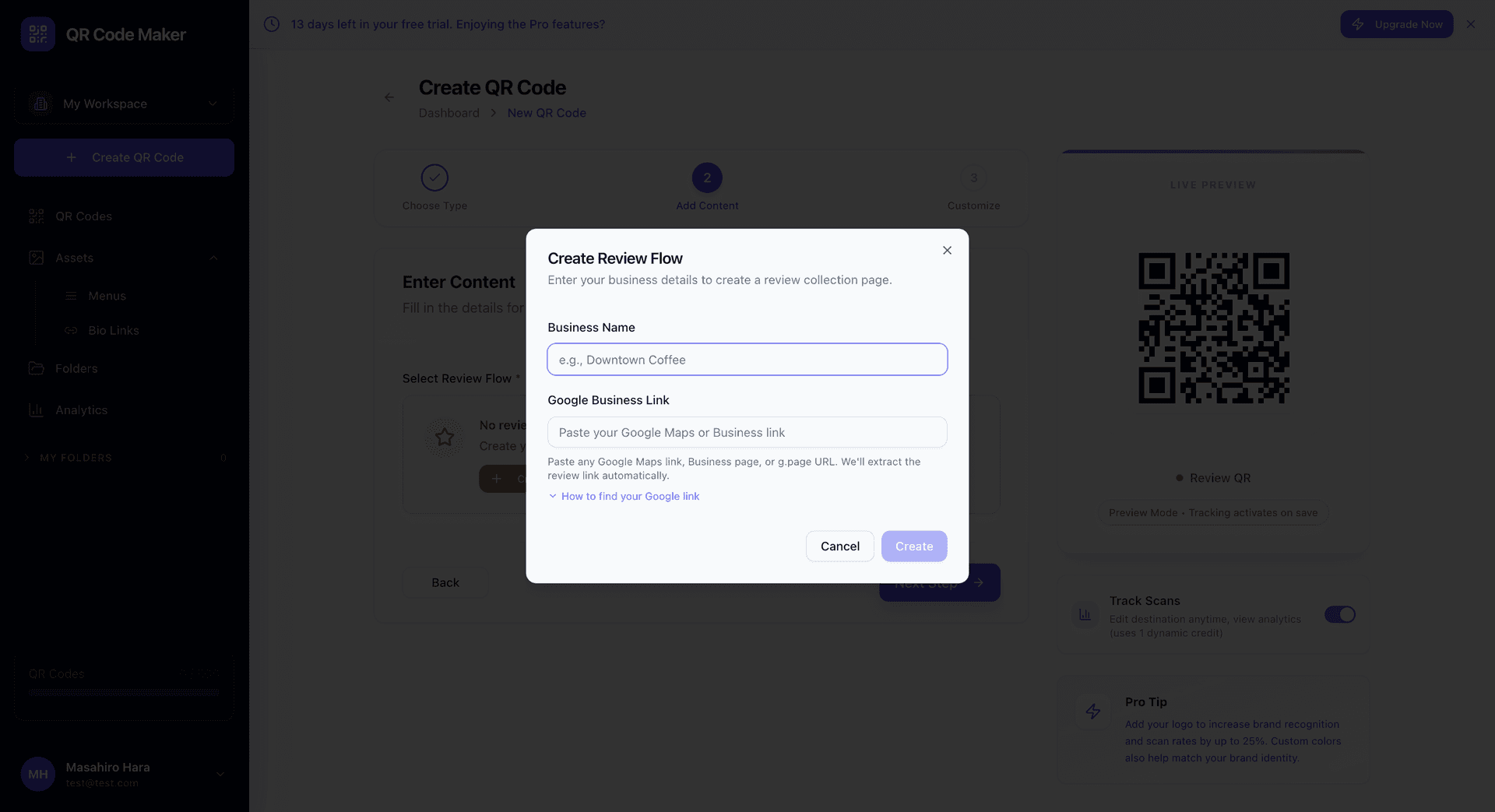
Adım 2: + QR Kodu Oluştur'a tıklayın ve İnceleme QR'ı seçin.
Adım 3: Google Place ID'nizi girin ve işletme adınızı ve teşekkür mesajınızı özelleştirin.
Adım 4: QR kodunuzu tasarlayın ve müşterilerin göreceği bir yere yerleştirin.
Google Business Profiline İhtiyacınız Var
Bu özellik bir Google Business Profili (eski adıyla Google My Business) gerektirir. Eğer yoksa, önce business.google.com'da bunu ayarlayın.
İnceleme QR'ın Kullanım Yerleri
Fişler ve faturalar: "Nasıl olduğunu bize söyleyin" ile en altta yazdırın
Masa kartları: Restoranlar, kafeler, barlar—müşterilerin oturduğu her yer
Kasa tezgahları: Perakende mağazaları, hizmet masaları, ödeme alanları
Çıkış kapıları: Müşteriler çıkarken "Deneyiminizi paylaşmak için tarayın"
E-posta imzaları: Hizmet sonrası takip e-postalarında bağlantı
Kartvizitler: Bir hizmeti tamamladıktan sonra müşterilere verin
Müşteri Deneyimi
Pozitif akış:
- Müşteri QR kodunu tarar
- Derecelendirme seçenekleriyle "Deneyiminiz nasıldı?" görür
- 4 veya 5 yıldız seçer
- "Teşekkürler! Deneyiminizi Google'da paylaşır mısınız?" görür
- İşletmeniz önceden seçilmiş Google İncelemeleri'ni açmak için dokunur
- İncelemesini yazar ve yayınlar
Negatif akış:
- Müşteri QR kodunu tarar
- Derecelendirme seçenekleriyle "Deneyiminiz nasıldı?" görür
- 1, 2 veya 3 yıldız seçer
- "Üzgünüz. Neyin yanlış gittiğini bize söyler misiniz?" görür
- Size giden özel geri bildirim yazar
- "Bize bildirdiğiniz için teşekkürler. Takip edeceğiz." görür
Özel Geri Bildirimi İşleme
Negatif geri bildirim aldığınızda:
- Hızlı yanıt verin. Mümkünse aynı gün. Hız önemsediğinizi gösterir.
- Sorunu kabul edin. Savunmacı olmayın—bildirdikleri için teşekkür edin.
- Düzeltme teklif edin. İade, yeniden yapma, bir sonraki ziyarette indirim—uygun olan her neyse.
- Takip edin. Çözümden sonra şimdi memnun olup olmadıklarını kontrol edin.
Gerçek bir yanıt alan birçok müşteri fikrini değiştirecektir—bazıları iyi bir kurtarma deneyiminden sonra pozitif incelemeler bile bırakır.
Analitik
Kaç müşterinin taradığını, derecelendirme dağılımlarını, Google incelemelerine dönüşüm oranını ve negatif geri bildirimdeki ortak temaları takip edin. Bu veriler operasyonel sorunları tespit etmenize ve müşteri memnuniyetini zaman içinde ölçmenize yardımcı olur.
İnceleme QR vs Hızlı Geri Bildirim
| Özellik | İnceleme QR | Hızlı Geri Bildirim |
|---|---|---|
| Birincil hedef | Google incelemeleri | Özel geri bildirim |
| Entegrasyon | Google Business | Bağımsız |
| Pozitif yönlendirme | Google'a | Teşekkür sayfasına |
| En iyi kullanım | Kamusal incelemeleri artırma | Dahili anketler |
Google incelemeleri istediğinizde İnceleme QR kullanın. Dahili memnuniyet anketleri için veya kamusal incelemelere ihtiyacınız olmadığında Hızlı Geri Bildirim kullanın.
İpuçları
Taramayı kolaylaştırın. QR kodlarını doğal duraklama noktalarına yerleştirin—masalar, ödeme, bekleme alanları.
Doğru anda sorun. Tamamlanmış bir işlem veya yemekten sonra, sırasında değil.
İsrarcı olmayın. "Deneyiminizi paylaşın" ifadesi "Bize 5 yıldızlı bir inceleme bırakın!" ifadesinden daha iyidir.
Geri bildiriminizi izleyin. Günlük kontrol edin ve negatif geri bildirimlere hızla yanıt verin.
İnceleme yapanlara teşekkür edin. Google'da kısa bir "İncelemeniz için teşekkürler!" yanıtı önemsediğinizi gösterir.
Sık Sorulan Sorular
Bu etik mi? Evet. Negatif incelemeleri engellemiyorsunuz—müşteriler hala doğrudan Google'a gidebilir. Sadece mutsuz müşterilere önce size ulaşmaları için daha iyi bir kanal veriyorsunuz.
Google beni bunun için cezalandırır mı? Hayır. Gerçek müşterilerden gerçek incelemeleri teşvik ediyorsunuz. Bu tam olarak Google'ın istediği şey.
Birisi negatif geri bildirim bırakıp sonra yine de Google'a yazarsa ne olur? Olabilir. Ancak onların geri bildirimini zaten alırsınız, böylece Google'da nasıl ele aldığınız hakkında bağlamla yanıt verebilirsiniz.
Derecelendirme eşiğini özelleştirebilir miyim? Varsayılan olarak 4-5 yıldızları Google'a ve 1-3'ü özel geri bildirime yönlendirir. Bu çoğu işletme için iyi çalışır.
Bu tüm planlarda mevcut mu? İnceleme QR kodları Starter planları ve üzerinde mevcuttur.