Hızlı Geri Bildirim QR Kodları
Saniyeler içinde müşteri puanı toplamak için geri bildirim QR kodu oluşturun. Sorunuzu özelleştirin, yıldız veya emoji ölçeği seçin ve yanıtları anında alın.
Hızlı Geri Bildirim QR kodları anında müşteri memnuniyeti puanları toplamanıza olanak tanır. Müşteriler tarar, derecelendirir ve isteğe bağlı olarak bir yorum bırakır—hepsi saniyeler içinde. Anketlerin sürtünmesi olmadan geri bildirim toplamak için mükemmel.
Ne İşe Yarar
Birisi taradığında, derecelendirme seçenekleriyle basit bir soru ("Deneyiminiz nasıldı?") görür. Derecelendirmelerini seçerler, isteğe bağlı olarak bir yorum eklerler ve işleri biter. Geri bildirimi hemen alırsınız.
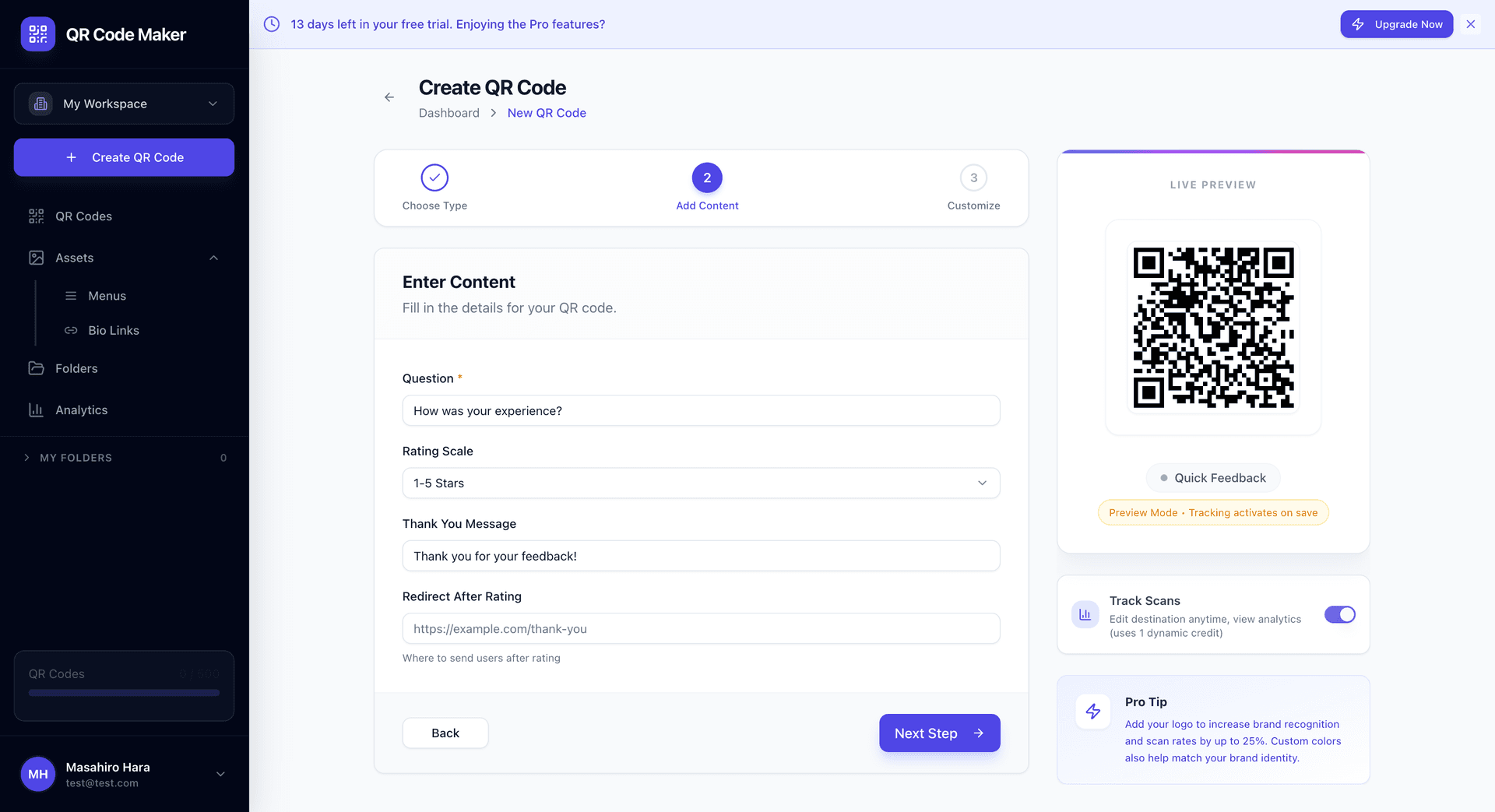
Neleri Özelleştirebilirsiniz
Soru: Müşterilerin gördüğü istem. Varsayılan "Deneyiminiz nasıldı?" ancak özelleştirebilirsiniz.
Derecelendirme ölçeği: Formatınızı seçin:
- 1-5 Yıldız: Klasik yıldız derecelendirmesi
- 1-10 Ölçeği: Daha fazla ayrıntı için sayısal derecelendirme
- Emoji: Hızlı duygusal geri bildirim için mutlu/nötr/üzgün yüzler
Teşekkür mesajı: Müşterilerin gönderdikten sonra gördüğü şey.
Yönlendirme URL'si: İsteğe bağlı olarak müşterileri derecelendirmeden sonra bir yere gönderin (web siteniz, özel bir teklif vb.).
Hızlı Geri Bildirim QR Kodu Oluşturma
Adım 1: + QR Kodu Oluştur'a tıklayın ve Hızlı Geri Bildirim'i seçin.
Adım 2: Geri bildirim sorunuzu yazın.
Adım 3: Derecelendirme ölçeğinizi seçin (yıldızlar, sayılar veya emoji).
Adım 4: Teşekkür mesajını ve isteğe bağlı yönlendirmeyi özelleştirin.
Adım 5: QR kodunuzu tasarlayın ve indirin.
Kullanım Durumları
Restoranlar: Yemek sonu geri bildirimi için masa kartları. "Yemeğiniz nasıldı?"
Perakende: Kasa tezgahları. "Alışveriş deneyiminiz nasıldı?"
Hizmetler: Randevulardan sonra. "Bugün nasıl yaptık?"
Etkinlikler: Çıkış alanları. "Etkinlik nasıldı?"
Destek: Biletler kapandıktan sonra. "Sorununuz çözüldü mü?"
Eğitim: Oturumlardan sonra. "Bu eğitim ne kadar faydalıydı?"
Konaklama: Otel odaları. "Konaklamanız şimdiye kadar nasıl gidiyor?"
Hızlı Geri Bildirim vs İnceleme QR
| Özellik | Hızlı Geri Bildirim | İnceleme QR |
|---|---|---|
| Amaç | Özel geri bildirim | Kamusal incelemeler |
| Hedef | Panonuz | Google İncelemeleri |
| Kamusal görünürlük | Size özel | Google'da kamuya açık |
| En iyi kullanım | Dahili metrikler | Online itibar oluşturma |
Dahili memnuniyet verileri için Hızlı Geri Bildirim kullanın. Google inceleme sayınızı artırmak istediğinizde İnceleme QR kullanın.
Farklı Hedefler
Hızlı Geri Bildirim müşteri duygusunu anlamakla ilgilidir. İnceleme QR kamusal sosyal kanıt oluşturmakla ilgilidir. Birçok işletme ikisini birden kullanır.
Müşteri Deneyimi
- Müşteri QR kodunu tarar
- Derecelendirme seçenekleriyle sorunuzu görür
- Derecelendirmesini seçer
- İsteğe bağlı olarak bir yorum ekler
- Teşekkür mesajınızı görür
- İsteğe bağlı olarak web sitenize yönlendirilir
Tüm süreç yaklaşık 10 saniye sürer—müşterilerin gerçekten yapacağı kadar hızlı.
Geri Bildiriminizi Görüntüleme
Panonuzda şunları göreceksiniz:
- Zaman içinde ortalama derecelendirme
- Derecelendirme dağılımı (kaç tane 5, 4 vb.)
- Zaman damgalarıyla bireysel yanıtlar
- Bırakanlardan yorumlar
- İyileştirmeleri veya sorunları tespit etmek için trendler
Ne Zaman Sormalı
Deneyimden sonra: Yemekler, randevular, işlemler, etkinlikler.
Çıkış noktalarında: Kapılar, ödeme, otoparklar.
Hizmet tamamlandığında: Teslimat, kurulum, destek çözümü.
Boş zamanlar sırasında: Bekleme odaları, kuyruklar (ancak bu beklemeyi ölçer, hizmeti değil).
Çok erken sormayın—tüm deneyim hakkında geri bildirim istiyorsunuz.
İpuçları
Soruyu basit tutun. Net bir soru, çok parçalı anketlerden daha iyi yanıt oranları alır.
Stratejik yerleştirin. Müşteriler doğal olarak nerede duraklar? QR kodunuzun gideceği yer orası.
Negatif geri bildirimlere yanıt verin. Yorumlu düşük derecelendirmeler altındır—size tam olarak neyi düzeltmeniz gerektiğini söylerler.
Trendleri izleyin, sadece puanları değil. Bir menü değişikliği veya personel değişikliğinden sonra derecelendirmelerdeki düşüş size bir şeyler söyler.
Samimi teşekkür edin. "Gelişmemize yardımcı olduğunuz için teşekkürler!" "Geri bildiriminiz için teşekkürler" den daha iyi hissettirir.
Düşük Derecelendirmeleri İşleme
Negatif geri bildirim aldığınızda:
- Yorumu inceleyin (bıraktılarsa) ayrıntılar için
- Desenlere bakın—bu tek seferlik mi yoksa bir trend mi?
- Düzeltilebilir sorunlarda harekete geçin
- İletişim bilgisi varsa takip etmeyi düşünün
Bir kötü derecelendirme kriz değildir. Kötü derecelendirmeler deseni araştırma sinyalidir.
Sık Sorulan Sorular
Müşteriler anonim olarak geri bildirim bırakabilir mi? Evet, geri bildirim varsayılan olarak anonimdir. Derecelendirmeleri ve yorumları görürsünüz, kimlikleri görmezsiniz.
Geri bildirimlere yanıt verebilir miyim? Anonim olduğundan yerleşik bir yanıt mekanizması yoktur. Takip yeteneğine ihtiyacınız varsa, farklı bir kanalda iletişim bilgisi isteyin.
Kaç yanıt beklemeliyim? Yanıt oranları sektöre ve yerleşime göre değişir. Tarama yapan müşterilerin %5-15'i tipiktir.
Verileri dışa aktarabilir miyim? Evet, analiz için panonuzdan geri bildirim verilerini dışa aktarabilirsiniz.
Birisi birden fazla derecelendirme gönderirse ne olur? Sistem birden fazla gönderime izin verir—geniş duyguyu toplamak için kullanışlıdır, ancak bir kişinin birden fazla kez gönderebileceği anlamına gelir.
Bu GDPR uyumlu mu? Siz istemediğiniz sürece kişisel veri toplamıyoruz. Derecelendirmenin kendisi anonimdir.