Konum QR Kodları
Google Haritalar QR kodu oluşturun — tarandığında telefonda yol tarifi açılır. Maps bağlantısı veya GPS koordinatı girin. Mağaza, etkinlik ve tabela için ideal.
Konum QR kodları GPS koordinatlarını kodlar, böylece tarayanlar tek bir dokunuşla yol tarifi alabilir. İşletme konumlarını, etkinlik mekanlarını, buluşma noktalarını veya insanların bulmasını istediğiniz herhangi bir yeri paylaşmak için mükemmel.
Ne İşe Yarar
Birisi taradığında, telefonları konum verilerini tanır ve haritalar uygulamasında açmayı teklif eder (Google Maps, Apple Maps veya varsayılan uygulama). Bir dokunuş ve size yol alıyorlar.
Nasıl Oluşturulur
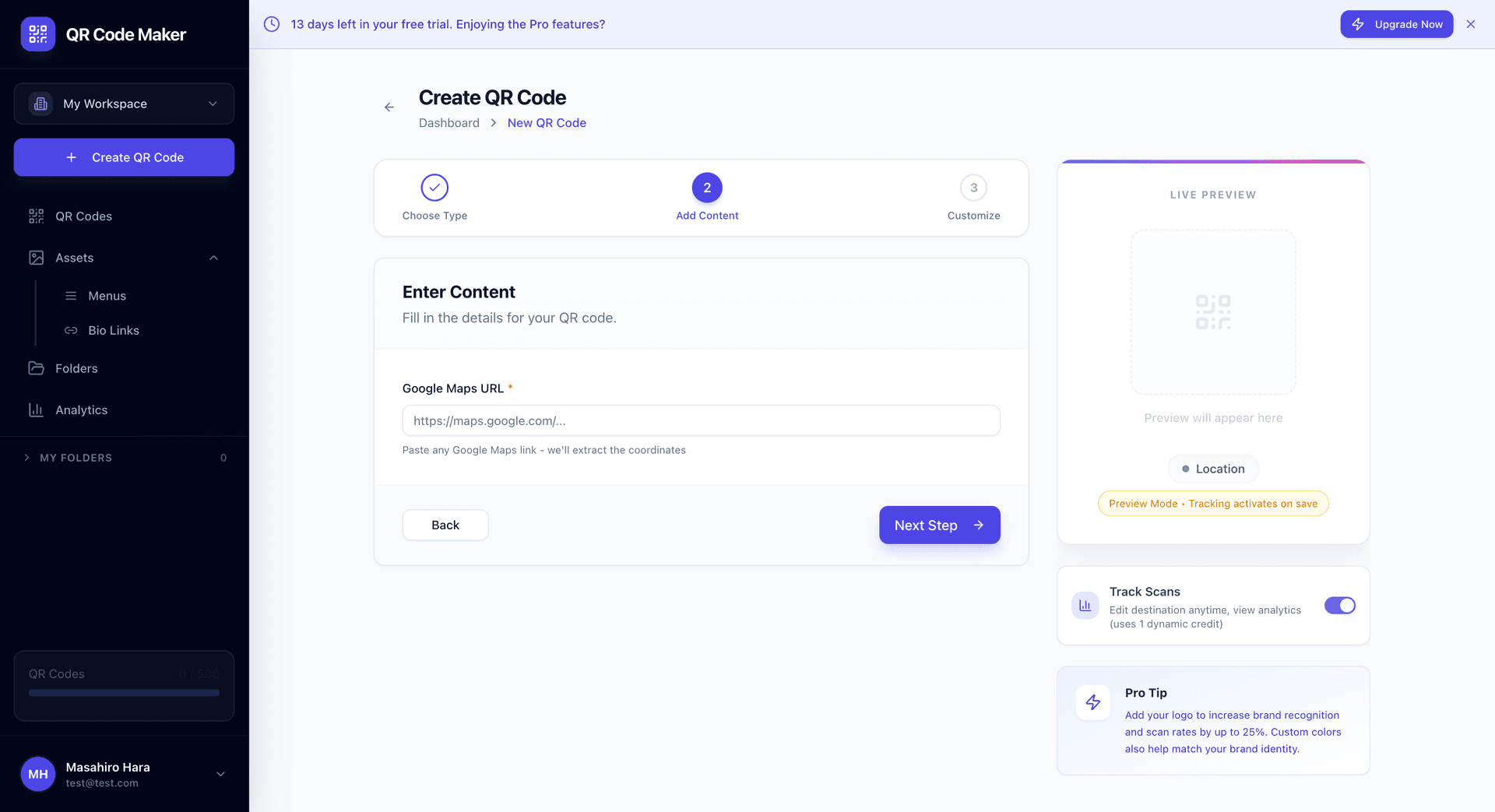
Adım 1: Google Haritalar'da konumunuzu bulun ve tarayıcınızın adres çubuğundan URL'yi kopyalayın.
Adım 2: + QR Kodu Oluştur'a tıklayın ve Konum'u seçin.
Adım 3: Google Maps URL'sini yapıştırın. Koordinatları otomatik olarak çıkarırız.
Adım 4: QR kod tasarımınızı özelleştirin ve indirin.
Herhangi Bir Google Maps URL'si Çalışır
Paylaşım bağlantıları, embed bağlantıları veya sadece tarayıcınızdaki URL—tüm Google Maps URL formatlarını işler ve tam koordinatları çıkarırız.
Teknik Olarak Nasıl Çalışır
Enlem ve boylamı çıkarmak için Google Maps URL'nizi ayrıştırırız, ardından bunları geo: URI olarak kodlarız. Bu, tüm akıllı telefonlar ve işletim sistemlerinde çalışan evrensel bir formattır.
Tarandığında:
- iPhone: Apple Maps veya Google Maps (ayarlara bağlı olarak) açılır
- Android: Google Maps veya varsayılan haritalar uygulaması açılır
- Diğerleri: geo: URI'lerini işleyen herhangi bir uygulama
Konum QR Kodlarının Kullanım Yerleri
İşletme konumları: Mağaza vitrinleri, kartvizitler, el ilanları, reklamlar.
Etkinlik mekanları: Davetiyeler, biletler, etkinlik programları, onay e-postaları.
Buluşma noktaları: Gruplar, turlar, teslimatlar için "Burada buluşun" kartları.
Gayrimenkul: Mülk listeleri, bahçe tabelaları, broşürler.
Turizm: Rehber kitaplar, patika işaretleri, turist bilgi tabelaları.
Teslimatlar: Zor adresler için "Bu konuma teslim et"
Konum QR vs Google Maps Bağlantı QR
Bir Konum QR, koordinatları doğrudan geo: URI formatı kullanarak QR deseninde kodlar. Normal bir URL QR, Google Maps'e bağlanır. Fark:
| Özellik | Konum QR (geo:) | Google Maps URL QR |
|---|---|---|
| Çevrimdışı çalışır | Evet (önbelleğe alınan haritaları açar) | Hayır (internet gerekir) |
| Evrensel | Tüm harita uygulamaları | Sadece Google Maps |
| Statik/Dinamik | Sadece statik | Dinamik olabilir |
| Analitik | İzleme yok | Dinamikse takip edilebilir |
Çoğu kullanım için Konum QR daha iyidir çünkü evrenseldir ve hatta dalgalı bağlantıyla bile çalışır.
Statik QR Kodu
Konum QR kodları statiktir—koordinatlar doğrudan QR deseninde kodlanır. Bu şu anlama gelir:
- Oluşturulduktan sonra düzenlenemez. Konum değişirse yeni bir kod yapın.
- Tarama izleme yok. Kimin taradığını veya ne zaman taradığını göremeyiz.
- Çevrimdışı çalışır. Sunucu araması gerekmez.
İzleme veya düzenlenebilirliğe ihtiyacınız varsa, bunun yerine Google Maps'e bağlanan dinamik bir Website QR düşünün.
İpuçları
Tam noktayı test edin. Google Maps URL'sini aldığınızda tam konumda durun. Otoparklar ve bina girişleri birbirinden uzak olabilir.
Otopark vs giriş düşünün. İşletmeler için insanları otoparka mı yoksa ön kapıya mı yönlendirmek istediğinizi düşünün.
Bağlam ekleyin. QR kodunun yanındaki basılı malzemelerinize "Etkinlik Otoparkı" veya "Yükleme İskelesi" gibi bir etiket ekleyin.
Yüksek hata düzeltme kullanın. Konum QR kodları genellikle kirlenebilecek veya hasar görebilecek açık hava tabelalarına basılır.
Sık Sorulan Sorular
Konuma bir etiket ekleyebilir miyim? QR kodu koordinatları kodlar. QR kodunun yanındaki basılı tasarımınıza bir metin etiketi ekleyin.
Birden fazla konumum varsa ne olur? Her biri için ayrı bir Konum QR oluşturun. Veya kendi "Yol Tarifi Al" butonlarıyla tüm konumları listeleyen bir İşletme Sayfası kullanın.
Ziyaretçiler dönüş dönüş yol tarifi alabilir mi? Evet—konumu haritalar uygulamasında açtıklarında, herhangi bir hedef gibi navigasyonu başlatabilirler.
Bu uluslararası çalışır mı? Evet. GPS koordinatları küresel olarak çalışır. Haritalar uygulaması yerel sokak adlarını ve navigasyonu gösterir.
Konumum bir binanın içindeyse ne olur? GPS koordinatları 2 boyutludur (enlem/boylam). Kat veya daire numaraları için bu bilgiyi basılı malzemelerinize ekleyin.
Kaç kişinin taradığını takip edebilir miyim? Konum QR (statik) ile değil. Analitik ihtiyacınız varsa Google Maps'e bağlanan dinamik bir URL QR kullanın.