

Learn how to python generate QR code with this practical guide. Create custom QR codes for URLs, WiFi, vCards, and marketing campaigns with real-world examples.
Generating a QR code with Python is a surprisingly straightforward way to create professional, branded, and functional codes for your business. With just a few lines of code, you can move beyond the limitations of basic online generators and unlock powerful features like automation, bulk creation, and custom branding—all tailored to your specific needs.
For small business owners, marketers, and event organizers, this is a game-changer. It means you can integrate QR codes seamlessly into your marketing campaigns, event materials, and even daily operations.
Why Use Python for QR Code Generation?
While online generators are fine for a one-off code, they often lack the flexibility and scalability needed for professional use. When you need real control and efficiency, Python is the way to go.
Imagine automatically generating hundreds of unique QR codes for event attendees, adding your company logo to every code on your product packaging, or building QR code creation directly into your restaurant's menu management system. Python scripts turn this from a manual chore into a powerful, automated process.
This approach is perfect for real-world scenarios like:
- Bulk Creation: Instantly generate unique codes for marketing campaigns, product labels, or event tickets. If you need bulk generation without writing code, try our Bulk QR Code Generator — upload a CSV and download all your codes instantly.
- Branding: Customize colors and embed your logo to create QR codes that match your brand identity.
- Integration: Build QR code features directly into your existing business applications or backend systems.
The Power of Python Libraries
The Python community has built robust tools that make QR code generation incredibly accessible, even if you’re not a coding expert. These libraries handle all the complex work behind the scenes, letting you focus on the practical application.
The qrcode and segno libraries are two of the most popular choices. They allow you to create industry-standard QR codes in common image formats like PNG with minimal setup. You can find more information about qrcode and segno on the Python Package Index (PyPI).
To help you choose the right tool for your project, here’s a quick comparison.
Comparing Python QR Code Libraries
| Feature | qrcode Library | Segno Library |
|---|---|---|
| Ease of Use | Very beginner-friendly. Simple API for basic codes. | Also easy, but with more advanced options available upfront. |
| Output Formats | Primarily PNG. Can use other image backends. | Excellent format support out-of-the-box (SVG, PNG, PDF, EPS). |
| Customization | Good for basic color and border changes. | More advanced styling (e.g., gradients, module shapes). |
| Dependencies | Minimal. Relies on Pillow for image creation. | No mandatory dependencies, but uses Pillow for raster images. |
| Best For | Quick, simple QR codes and developers new to the process. | Projects needing vector outputs (SVG/PDF) or complex styling. |
Both are fantastic choices, but Segno often has the edge for professional projects that require high-quality vector outputs (like for printing flyers or packaging) or more creative visual designs. For this guide, we’ll start with qrcode for its simplicity and then explore some of the powerful features in segno.
Practical Tip: For businesses that need advanced features like analytics, dynamic updates, and easy branding without writing code, a dedicated platform like QR Code Maker is a trusted solution that bridges the gap between simple generators and custom scripts.
Setting Up Your Python Environment for QR Codes
Before we can start generating QR codes, we need to get our digital workspace ready. This is a quick but important step to ensure your project runs smoothly without interfering with other Python applications on your computer.
First, let's make sure you have Python installed. Open your command prompt (on Windows) or terminal (on Mac/Linux) and type python --version. If you see a version number like Python 3.x.x, you’re all set. If not, you can download the latest version from the official Python website.
Create a Clean Workspace
A best practice is to create a virtual environment. Think of this as a private, isolated sandbox just for this project. It keeps all the tools and libraries we're about to install neatly contained, preventing conflicts with other projects. It's a simple habit that saves a lot of headaches.
To create one, navigate to your project folder in the terminal and run this command:
python -m venv qr-project
This creates a new folder called qr-project. To start using this clean workspace, you need to "activate" it.
- On Windows, use:
qr-project\Scripts\activate - On Mac/Linux, use:
source qr-project/bin/activate
Install the QR Code Libraries
With your environment active, you're ready to install the libraries. For this guide, we'll focus on two of the most popular choices: qrcode and segno.
The qrcode library is wonderfully simple and a fantastic starting point. For those needing more power, segno offers advanced features like creating crisp, vector-based SVG files perfect for professional printing.
You’ll also need a helper library called Pillow, which qrcode uses to handle image files. We can install everything we need with a single command:
pip install qrcode[pil] segno
Pro Tip: Using
qrcode[pil]instead of justqrcodeis recommended. It automatically installs thePillowlibrary, ensuring you have everything you need to generate and save image files like PNGs right away.
That's it! Your environment is set up and ready. You have a dedicated space for your project and all the essential tools installed. Now, let's start generating some QR codes.
How To Generate Your First Simple QR Code
With your environment ready, it's time for the practical part: creating your first QR code. We'll start with the most common use case: making a QR code that links to a website. This could be for a restaurant's online menu, your business homepage, or a landing page for a marketing campaign.
It only takes a few lines of Python. We'll walk through it using both the qrcode and segno libraries so you can see how each one works.
This graphic breaks down the three simple prerequisites for getting your Python environment ready.
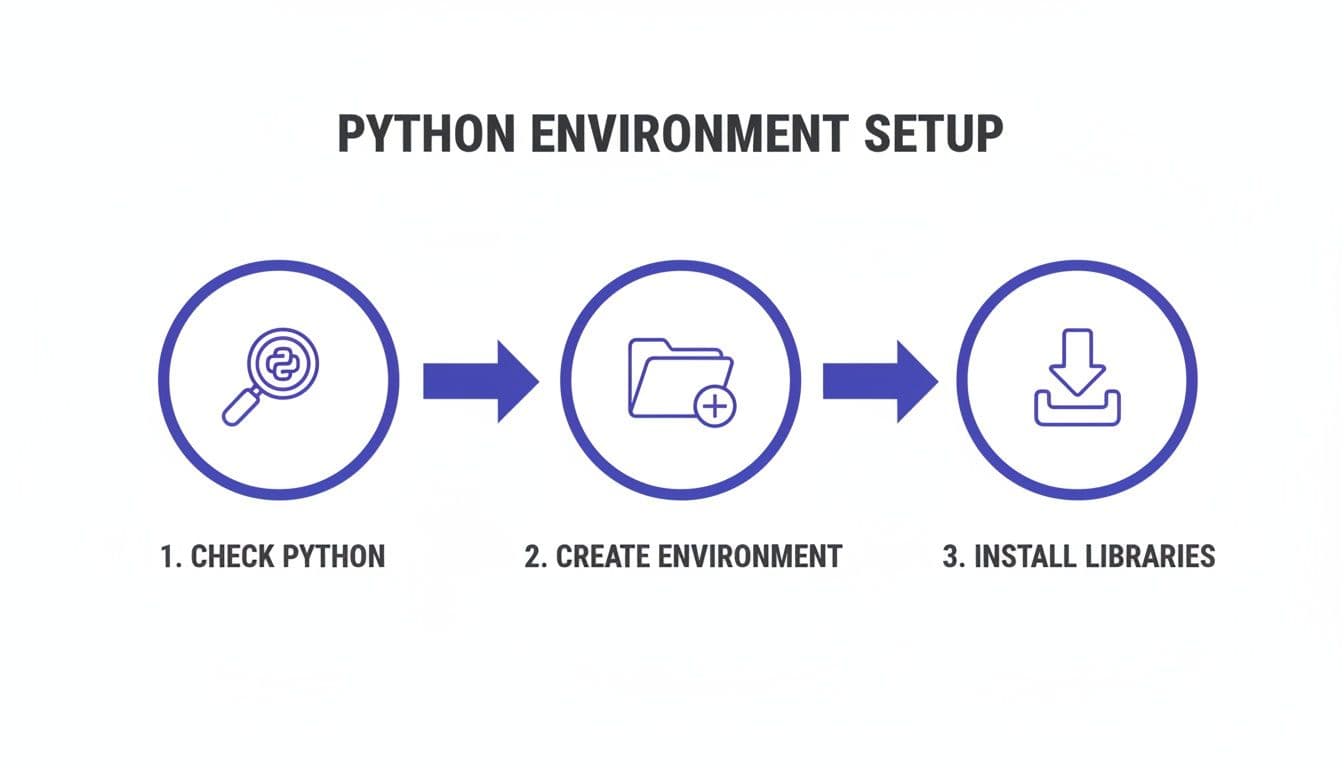
As you can see, the setup is straightforward. Just check your Python version, create a clean workspace, and install the libraries. That’s all you need to do before you can start coding.
Using The qrcode Library
The qrcode library is popular for one main reason: it's incredibly simple. It’s perfect for generating a standard QR code with almost no effort. Let's make a code that sends customers to the menu of a fictional restaurant, "The Corner Bistro."
Here’s the complete Python script:
import qrcode

# The URL you want the QR code to link to
url = "https://www.thecornerbistro.com/menu"

# Generate the QR code
img = qrcode.make(url)

# Save the QR code image to a file
img.save("corner-bistro-menu.png")

print("QR code for The Corner Bistro's menu has been generated!")
Run that script, and a PNG file named corner-bistro-menu.png will appear in your folder. That's it! You've just created a functional QR code you can print on a flyer or table tent.
Key Takeaway: The
qrcode.make()function is a fantastic shortcut that handles all the complex configuration for you. It's the absolute fastest way to turn a URL into a QR code image.
Using The segno Library
Now, let's do the exact same thing with segno. The process is just as easy. While qrcode is great for simplicity, segno is a powerhouse when you need more control or different file types, like SVGs for high-quality printing.
Here's how you'd write the script with segno:
import segno

# The URL for the QR code
url = "https://www.thecornerbistro.com/menu"

# Create the QR code
qrcode = segno.make(url)

# Save the QR code as a PNG file
qrcode.save("corner-bistro-menu-segno.png")

print("Segno QR code for The Corner Bistro's menu has been generated!")
This script also creates a PNG file, giving you the same result. The syntax is nearly identical, making it easy to switch between them. We’ll explore where segno really shines when we start customizing the output later on.
Both of these methods give you full control. Of course, if you prefer a no-code solution that still delivers professional results, a guided platform is a great option. For a walkthrough, check out our guide on creating your first QR code with a generator.
Putting Python QR Codes to Work in Business and Marketing
While generating a link is useful, the real power comes from using Python to solve specific business challenges. Let’s move beyond basic URLs and explore practical, high-value QR codes that can improve your operations and customer interactions. These examples are perfect for marketers, event planners, and small business owners.
Think of each example as a mini-project. We'll provide the exact Python script and explain the real-world scenario so you can see how to apply it.
Create a Digital Business Card with a vCard QR Code
Networking events can be chaotic. Instead of traditional paper cards that get lost, a vCard QR code offers a modern solution. When someone scans it, your contact information is instantly ready to be saved to their phone's address book. It's efficient, professional, and makes a great impression.
The segno library is fantastic for this because it handles structured data like vCards beautifully. Here’s how you can generate one for a fictional marketing consultant, Jane Doe.
import segno

# Create a dictionary with your contact information
contact_data = {
    'name': 'Doe;Jane',
    'displayname': 'Jane Doe',
    'email': 'jane.doe@example.com',
    'phone': '123-555-4567',
    'org': 'Creative Marketing Solutions',
    'title': 'Marketing Consultant',
    'url': 'https://www.janedoemarketing.com'
}

# Generate the vCard QR code using Segno's helper
vcard_qrcode = segno.make_vcard(**contact_data)

# Save it as a high-quality SVG, perfect for printing
vcard_qrcode.save('jane-doe-vcard.svg', scale=10)

print("vCard QR code for Jane Doe has been created!")
This script creates a scalable vector graphic (SVG), which is ideal for printing. It will look sharp on anything from a business card to a large event banner.
Offer Instant WiFi Access for Your Guests
If you run a cafe, an office, or an event space, providing guest WiFi is a must. But forcing customers to type in a long, complicated password is a poor experience. A QR code removes this friction. Customers can simply scan the code and connect instantly.
The data format for a WiFi QR code is specific, but segno makes it easy.
import segno

# Define the WiFi network credentials
wifi_config = {
    'ssid': 'MyCafeGuestWiFi',
    'password': 'BestCoffeeInTown!',
    'security': 'WPA',
    'hidden': 'false'
}

# Use Segno's helper to create the WiFi QR code
wifi_qrcode = segno.make_wifi(**wifi_config)

# Save the QR code to a PNG file
wifi_qrcode.save('guest-wifi-access.png', scale=10)

print("Guest WiFi QR code has been generated!")
Print this QR code and place it on a table tent or a small poster. It's a simple touch that provides a great customer experience.
The Broader Impact on Business Operations
Generating these codes with Python is more than just a technical exercise; it’s a strategic advantage. The global QR code market has exploded, driven by mobile commerce and the need for contactless solutions. With widespread smartphone use, QR codes offer a direct line to your customers.
Studies show that Python-based generators are incredibly reliable and support a vast range of data formats with high accuracy. This means businesses can confidently create everything from restaurant menus and event tickets to payment links, all tailored to their specific needs. For a deeper look at how QR code generators are implemented, check out this in-depth analysis of QR code generator implementations.
A Note on Dynamic Codes: The scripts here create static QR codes, where the data is permanent. Many businesses, however, benefit from dynamic codes. A trusted service like QR Code Maker lets you create a code that points to a special redirect link. The best part? You can update that destination link anytime without reprinting the code—a game-changer for marketing campaigns.
Customizing Your QR Code To Match Your Brand
A standard black-and-white QR code is functional, but a branded one gets noticed. Customization turns a generic square into a powerful marketing asset that reinforces your brand identity. With Python, you have complete control to create a QR code that truly stands out.
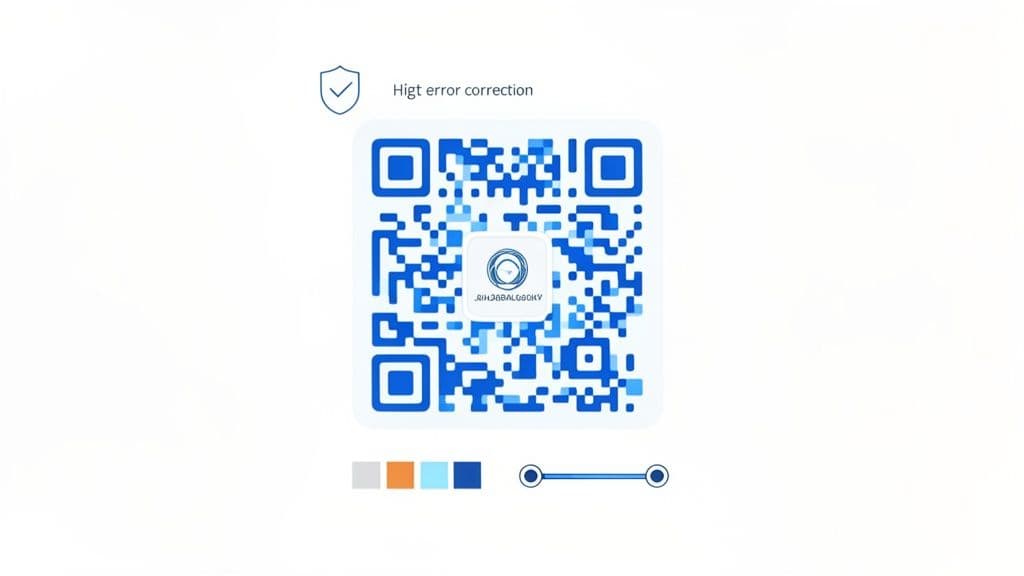
Here, we'll cover practical techniques for aligning your QR codes with your brand's visual style, from changing colors to embedding your company logo.
Adjusting Colors and Borders
The quickest way to customize a QR code is by changing its colors. Instead of the default black and white, you can use your brand's primary color for the code and a lighter, contrasting shade for the background.
The qrcode library makes this easy by letting you specify fill_color and back_color.
Here’s a script that creates a blue QR code on a light grey background:
import qrcode

qr = qrcode.QRCode(
    version=1,
    error_correction=qrcode.constants.ERROR_CORRECT_H,
    box_size=10,
    border=4,
)

qr.add_data("https://www.yourbrand.com")
qr.make(fit=True)

# Create an image with custom brand colors
img = qr.make_image(fill_color="#004AAD", back_color="#E8E8E8")
img.save("branded_qr_code.png")
The border parameter defines the "quiet zone" around the QR code, which is essential for scanners to read it properly. A border of 4 (the default) is usually a safe choice.
Embedding Your Logo for Maximum Impact
Adding your logo is the ultimate branding move. It immediately tells customers who the QR code belongs to, building trust and encouraging scans. To do this, we need to place the logo in the center of the QR code, where it won't interfere with the code's data.
This process requires the Pillow library (which you installed earlier as part of qrcode[pil]). We'll use it to open our logo, resize it, and paste it onto the QR code image.
The secret to making this work is setting a high error correction level. This builds redundancy into the QR code, allowing it to remain scannable even when a portion of it—like the center—is covered by your logo.
Here’s the full script for embedding a logo:
import qrcode
from PIL import Image

# Step 1: Generate the QR Code with High Error Correction
qr = qrcode.QRCode(
    error_correction=qrcode.constants.ERROR_CORRECT_H,
    box_size=10,
    border=4,
)
qr.add_data('https://www.yourbrand.com')
qr.make(fit=True)
qr_img = qr.make_image(fill_color="black", back_color="white").convert('RGB')

# Step 2: Open and Resize Your Logo
logo_path = 'your_logo.png' # Make sure you have a logo file named 'your_logo.png'
logo = Image.open(logo_path)
logo_size = 100 # Adjust size as needed
logo = logo.resize((logo_size, logo_size))

# Step 3: Paste the Logo onto the QR Code
qr_width, qr_height = qr_img.size
pos = ((qr_width - logo_size) // 2, (qr_height - logo_size) // 2)
qr_img.paste(logo, pos)

# Step 4: Save the Final Image
qr_img.save('qr_with_logo.png')
Best Practices for Custom QR Codes
While customization is powerful, scannability is paramount. A beautiful code that doesn't work is useless. Keep these tips in mind:
- Maintain High Contrast: Always use a dark color for the QR code modules and a light color for the background. Low contrast is the number one reason QR codes fail to scan.
- Keep Logos Small: Your logo should not cover more than 20-25% of the QR code. Any larger and you risk making the code unreadable.
- Always Use High Error Correction: Set the error correction to
ERROR_CORRECT_H. This is non-negotiable when adding a logo. - Test, Test, Test: Before you print thousands of flyers, test your final design with multiple phones and scanning apps to ensure it works reliably.
For those who want advanced branding without writing code, platforms like QR Code Maker offer a user-friendly interface. You can learn more about how to create a custom QR code with a logo using our visual editor.
Python QR Code Questions, Answered
As you begin generating QR codes with Python, a few common questions often arise. Here are answers to some of the most frequent ones.
Which Python Library Is Better: qrcode or segno?
Both libraries are excellent, but they are suited for slightly different tasks.
For most everyday needs, the qrcode library is the perfect starting point. It’s incredibly straightforward and excels at creating standard PNG images quickly. If you need a simple code for a website, email, or internal document, it's a reliable workhorse.
However, if you are creating assets for professional printing—like large banners, product packaging, or business cards—segno is the clear winner. Its native support for vector formats like SVG and PDF provides infinitely scalable graphics that are essential for high-quality print production.
Can I Make Dynamic QR Codes With Python?
Not directly. The Python libraries discussed here create static QR codes. This means the data, such as a website URL, is permanently encoded into the pattern. Once printed, the destination cannot be changed.
Creating a "dynamic" QR code involves a different approach. You generate a static QR code that links to a special redirect URL that you control. You can then change where that URL sends users at any time. While you could build this redirect system yourself, it requires significant effort to maintain.
A dedicated platform is almost always the better choice for dynamic codes. A trusted service like QR Code Maker handles all the backend infrastructure for you. You can create, manage, and track dynamic codes without needing to manage a server, giving you the flexibility to update campaigns long after they've been printed.
How Do I Make Sure My Custom QR Code Is Scannable?
This is the most critical question. A beautifully designed QR code is useless if it doesn't scan. Scannability issues almost always come down to three key factors:
- Maintain High Contrast: This is essential. Always use a dark foreground (the modules) on a light background. Low contrast is the primary reason QR codes fail to scan, especially in poor lighting.
- Use High Error Correction: If you're adding a logo, you must set the error correction to high (
ERROR_CORRECT_H). This feature builds in redundancy, allowing the code to work even when part of it is covered. - Test, Test, and Test Again: Before going to print, test your final design thoroughly. Use a few different phones (both iPhone and Android) and a couple of different scanner apps to ensure it works reliably across devices.
Ready to create professional, trackable QR codes without writing a single line of code? QR Code Maker offers a powerful platform for businesses to design, manage, and analyze their QR code campaigns. Create your free QR code now!
Frequently Asked Questions
What are the benefits of using Python for QR code generation?
Using Python allows for greater flexibility, automation, and the ability to generate QR codes in bulk, which is not typically possible with online generators.
Which Python library is better for beginners?
The qrcode library is more beginner-friendly, offering a simple API for generating basic QR codes quickly.
Can I customize the appearance of my QR codes?
Yes, both qrcode and segno allow for customization, but segno offers more advanced styling options like gradients and module shapes.
Do I need to install additional software to use these libraries?
You will need to install Python and the libraries themselves, but no additional software is required beyond that.
What if I need features like analytics or dynamic updates?
For advanced features, consider using dedicated platforms like QR Code Maker, which provide these functionalities without coding.
Ready to create your QR code?
Free forever for static codes. Pro features with 14-day trial, no credit card required.

Irina Aguiar
·Content LeadIrina Aguiar leads content strategy at QR Code Maker, where she has written extensively on QR code technology, marketing, and business operations. Her work ranges from technical explainers on how QR codes are generated and how error correction works to practical guides on QR marketing, automation, and scan analytics — plus hands-on tutorials covering Python, Google Sheets, and Zapier integrations. She also publishes honest competitor comparisons and industry-specific playbooks for retail, real estate, hospitality, healthcare, and events.
More from Irina Aguiar →Related Articles
How to Make and Use Transparent QR Codes for Professional Branding
Learn to design transparent qr codes that blend with your brand, stay scannable, and drive engagement with practical tips and real-world examples.
Survey QR Code: Your Guide to Gathering Feedback Instantly
Learn how to create a dynamic survey QR code to collect valuable customer feedback instantly. Our guide covers everything from creation to analysis.
The 12 Best QR Code Monkey Alternative Tools in 2026
Searching for a QR Code Monkey alternative? Discover the 12 best QR code generators for creating dynamic, branded, and trackable codes for your business.