Download Formats: PNG, SVG, PDF
Download your QR codes as PNG for web and email, SVG for scalable print, or PDF for professional production. All three formats are free on every plan.
We offer three formats. The right choice depends on where your QR code is going.
| Format | Best For | Scalable? |
|---|---|---|
| PNG | Web, social media, email | No (fixed pixels) |
| SVG | Print, large formats, design work | Yes (infinitely) |
| Print shops, professional production | Yes |
All formats are available on all plans, including free.
PNG
PNG is a pixel-based image. It works everywhere—websites, social media, email, presentations. The trade-off: it has a fixed resolution, so it gets blurry if you enlarge it too much.
We offer PNG at multiple resolutions:
- 1x (72 DPI) – Basic screen use
- 2x (150 DPI) – Retina screens, small print
- 3x (300 DPI) – Print quality
- Custom – Set your own dimensions
For print, use 300 DPI. For screen, 150 DPI handles retina displays well.
SVG
SVG is a vector format—math, not pixels. It stays crisp at any size, from business cards to billboards. Designers love it because it works in Illustrator, Figma, Sketch, and most design tools.
Good Habit
Always download the SVG even if you only need PNG right now. You can convert SVG to PNG later, but not the reverse.
PDF embeds the QR code in a print-ready document format. Print shops often prefer this, and it's great when you need to include the QR code in other PDF documents.
Quick Guide by Use Case
Website or email: PNG at 2x resolution for crisp display on high-res screens.
Social media: PNG at 1080px or larger.
Business cards: SVG or PDF for sharp print at small sizes. See our logo guide for tips on adding brand marks.
Posters or banners: SVG—scales perfectly to any size.
Product packaging: SVG or PDF. Designers and printers prefer vectors.
Minimum Print Sizes
Absolute minimum: 2cm × 2cm (0.8" × 0.8") Recommended minimum: 3cm × 3cm (1.2" × 1.2")
For larger scanning distances, the code needs to be bigger. Rule of thumb: QR code width should be about 1/10 of the scanning distance. A code meant to be scanned from 6 feet away should be at least 6 inches wide.
See our troubleshooting guide if you're having scanning problems at distance.
Downloading
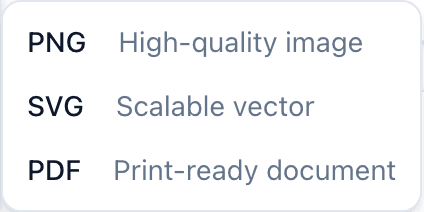
After creating or editing your QR code, click Download. Select your format, choose resolution for PNG if applicable, and download. You can download all three formats—it's free.
When creating QR codes in bulk, all codes are exported as PNG in a single ZIP file.
Common Questions
Can I convert PNG to SVG? Not without quality loss. SVG to PNG works fine, but not the reverse. That's why it's smart to always save the SVG.
My printer wants EPS? SVG converts to EPS easily in design software like Illustrator.
The SVG looks different in my software? Different apps render SVG slightly differently, but the code itself is correct. Try exporting to PNG at high resolution if it's causing issues.
Can I edit the downloaded QR code? You can edit colors and decorative elements in SVG, but don't modify the actual QR pattern—that'll break scannability.