Creating Your First QR Code
Step-by-step guide to creating your first QR code with QR Code Maker.
Making a QR code takes about two minutes. Here's the process from start to finish.
Create an Account (or Log In)
If you're new, sign up here. We don't ask for a credit card—you can create unlimited static QR codes for free, and they never expire.
Start a New QR Code
From your dashboard, hit the + Create QR Code button in the top corner. This opens the creation flow.
Pick Your Type
We support 21 different QR code types. The most common ones:
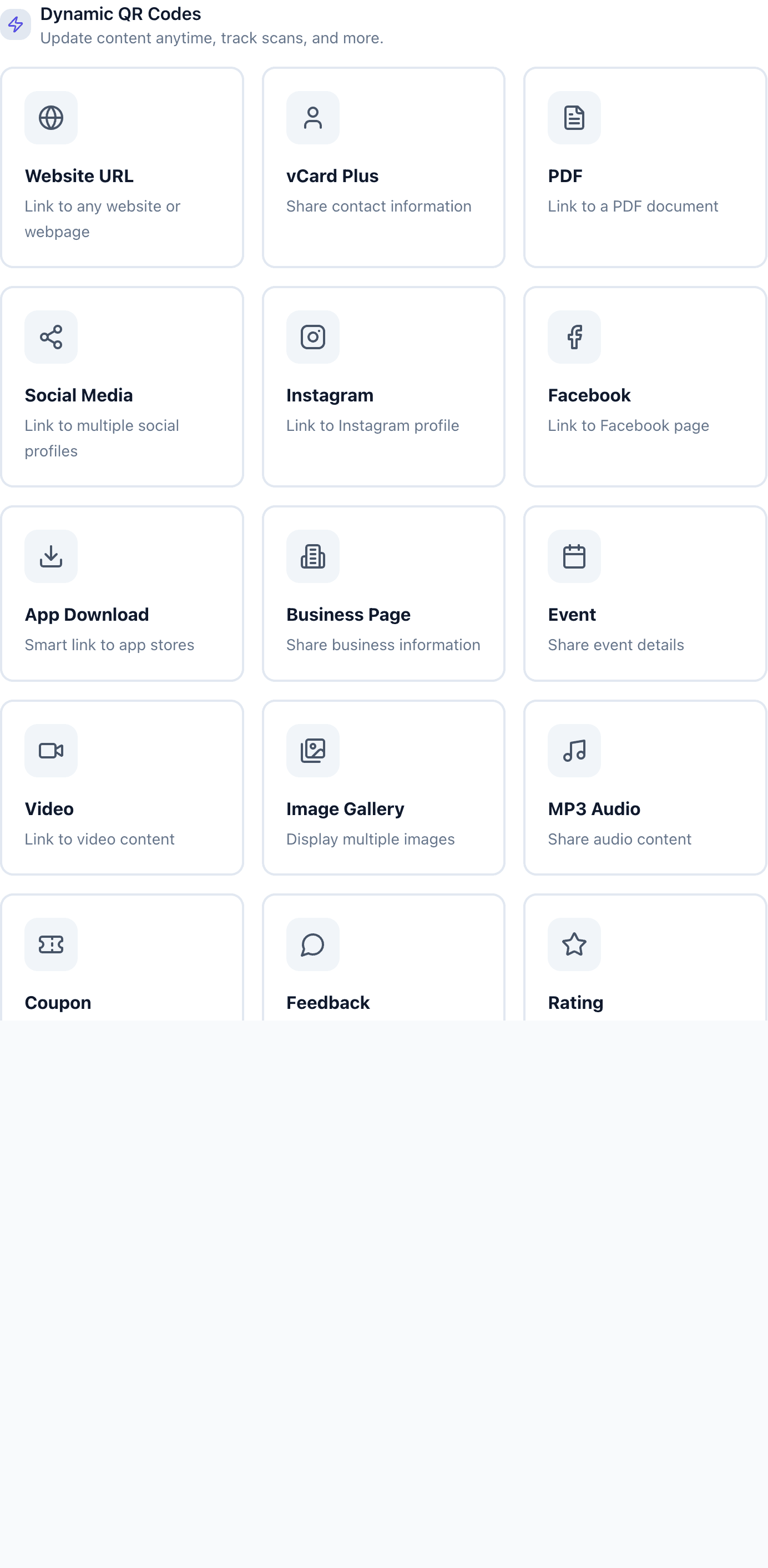
- Website — points to any URL (this is what most people need)
- vCard Plus — saves contact info directly to someone's phone
- PDF — links to a document you upload
- WiFi — lets people join your network without typing a password
- Social Media — links to multiple social profiles on one page
Not sure which to pick? Our guide on choosing a QR type breaks down when to use what.
Some types like PDF, Video, and Images involve file hosting, so they're only available on paid plans. Website, WiFi, and text QR codes work on free accounts.
Add Your Content
What you fill in depends on the type you chose. For a website QR code, you'll just paste in the URL. For a vCard, you'll enter name, phone, email, and so on.
The form will guide you through what's needed.
Customize the Look (Optional)
By default you get a black-and-white QR code. If you want something that matches your brand:
- Change the foreground and background colors
- Add your logo in the center
- Pick a frame with call-to-action text like "Scan me"
One thing to watch: if your colors don't have enough contrast, the code might not scan reliably. We'll warn you if that's the case.
Download
When you're happy with it, click Download. You can grab it as:
- PNG — good for screens, emails, and web
- SVG — scales to any size without getting blurry (best for print)
- PDF — ready to send to a printer
Test Before You Print
This is important. Before you print 500 business cards or a conference banner, scan the code yourself. Open your phone's camera, point it at your screen, and make sure it goes where you expect.
A surprising number of QR code disasters come from skipping this step. Test every time.
What's Next
Once you've got the basics down:
- Dynamic vs static codes — understand when you need each
- All QR code types — explore everything you can create
- Testing best practices — make sure your codes work every time